

Port selection is defined as the deliberate choice of physical interface types and quantities on a work laptop to match the connectivity demands of a specific professional workflow. Get it wrong and you spend your day hunting for adapters, losing a USB-C port to a charging cable, or watching a client presentation fall apart because your laptop has no HDMI output. Over 60% of office workers report limited laptop connectivity as a major productivity frustration. That number tells you this is not a minor inconvenience. The role of port selection in work laptops is to eliminate friction before it starts, and the right mix of USB-C, USB-A, and HDMI ports is the foundation of that goal.
Which ports are essential on work laptops and why?
The role of port selection in work laptops begins with understanding what each port type actually does in a real work context. Not every port is equal, and not every laptop needs the same mix.
USB-C: the modern workhorse
USB-C is the most versatile port on any current work laptop. A single USB-C port can handle data transfer, video output to an external display, and power delivery for charging, all at the same time when paired with the right cable and hub. That flexibility is why most business laptops now ship with at least two USB-C ports. Thunderbolt 4, which uses the USB-C connector, pushes this further by supporting data speeds up to 40 Gbps and daisy-chaining multiple monitors. For IT professionals managing complex desk setups, Thunderbolt 4 is worth the premium.

USB-A: still non-negotiable
USB-A is not dead. Wired mice, USB flash drives, hardware security keys like YubiKey, and older peripherals all use USB-A. Dropping USB-A entirely forces you to carry a dongle for every one of those devices. The recommended baseline configuration for a functional work laptop is at least two USB-C ports, one USB-A port, and one HDMI port. That mix covers the vast majority of professional scenarios without requiring a hub.
HDMI: the presentation port that earns its keep
HDMI is the standard video output in conference rooms, hotel meeting spaces, and client offices worldwide. A built-in HDMI port means you plug in and present. Without it, you need a USB-C to HDMI adapter, which is one more thing to forget, lose, or find incompatible. Built-in HDMI and USB-A reduce setup friction and cut dongle reliance directly. That translates to faster setup and fewer embarrassing delays.
Port comparison at a glance
| Port type | Primary use | Key advantage | Main limitation |
|---|---|---|---|
| USB-C (standard) | Data, charging, video | Versatile, modern standard | Requires compatible cable/hub |
| Thunderbolt 4 | High-speed data, multi-monitor | 40 Gbps, daisy-chain displays | Higher cost, fewer peripherals |
| USB-A | Legacy devices, flash drives | Universal compatibility | Larger physical footprint |
| HDMI | External displays, projectors | Plug-and-play in most rooms | Single-purpose port |
| 3.5mm audio | Headsets, speakers | Universal audio standard | Absent on some ultrabooks |
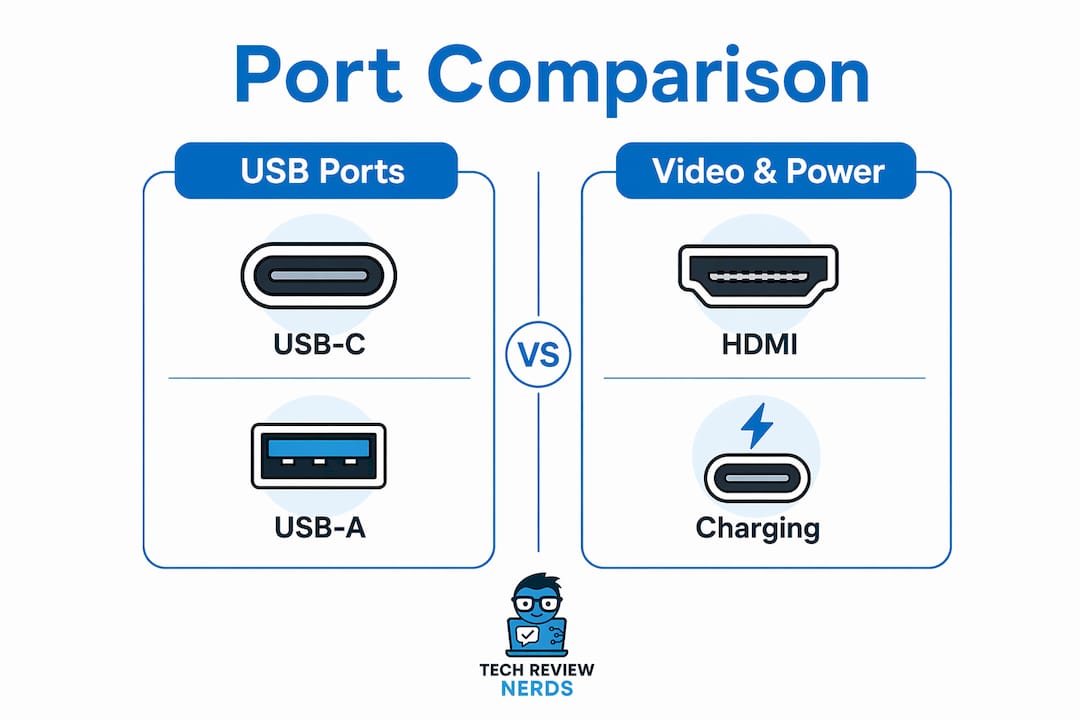
Pro Tip: If your laptop has only two USB-C ports, verify that both support power delivery and video output before you buy. Some manufacturers restrict those functions to one port only.
How does port selection impact productivity for remote workers?
Dongle fatigue is a measurable productivity drain. It describes the cumulative frustration and time lost when workers must constantly attach, detach, and manage adapter chains just to connect standard peripherals. Remote workers feel this most acutely because they move between home offices, coffee shops, and client sites, each with different display and peripheral setups.
Charging encroachment: the hidden port thief
Charging encroachment is one of the most overlooked problems in laptop port planning. It happens when a USB-C charging cable permanently occupies one of your USB-C ports, cutting your available connectivity in half. On a laptop with two USB-C ports, that leaves you one port for everything else: an external display, a hub, a docking station. Charging encroachment is a common productivity trap that forces workers into adapter dependency even on relatively well-equipped machines. The fix is simple: choose a laptop with three or more USB-C ports, or one that supports charging via a dedicated barrel connector alongside USB-C ports.
Docking stations and the multi-environment worker
A quality docking station solves most port shortage problems for workers with a fixed desk. It expands a single USB-C or Thunderbolt connection into multiple USB-A ports, HDMI or DisplayPort outputs, ethernet, and audio. The catch is power management. Unpowered hubs cannot supply sufficient current for SSDs and multi-monitor setups, risking data loss and display disconnections. An AC-powered docking station, such as those from CalDigit or Anker, eliminates that risk entirely.
Pro Tip: When evaluating a docking station, check its total power delivery wattage. A dock that delivers less than 60W to your laptop will charge it slowly under load, which defeats the purpose of a clean single-cable desk setup.
The goal of port selection is friction reduction: enabling smooth transitions between work environments without needing adapters. A remote worker who moves from a home office to a client site should be able to plug in and work within 30 seconds. That only happens when the laptop’s built-in ports match the most common scenarios without requiring a bag full of dongles.
What are network port considerations for security and performance?
Physical laptop ports and network ports are different things, but both fall under the broader discipline of port selection for IT professionals. Network ports are numbered communication endpoints that software services use to send and receive data. Choosing which network ports your remote management tools run on has real security and performance consequences.
Why default network ports create risk
Every automated attack scanner on the internet knows that SSH runs on port 22, RDP runs on port 3389, and HTTP runs on port 80. Moving a service off its default port reduces automated attack traffic by roughly 90–95%. That is not a small reduction. It means your firewall logs become readable, your intrusion detection system focuses on real threats, and your IT team spends less time filtering noise.
The right way to think about non-default ports
Changing a default port is noise reduction, not a security strategy on its own. Port selection for remote management tools is a complement to strong authentication and encryption, not a substitute. A well-configured SSH setup on a non-standard port, combined with key-based authentication and fail2ban, is genuinely harder to attack than the same setup on port 22. But a weak password on a non-standard port is still a weak password.
Non-standard ports can also introduce latency. Network filtering and misconfiguration on corporate firewalls sometimes add processing delay when traffic uses unexpected ports. IT professionals should test round-trip times after changing service ports, especially for latency-sensitive tools like remote desktop sessions.
Here is a practical sequence for IT professionals managing remote work laptops:
- Identify which services are exposed to the internet on each managed laptop or server.
- Move SSH and RDP off their default ports in the service configuration files.
- Update firewall rules to allow traffic only on the new ports from known IP ranges.
- Enable key-based authentication for SSH and disable password login entirely.
- Monitor logs for at least two weeks after the change to confirm the noise reduction and catch any legitimate access issues.
“Port selection for remote management is a noise reduction strategy, not a substitute for strong security.” — Teleport
How to choose laptop ports effectively based on your role
Choosing laptop ports effectively means starting with your actual workflow, not a spec sheet. The right port mix for a field IT technician looks nothing like the right mix for a remote developer or a hybrid account manager.
Map your connected devices first
Before you evaluate any laptop, list every device you connect on a typical workday. That list usually includes an external monitor, a wired keyboard and mouse, a USB headset or webcam, a hardware security key, and possibly an ethernet cable for secure network access. Count the connection types each device needs. That count tells you the minimum port configuration your laptop must have before you consider a hub.
Role-specific port priorities
Different roles have genuinely different needs. An IT administrator typically needs USB-A for flash drives and hardware keys, ethernet for direct network access, and USB-C for a docking station at a fixed desk. A remote developer benefits most from Thunderbolt 4 for driving dual monitors and fast external SSD access. A hybrid professional who splits time between home and client offices needs built-in HDMI and USB-A to avoid carrying adapters into every meeting room.
Pro Tip: Before buying, physically test your most-used peripherals with the laptop model you are considering. Port placement matters as much as port count. Two USB-A ports on the same side of the laptop can block each other when wide adapters are plugged in.
Balancing built-in ports with hub reliance
A laptop with the right port mix built in is always preferable to one that requires a hub for basic functionality. Hubs add cost, add a failure point, and add something else to carry. That said, no laptop covers every scenario natively. The practical approach is to choose a laptop that handles your daily 80% of tasks without a hub, then use a quality docking station for your fixed desk setup. For workers researching laptop docking station options, the key variables are power delivery wattage, display output count, and USB-A port availability.
Work environment also shapes the decision. Home office workers can rely more heavily on a docking station because the dock stays on the desk. Workers who travel frequently need more built-in ports because they cannot always carry the dock. Hybrid professionals need both: a well-ported laptop and a capable dock for the days they are at a fixed desk.
The importance of port selection also extends to future-proofing. USB4 and Thunderbolt 5 are beginning to appear on premium laptops in 2026. If you plan to keep a laptop for four or more years, a model with at least one Thunderbolt 4 port gives you headroom for next-generation peripherals without requiring a full hardware refresh.
Key Takeaways
Deliberate port selection is the single most practical step you can take to protect productivity on a work laptop, because the wrong port mix forces adapter dependency that compounds across every workday.
| Point | Details |
|---|---|
| Baseline port configuration | Choose at least 2x USB-C, 1x USB-A, and 1x HDMI to cover most professional scenarios natively. |
| Charging encroachment | Verify that charging does not permanently occupy a USB-C port, cutting available connectivity in half. |
| Network port security | Moving SSH and RDP off default ports reduces automated attack traffic by 90–95%, cutting security noise. |
| Docking station power | Use an AC-powered dock for fixed desks; unpowered hubs risk data loss with SSDs and multi-monitor setups. |
| Role-based port planning | Map your connected devices before buying; IT admins, remote developers, and hybrid workers need different port mixes. |
Ports matter more than most buyers realize
I’ve reviewed a lot of laptops, and the port question comes up in nearly every buying conversation I have with IT professionals and remote workers. The honest truth is that most people underestimate it until they are six months into a machine they otherwise love, carrying a bag of dongles everywhere they go.
The issue I see most often is charging encroachment. Someone buys a thin ultrabook with two USB-C ports, plugs in the charger, and suddenly has one port left for everything else. They buy a hub. The hub is unpowered. Their external SSD disconnects randomly. They blame the laptop when the real problem was a port planning decision made at the point of purchase.
My recommendation for 2026 is to treat port count as a hard filter, not a nice-to-have. If a laptop cannot meet your baseline configuration without a hub, it should not make your shortlist unless the tradeoff, usually weight or battery life, is genuinely worth it for your specific role. I also think the industry is moving too fast toward USB-C-only designs without giving workers enough time to retire their USB-A peripherals. A single USB-A port costs almost nothing in terms of chassis space and saves real frustration.
For network port decisions, I’d encourage IT teams to stop treating default port changes as optional. The noise reduction alone justifies the 20 minutes it takes to reconfigure SSH. Pair that with key-based authentication and you have meaningfully reduced your attack surface with minimal effort.
Port needs also change as workflows change. Reassess your port requirements every time you change roles, add a new peripheral, or move to a new work environment. The laptop that was perfect for a home office setup may fall short the moment you start traveling to client sites weekly.
— K. Connors
Find laptops built for real work connectivity
Researching port configurations across dozens of laptop models takes time you probably do not have. Techreviewnerds tests laptops with real work peripherals in real environments, which means the port assessments reflect what you will actually experience, not just what the spec sheet lists.

The laptops category at Techreviewnerds covers models across every price range, with port configurations called out specifically for IT professionals and remote workers. If you are also weighing whether a docking station can compensate for a thinner laptop, the USB-C hubs and docking stations guide breaks down which docks deliver enough power for demanding setups. Port needs vary by role, so both resources are worth checking before you commit to a purchase.
FAQ
What is the best port configuration for a work laptop?
The recommended baseline is two USB-C ports, one USB-A port, and one HDMI port. That mix covers external displays, legacy peripherals, and charging without requiring adapters for most professional scenarios.
What is dongle fatigue and why does it matter?
Dongle fatigue is the productivity loss caused by constantly managing adapter chains to connect standard peripherals. It increases setup time and creates frustration during transitions between work environments.
Does changing SSH port numbers actually improve security?
Moving SSH off port 22 reduces automated attack traffic by roughly 90–95%, which cuts log noise and lets security tools focus on real threats. It is not a replacement for strong authentication, but it is a worthwhile first step.
How does charging encroachment affect laptop port availability?
Charging encroachment occurs when a USB-C charging cable permanently occupies one of a laptop’s USB-C ports, halving the available connectivity for peripherals and displays.
Should I rely on a docking station instead of built-in ports?
A docking station works well for fixed desk setups, but it requires an AC-powered model to safely support SSDs and multi-monitor configurations. For travel, built-in ports are always more reliable than carrying a hub.