

Laptop specifications are the single biggest factor determining whether your remote work setup runs smoothly or constantly holds you back. The right hardware lets you run Microsoft Teams, Slack, a browser with a dozen tabs, and a document editor all at once without a hiccup. The wrong hardware turns every task into a waiting game. Understanding why remote work laptop specs matter gives you the clarity to buy with confidence instead of guessing at marketing language. At Techreviewnerds, I’ve seen remote workers lose hours every week to sluggish machines that were just one spec upgrade away from performing well.
Which laptop specifications most impact remote work performance?
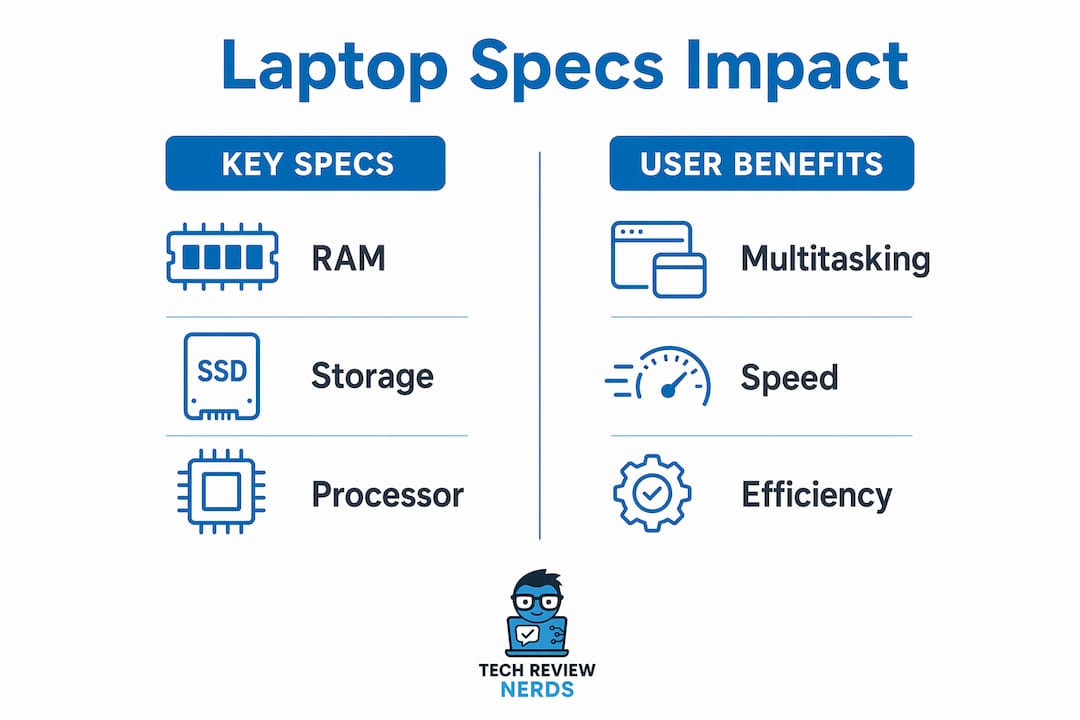
Remote work workflows bottleneck on memory and storage far more often than on raw CPU speed. That single fact reshapes how you should prioritize your budget.
RAM: the multitasking foundation
16GB RAM is the minimum for smooth multitasking in a typical remote setup. Most remote workers run 10–15 browser tabs alongside Teams or Slack and at least one office app simultaneously. An 8GB machine handles that load by swapping data to the drive, which creates the frustrating “thinking” pause you feel between clicks. Upgrading to 16GB eliminates most of that friction. If you regularly work with large spreadsheets, video editing, or virtual machines, 32GB becomes the smarter call.

Storage type: NVMe vs. SATA
NVMe SSDs launch apps 3–5 times faster than SATA SSDs. That gap shows up every single time you open a file, boot the machine, or switch between programs. A SATA SSD is still far better than a spinning hard drive, but NVMe is now the standard worth insisting on. Check the spec sheet carefully because some budget laptops still ship with SATA storage even in 2026.
Processor: balance over raw power
The CPU matters, but matching specs to your workload matters more than chasing the highest tier. A mid-range Intel Core i5 or AMD Ryzen 5 processor paired with 16GB RAM and an NVMe SSD will outperform a high-end CPU paired with 8GB RAM and SATA storage in everyday remote tasks. The processor becomes the limiting factor only when you run sustained heavy workloads like video rendering or large data processing.
Battery capacity: trust watt-hours, not marketing claims
Battery capacity in watt-hours is a more reliable predictor of real runtime than the “up to X hours” figure on the box. A laptop with a 72Wh battery will consistently outlast one with a 45Wh battery under the same workload. Vendor runtime claims are measured under ideal conditions that rarely match a real workday. Look for the Wh rating in the full spec sheet, not the headline number.
Pro Tip: When comparing two laptops, divide the battery capacity in Wh by the screen size and processor TDP to get a rough efficiency ratio. A higher ratio usually means better real-world battery life.
Here is a quick reference for the specs that matter most:
| Spec | Minimum for remote work | Recommended |
|---|---|---|
| RAM | 8GB | 16GB or more |
| Storage type | SATA SSD | NVMe SSD |
| Battery capacity | 45Wh | 65Wh or more |
| Display resolution | 1366×768 | 1920×1080 (Full HD) |
| Webcam | 720p | 1080p with noise reduction |
How do display quality and ergonomics affect productivity?
The display is your primary interface during an eight-plus-hour workday, and its quality directly affects how you feel by 3 PM. A dim, low-resolution screen forces your eyes to work harder, and that fatigue compounds over weeks and months.
Display brightness around 300 nits and Full HD resolution at 1920×1080 reduce eye strain and improve readability for remote workers. Ergonomics research links prolonged screen exposure to visual discomfort and computer vision syndrome, with daily hours of screen time and poor lighting as the main risk factors. Good display specs reduce that risk, but they work best when paired with proper room lighting and regular breaks.
Color accuracy matters more than most remote workers realize. Graphic designers, marketers reviewing ad creative, or anyone approving visual content needs a display that shows colors faithfully. A panel with at least 100% sRGB coverage handles most professional color work without distortion.
The keyboard and trackpad deserve attention too. A keyboard with adequate key travel reduces typing fatigue over long sessions. A responsive trackpad cuts down on the need for an external mouse, which matters when you are working from a coffee shop or a hotel room.
Webcam and microphone quality significantly affect remote meeting productivity. A 1080p webcam with noise reduction and a privacy shutter is the standard worth targeting in 2026. Poor audio is actually more disruptive to a meeting than poor video. If your laptop’s built-in microphone picks up background noise, an external option like the Logitech Blue Yeti fixes that problem quickly.
Pro Tip: Position your laptop screen at eye level and set brightness to match your room lighting. A screen that is noticeably brighter than your surroundings accelerates eye fatigue, regardless of how good the panel specs are.
Why does laptop connectivity matter for remote setups?
Connectivity is the part of the spec sheet that remote workers most often overlook until something goes wrong. A laptop with a fast processor and plenty of RAM still frustrates you if it cannot connect to your monitor, docking station, or wired network.
The ports you need for a solid home office setup include:
- USB-C or Thunderbolt 4 for high-speed data transfer and display output
- HDMI for direct monitor connection without an adapter
- USB-A for legacy peripherals like keyboards, mice, and USB drives
- Ethernet for a stable wired connection during video calls
- SD card reader if you work with cameras or media files
Docking station compatibility is where things get complicated. Docking station compatibility with ports, power delivery wattage, and multi-display support is mission-critical for stable multi-device setups. The Belkin Connect Pro TB4 dock, for example, provides 90W power delivery and dual HDMI 2.0 output, which covers most Windows-based multi-monitor setups. Mac users face an additional wrinkle: macOS has Multi-Stream Transport limitations that prevent some docks from driving two external displays simultaneously over a single cable. Checking OS compatibility before buying a dock saves a frustrating return process.
Multi-monitor setups require careful matching of docking station capabilities with your laptop’s graphics and operating system. A dock that works perfectly on a Dell XPS may behave differently on a MacBook Pro. Always verify the dock’s compatibility list before purchasing.
Here is a comparison of common connectivity scenarios:
| Setup | Ports needed | Recommended solution |
|---|---|---|
| Single external monitor | HDMI or USB-C | Direct cable or single-port adapter |
| Dual monitors on Windows | Thunderbolt 4 or USB-C with MST | Thunderbolt 4 dock |
| Dual monitors on Mac | Thunderbolt 4 | Thunderbolt 4 dock with Mac MST support |
| Wired network plus peripherals | Ethernet, USB-A, USB-C | Full docking station |
Fast charging support also matters more than it used to. A laptop that charges to 80% in under an hour gives you real flexibility on days when you are moving between locations. Look for USB-C Power Delivery at 65W or higher for fast-charge capability. The Techreviewnerds guide on choosing a laptop docking station covers power delivery wattage in detail if you want to go deeper on this.
How to evaluate laptop specs against your actual needs
The most common mistake remote workers make is buying the highest CPU tier available and skimping on RAM and storage. Hardware specs explain a very large portion of observed user experience metrics in web browsing and video conferencing, but the relationship is not linear. More CPU power beyond a certain threshold adds little to everyday remote work performance.
Start by mapping your actual workload. Ask yourself:
- Do you run more than 10 browser tabs at once?
- Do you use video conferencing apps like Teams or Zoom for more than two hours a day?
- Do you work with large files, such as high-resolution images or video?
- Do you need to connect two or more external monitors?
- Do you frequently work away from a power outlet?
Each “yes” answer points toward a specific spec priority. Heavy browser and app use demands 16GB RAM. Long video calls demand a good webcam and microphone. Large files demand NVMe storage with at least 512GB capacity. Multi-monitor work demands Thunderbolt 4 connectivity. Frequent travel demands a battery over 65Wh.
Spec sheets are often optimized for marketing, not practical understanding. Verify the RAM amount, SSD type, and battery capacity carefully rather than trusting the headline model name. A laptop marketed as a “business powerhouse” may ship with 8GB RAM and SATA storage at the base configuration.
Independent benchmark tests give you a more honest picture than vendor claims. The Techreviewnerds laptop benchmark guide explains which tests map most closely to real remote work tasks like sustained multitasking and video call performance.
Pro Tip: Before buying, search for the exact model number plus “real-world battery test” rather than relying on the manufacturer’s runtime claim. Independent testers consistently report 20–40% lower battery life than the advertised figure under normal workloads.
Consider whether you will primarily use the laptop docked at a desk or carry it daily. A docked setup lets you prioritize display quality and port variety over weight. A portable setup makes battery life and weight the top priorities. Some remote workers buy a lighter machine for travel and use a docking station to extend its capabilities at home. The Techreviewnerds roundup of best laptops for work and everyday use breaks down top picks by use case if you want specific model recommendations.
Laptop buyers increasingly prioritize reliability, video-call hardware, and connectivity over raw processing power. That shift reflects how remote work actually plays out day to day. The machine that handles a Teams call without dropping frames and connects to your dock without driver issues is more valuable than one with a faster chip that frustrates you in other ways.
Key Takeaways
Remote work laptop performance depends on RAM, NVMe storage, display quality, battery capacity, and connectivity working together, not on any single spec in isolation.
| Point | Details |
|---|---|
| Prioritize RAM and storage first | 16GB RAM and an NVMe SSD eliminate the most common remote work bottlenecks. |
| Read battery capacity in Wh | Watt-hour ratings predict real runtime more accurately than vendor hour claims. |
| Verify display specs for comfort | Full HD resolution and 300 nits brightness reduce eye strain during long sessions. |
| Check connectivity before buying | Thunderbolt 4 and USB-C Power Delivery are the ports that matter most for docked setups. |
| Match specs to your workload | A balanced mid-range build outperforms a high-CPU machine with weak RAM and storage. |
The spec that actually costs you the most is the one you ignored
I’ve watched remote workers buy premium laptops and still complain about performance within a month. Almost every time, the problem traces back to one overlooked spec. Someone paid for a fast processor but got 8GB of RAM. Someone else bought a beautiful display but skipped Thunderbolt 4 and then couldn’t run two monitors without a workaround. The machine looked great on paper and felt disappointing in practice.
The honest truth is that most remote work tasks are not computationally demanding. Video calls, document editing, and browser-based tools do not need the fastest chip on the market. What they do need is enough memory to avoid swapping, fast enough storage to keep apps responsive, and a display that does not tire your eyes by noon. Those three things together cost less than a top-tier CPU upgrade, and they make a bigger difference in your actual day.
I think the ergonomics side gets underestimated even more. A display that is too dim or a keyboard with shallow key travel adds up to real physical discomfort over months. That discomfort affects focus and output in ways that are hard to measure but very easy to feel. Spending an extra $100 on a laptop with a better panel and keyboard is one of the highest-return upgrades a remote worker can make.
The other thing I keep coming back to is connectivity. Remote work setups evolve. You add a monitor, then a second one. You get a docking station. You need wired Ethernet for a stable call. A laptop without Thunderbolt 4 or adequate USB-C power delivery becomes a bottleneck the moment your setup grows. Buying for where your setup will be in 18 months, not just where it is today, is the mindset that saves money in the long run.
— K. Connors
Techreviewnerds picks for remote work laptops
Finding the right laptop for remote work means cutting through a lot of noise. Techreviewnerds publishes hands-on, independent reviews built around the specs that actually matter for home office productivity, not the ones that look best in a press release.
The Techreviewnerds laptop category brings together curated picks organized by use case, from lightweight portables to fully docked workstation setups. Each review covers real-world battery performance, multitasking behavior, and connectivity in detail. If you want to understand how a specific model handles a full day of video calls and heavy browser use, the benchmark testing guide explains exactly which tests to look for and what the numbers mean for remote work. No paid placements, no filler. Just honest assessments designed to save you time and money.
FAQ
What is the minimum RAM for remote work in 2026?
16GB RAM is the recommended minimum for remote work. Running Teams or Slack alongside a browser with multiple tabs and office apps simultaneously requires at least 16GB to avoid memory swapping and performance slowdowns.
Why does NVMe SSD matter more than processor speed?
NVMe SSDs launch applications 3–5 times faster than SATA SSDs, which directly affects how responsive your machine feels during everyday tasks. Most remote work bottlenecks come from memory pressure and storage latency, not CPU speed.
How do I know if a laptop has enough battery life for remote work?
Check the battery capacity in watt-hours rather than the advertised runtime. A capacity of 65Wh or more generally supports a full workday under mixed use. Vendor “up to X hours” claims are measured under ideal conditions that rarely reflect real workloads.
Does display resolution really affect productivity?
Full HD resolution at 1920×1080 and brightness of at least 300 nits reduce eye strain during long work sessions. Ergonomics research links poor display quality to visual fatigue and computer vision syndrome, both of which impair focus and output over time.
What ports does a remote work laptop need?
A remote work laptop needs at least one USB-C or Thunderbolt 4 port, HDMI, USB-A, and ideally Ethernet. Thunderbolt 4 is the most important port if you plan to use a docking station or run multiple external monitors.