

Computer accessories are external devices and tools that expand the functionality, comfort, and output of your computer system. Whether you work from home, game competitively, or just want a cleaner desk setup, the right peripherals make a real difference. This guide covers how to choose accessories based on compatibility and price tier, which categories deliver the most value, and how to build a setup that actually serves your workflow. Techreviewnerds has tested enough gear to know that quality and certification matter far more than spec sheets suggest.
What computer accessories should you actually buy?
The term “computer accessories” covers a wide range of hardware: input devices like keyboards and mice, output devices like monitors and speakers, connectivity tools like USB hubs and docking stations, and support gear like cable management trays and webcams. The industry term for this broader category is “computer peripherals,” and the two phrases are used interchangeably in most buying contexts. Knowing the difference between input, output, and connectivity accessories helps you shop with a clear purpose rather than buying whatever looks good on a product page.
A foundational home office setup builds comfort and productivity for 90% of users with a chair, a 27-inch 1440p monitor, a mechanical keyboard, and an ergonomic mouse. That combination costs roughly $1,500–$1,650 total. The takeaway is that a focused set of quality peripherals outperforms a cluttered desk full of cheap gadgets every time.

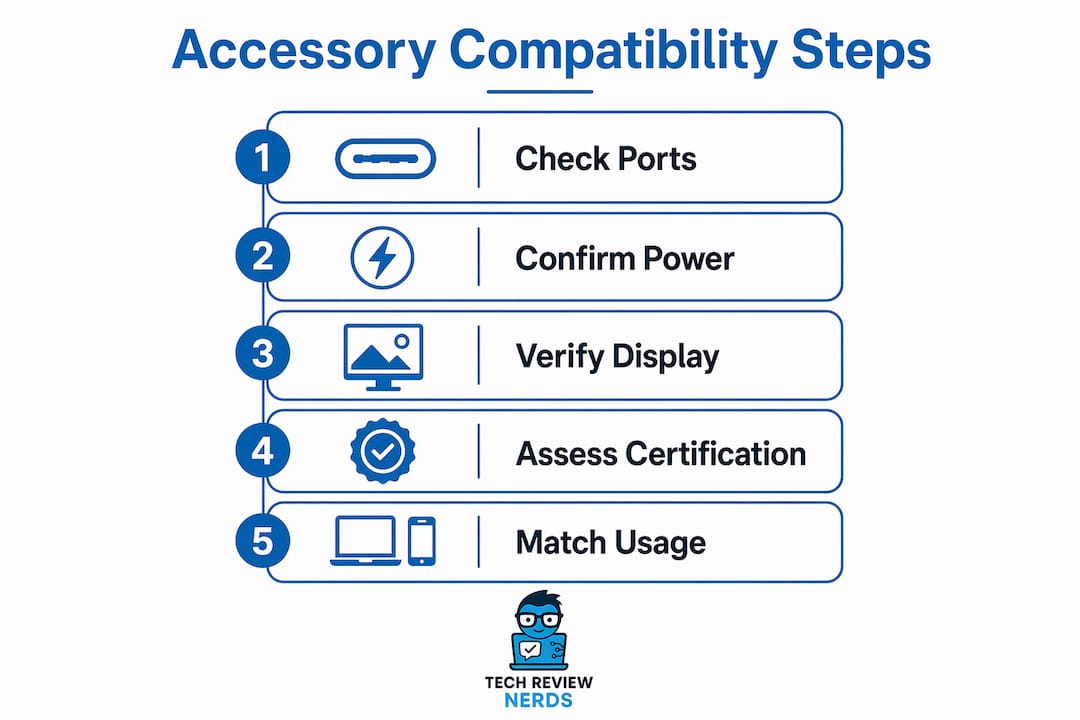
Compatibility is the first filter you should apply before spending anything. A monitor with DisplayPort 1.4 won’t deliver full resolution through an adapter that only supports HDMI 1.4. A USB-C hub that lacks Power Delivery passthrough will charge your laptop slowly or not at all. Checking your device’s spec sheet before buying any accessory saves you from the frustration of returns and workarounds.
How to select accessories based on compatibility and device needs
Port type is the single most important compatibility factor. Most modern laptops ship with USB-C or Thunderbolt 4 ports, and not all accessories work equally well across both. Thunderbolt 4 docks are justified only for heavy workloads like dual 4K output or weekly data transfers above 50GB. For typical home office use, a certified USB-C dock in the $40–$65 range handles the job without the premium price.
Power Delivery is the next thing to verify. The USB Power Delivery 3.1 standard, governed by the USB Implementers Forum (USB-IF), defines how much wattage a cable or charger can safely negotiate. Cables rated above 60W must include an E-Mark chip to negotiate current safely. Uncertified cables risk data corruption and permanent port damage. That is not a theoretical risk. It happens regularly with cheap no-name cables bought from discount marketplaces.
USB-IF certification and UL 62368-1 compliance are the two marks worth looking for on any cable or charging accessory. These certifications confirm that the product has passed independent safety and performance testing. A cable without these marks may work fine for months and then fail in a way that damages your laptop’s charging circuit.
- Check your laptop’s port spec sheet before buying any hub, dock, or cable. Look for USB-C generation (3.2 Gen 2 vs. Thunderbolt 4) and maximum wattage supported.
- Verify Power Delivery compatibility on any charger or hub. A hub that draws power from your laptop instead of passing it through will drain your battery during use.
- Look for USB-IF or UL 62368-1 marks on cables and chargers. These appear on the packaging or product listing under certifications.
- Avoid gold-plated connector marketing. Gold plating on standard USB connectors doesn’t improve performance in any measurable way for typical users.
- Match display output to your monitor’s input. A USB-C hub with HDMI 2.0 output cannot drive a 4K 144Hz monitor. Check both ends of the connection.
Pro Tip: Before buying a docking station, check your laptop’s port selection guide to confirm whether your USB-C port supports video output. Not all USB-C ports do, even on recent laptops.
How do price tiers affect accessory quality and reliability?
Accessory failure rates tell a clear story about price and certification. Entry-level accessories priced under $25 fail at an 8% rate over their warranty period. Certified mid-tier accessories in the $26–$75 range fail at just 3%. Premium accessories above $76 drop to a 1.2% failure rate. That data means mid-tier certified gear delivers 92% of premium functionality at roughly 41% of the cost.
| Price tier | Typical price range | Failure rate | Best for |
|---|---|---|---|
| Entry-level | Under $25 | 8% | Short-term or low-stakes use |
| Mid-tier certified | $26–$75 | 3% | Most home and office users |
| Premium | Above $76 | 1.2% | Heavy workloads, dual 4K, pro use |
The failure rate gap between entry-level and mid-tier is significant. Going from 8% to 3% failure risk is not a marginal improvement. It means you are roughly 2.5 times less likely to deal with a dead cable, a malfunctioning hub, or a keyboard that stops registering keystrokes after six months.
Premium accessories make sense in specific situations. If you run dual 4K monitors through a single dock, transfer large files daily, or depend on zero-latency audio for professional recording, the extra investment is justified. For everyone else, mid-tier certified gear is the practical sweet spot. Notably, 63% of premium accessory buyers underutilize the complex features they paid for. That is a lot of money sitting idle on a desk.
Certifications are the most reliable quality signal available to buyers. USB-IF certification, MFi (Made for iPhone/iPad/Mac) approval, and UL 62368-1 compliance all require third-party testing. A product with these marks has been verified to perform within safe parameters. A product without them has not, regardless of what the marketing copy says.
What are the essential accessories for productivity and ergonomics?
Ergonomics is where accessory investment pays off fastest. A poor chair impacts comfort within 2 hours of sitting, and monitor height directly affects neck strain and eye fatigue. Getting these two right delivers more comfort than adding a second monitor or upgrading to a mechanical keyboard. The chair and monitor are the foundation. Everything else builds on top.
Monitors and display accessories
A 27-inch 1440p monitor is the current standard for productivity work. It offers enough screen real estate for side-by-side windows without requiring a GPU that can push 4K. IPS panels deliver accurate color and wide viewing angles, which matters for long sessions. If you do creative work, look for monitors with Delta E ratings below 2 for color accuracy. For general office use, any IPS panel with 75Hz or higher refresh rate is a solid choice.
Monitor arms replace fixed stands and let you position the screen at exact eye level. That adjustment alone reduces neck strain significantly for most users. A quality monitor arm also frees up desk space, which improves cable management and reduces visual clutter.
Keyboards and mice
A mechanical keyboard is not just a preference item. The tactile feedback from mechanical switches reduces typing errors and fatigue during long sessions. The Logitech MX Mechanical is a well-regarded example of a wireless mechanical keyboard that balances quiet switches with ergonomic key travel. Membrane keyboards cost less but wear out faster and offer less consistent actuation force over time.
An ergonomic mouse matters more than most users expect. Vertical mice keep the wrist in a neutral position, reducing the rotation that causes repetitive strain. Trackball mice eliminate wrist movement entirely, which suits users who already experience discomfort. For gaming, a lightweight mouse with a high-precision optical sensor reduces arm fatigue during extended sessions.
Docking stations and connectivity hubs
A docking station converts a single USB-C or Thunderbolt 4 port into a full desktop connection point. One cable connects your laptop to your monitor, keyboard, mouse, Ethernet, and power. That single-cable connection is the most practical upgrade for anyone who moves between desk and mobile use regularly. Techreviewnerds covers the best docking station options for work-from-home setups in detail, including which hubs handle Power Delivery correctly.
Audio, webcams, and lighting
A USB condenser microphone improves call clarity far more than any laptop’s built-in mic. For video calls, a 1080p webcam with autofocus is the minimum worth buying in 2026. Laptop cameras have improved, but they still struggle in low light and produce soft images at distance. A dedicated ring light or a bias lighting strip behind the monitor reduces eye strain and improves how you appear on camera.
Pro Tip: Cable management is not cosmetic. Velcro ties and a simple cable tray under the desk reduce the number of stress points where cables bend and eventually fail. This extends the life of every cable in your setup.
How should you build and maintain your accessory setup over time?
The most common mistake buyers make is buying everything at once. Experts recommend starting with one certified key accessory, using it for 90 days, and then identifying the next real friction point before spending more. That approach prevents the desk clutter and buyer’s remorse that comes from impulse purchases.
Here is a practical sequence for building a setup incrementally:
- Start with ergonomics. Buy the chair and set up the monitor at eye level before anything else. These changes affect every hour you spend at the desk.
- Add a keyboard and mouse. Choose certified, mid-tier options with good reviews. Use them for at least 60 days before deciding whether to upgrade.
- Add connectivity. If you use multiple devices or need more ports, add a certified USB-C hub or docking station. Verify USB-IF certification before buying.
- Address audio and video. A USB microphone and a 1080p webcam improve call quality immediately. Add these when video calls become a regular part of your day.
- Manage cables last. Once your setup is stable, use velcro ties, cable clips, and a cable tray to organize everything. Doing this too early means redoing it every time you add a device.
Physical care extends accessory life significantly. Keyboards collect debris that causes keys to stick or misfire. Compressed air clears most of it in under a minute. Mouse feet wear down on rough desk surfaces, so a quality mouse pad protects both the mouse and the desk. Cables should never be bent sharply at the connector end, which is where most cable failures start.
Pro Tip: Replace any cable that shows visible wear at the connector sleeve immediately. A fraying cable does not just stop working. It can deliver inconsistent power that damages the device it is connected to.
Avoid buying accessories for features you do not use. A Thunderbolt 4 dock with dual 4K output is wasted on a setup with one 1080p monitor. Certified cables and docking stations reduce the risk of power surges and incompatible signals, but only the ones matched to your actual device needs.
Key Takeaways
Mid-tier certified computer accessories deliver the best balance of reliability, safety, and cost for most users, with failure rates of 3% compared to 8% for uncertified entry-level gear.
| Point | Details |
|---|---|
| Compatibility comes first | Check port type, Power Delivery wattage, and display output before buying any accessory. |
| Certification matters most | Look for USB-IF or UL 62368-1 marks on cables and chargers to avoid device damage. |
| Mid-tier is the sweet spot | Certified $26–$75 accessories offer 92% of premium functionality at 41% of the cost. |
| Ergonomics before gadgets | A good chair and correctly positioned monitor deliver more comfort than any other upgrade. |
| Build incrementally | Add one accessory at a time, use it for 90 days, then identify the next real friction point. |
Why I think most people buy accessories in the wrong order
I’ve watched a lot of people build desk setups, and the pattern is almost always the same. They buy the flashy stuff first: an RGB keyboard, a gaming headset, a webcam with 4K resolution they will never use on a 720p video call. Then they spend six months sitting in a chair that hurts their back, staring at a monitor positioned too low, wondering why they feel tired after two hours of work.
The ergonomics case is not exciting to make, but it is the most honest one. A $500 chair and a properly positioned 27-inch monitor will do more for your daily output than any combination of gadgets. I’ve tested enough peripherals to know that the accessories people undervalue most are the ones they interact with through their body, not their eyes.
The certification question is where I see the most money wasted. Buyers skip a $55 USB-IF certified hub and buy a $20 uncertified one instead. Then they spend $200 on a laptop port repair six months later. The math is not complicated. Certified gear is not a luxury. It is basic protection for hardware that costs ten times more than the accessory itself.
My honest advice is to resist the urge to build a complete setup all at once. Use what you have, notice what actually slows you down, and fix that one thing. Repeat. That process produces setups that work, rather than setups that look good in photos but create friction every single day. The best tech gadgets are the ones you actually use, not the ones that sit in a drawer after the novelty wears off.
— K. Connors
How Techreviewnerds helps you choose the right setup
Techreviewnerds publishes hands-on reviews and buying guides built around real use, not sponsored rankings. Every laptop review includes notes on port selection, accessory compatibility, and which peripherals pair well with that specific machine.

If you are building or upgrading a setup in 2026, the laptop reviews and guides on Techreviewnerds give you a clear starting point. Each review covers port configuration, Power Delivery support, and display output, so you know exactly which accessories will work before you spend anything. For users still deciding on a primary machine, the 2026 laptop buying guide walks through compatibility considerations alongside performance benchmarks. The goal is always the same: fewer bad purchases, more time actually working.
FAQ
What are computer accessories?
Computer accessories are external devices that expand or improve the functionality of a computer, including keyboards, mice, monitors, hubs, cables, and audio equipment. The industry term “computer peripherals” refers to the same category.
How do I know if an accessory is compatible with my laptop?
Check your laptop’s port types (USB-C, Thunderbolt 4, HDMI) and Power Delivery wattage before buying. Accessories must match your device’s port generation and power specs to function correctly.
Are certified accessories worth the extra cost?
Yes. Certified mid-tier accessories in the $26–$75 range fail at a 3% rate compared to 8% for uncertified entry-level gear, and they protect your device from power surges and port damage.
What accessories should I buy first for a home office?
Start with an ergonomic chair and a correctly positioned monitor. These two changes deliver more comfort and productivity than any other peripheral combination.
Do I need a Thunderbolt 4 dock or will a USB-C hub work?
A USB-C hub handles typical home office needs at a fraction of the cost. Thunderbolt 4 docks are worth the investment only for dual 4K output or weekly data transfers above 50GB.