
What is computer hardware?
Computer hardware refers to the physical components of a computer system, organized around four essential functions: input, processing, storage, and output. If you can touch it, it’s hardware. The CPU crunching numbers, the RAM holding your open tabs, the keyboard under your fingers — all of it falls under this umbrella.
The ten most common hardware components found in standard desktop and laptop systems are the CPU, motherboard, RAM, GPU, PSU, HDD or SSD, keyboard, mouse, monitor, and speakers. These split neatly into four categories:
- Processing hardware: CPU, GPU
- Memory hardware: RAM, ROM
- Storage hardware: HDD, SSD
- Input/output hardware: keyboard, mouse, monitor, speakers
Understanding these categories is the fastest way to make sense of any computer spec sheet, whether you’re shopping for a new machine or diagnosing a slow one.
Table of Contents
- How computer hardware evolved over time
- How computer architecture shapes what hardware can do
- What types of computer hardware systems exist?
- The key PC components you need to understand
- Thinking about your next hardware purchase?
- Key Takeaways
- FAQ
How computer hardware evolved over time
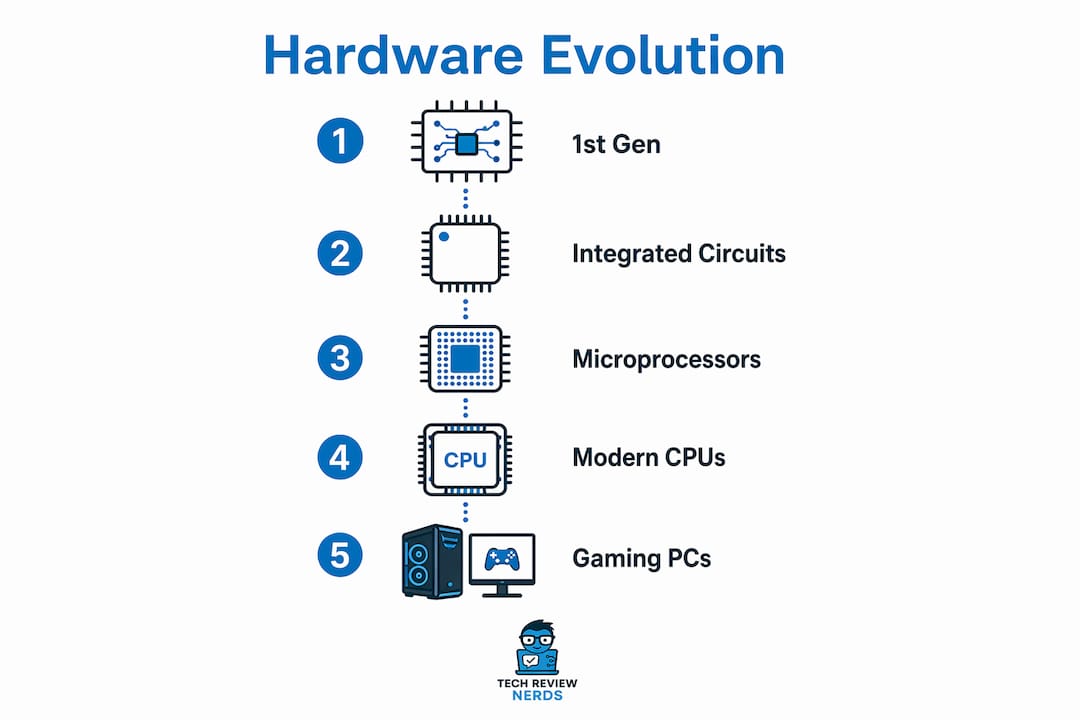
The history of hardware is really a story of shrinking things down while making them dramatically faster, highlighting the benefits of connected devices for home systems as part of modern hardware evolution.
- 1940s: Mechanical and vacuum tube computers. Early machines like ENIAC filled entire rooms and relied on thousands of vacuum tubes to perform calculations. They were slow, power-hungry, and prone to failure.
- 1950s: Transistors replace vacuum tubes. The transistor, invented at Bell Labs in 1947, made computers smaller and more reliable almost overnight. This shift laid the groundwork for everything that followed.
- 1960s: Integrated circuits arrive. Engineers figured out how to pack multiple transistors onto a single silicon chip. Computers shrank from room-sized to cabinet-sized.
- 1971: The first microprocessor. Intel released the 4004, a complete CPU on a single chip. That moment changed computing permanently, putting processing power into a package you could hold in your hand.
- 1980s: The personal computer era begins. IBM’s PC and Apple’s Macintosh brought hardware into homes and offices. Hard disk drives replaced floppy disks as the primary storage medium.
- 1990s: Speed wars and multimedia. Clock speeds climbed into the hundreds of megahertz range. CD-ROM drives, sound cards, and dedicated GPUs became standard PC components.
- 2000s: Multicore processors and SSDs. Rather than simply pushing clock speeds higher, manufacturers began placing multiple processor cores on one chip. Solid-state drives started appearing in premium laptops.
- 2010s: Mobile hardware and miniaturization. Smartphones packed desktop-class performance into chips measured in millimeters. SSDs became affordable enough to replace HDDs in mainstream laptops.
- 2020s: AI-accelerated hardware. Dedicated AI processing units now appear in consumer CPUs and GPUs, handling machine learning tasks that would have required a data center a decade ago.
Each generation built directly on the last. The integrated circuits that power a modern gaming PC trace their lineage straight back to that first transistor swap in the 1950s.
How computer architecture shapes what hardware can do
Computer architecture describes the structure and behavior of a computing system — essentially, the rules that govern how hardware components talk to each other and execute instructions.
Two layers matter most here:
- Instruction Set Architecture (ISA): The agreed-upon language between software and hardware. x86-64 (used by Intel and AMD desktop processors) and ARM (dominant in mobile and Apple Silicon chips) are the two most common ISAs today. Software compiled for one ISA generally won’t run natively on the other.
- Microarchitecture: The physical implementation of that ISA inside the chip. Two processors can share the same ISA but have completely different microarchitectures, which is why a newer chip often outperforms an older one running the same code.
Inside the CPU, two sub-units do the actual work. The Arithmetic Logic Unit (ALU) handles math and logic operations, while the Control Unit (CU) orchestrates the flow of data between the CPU, memory, and input/output devices. They work in lockstep through the fetch-decode-execute cycle: the CPU fetches an instruction from RAM, decodes what it means, and then executes it. This cycle repeats billions of times per second in a modern processor.
Pro Tip: When troubleshooting sluggish performance, think about where in the fetch-decode-execute cycle the bottleneck lives. A slow HDD delays the fetch stage; insufficient RAM forces the CPU to wait; a weak CPU struggles at the execute stage.
Architecture also determines compatibility. Pairing a CPU with a motherboard that uses a different socket type or memory standard simply won’t work, which is why checking chipset compatibility before you build a computer saves a lot of frustration.
What types of computer hardware systems exist?
Not all computers look like the tower sitting under a desk. Hardware systems span a wide range of form factors and use cases.
- Personal computers (desktops and laptops): The most familiar category. Desktops offer easier upgrades and better cooling; laptops trade those advantages for portability. Laptop hardware is typically more compact and power-efficient, though often less upgradeable.
- Servers and mainframes: Large-scale systems built for reliability and throughput rather than individual user experience. A web server handling thousands of simultaneous requests runs on hardware optimized for uptime, not gaming frame rates.
- Embedded systems: Specialized hardware built into a specific device to perform one task. The processor in your microwave, car’s ABS system, or smart thermostat is an embedded system. These chips are designed for efficiency and longevity, not general-purpose computing.
- Virtual hardware: Software that mimics physical hardware, allowing one physical machine to run multiple virtual machines. Cloud computing relies heavily on this model, where a single server rack can host dozens of virtualized environments.
| System type | Primary use | Upgrade flexibility | Example |
|---|---|---|---|
| Desktop PC | General and gaming | High | Home workstation |
| Laptop | Portable computing | Low to medium | College laptop |
| Server | Data and web hosting | Medium | Web hosting rack |
| Embedded system | Single-purpose tasks | None | Car ECU |
| Virtual machine | Cloud and testing | Software-defined | AWS EC2 instance |
Each system type uses the same fundamental hardware categories — processing, memory, storage, input/output — but scales and configures them differently based on the job at hand.
The key PC components you need to understand
CPU: the brain of the operation
The CPU is the component that actually runs your software. It fetches instructions from memory, decodes them, and executes them, all within that fetch-decode-execute cycle described earlier. Consumer CPUs today vary widely in clock speed, with higher clock speeds generally meaning faster single-task performance. Intel and AMD are the two primary CPU manufacturers for personal computers.
RAM: fast, temporary memory
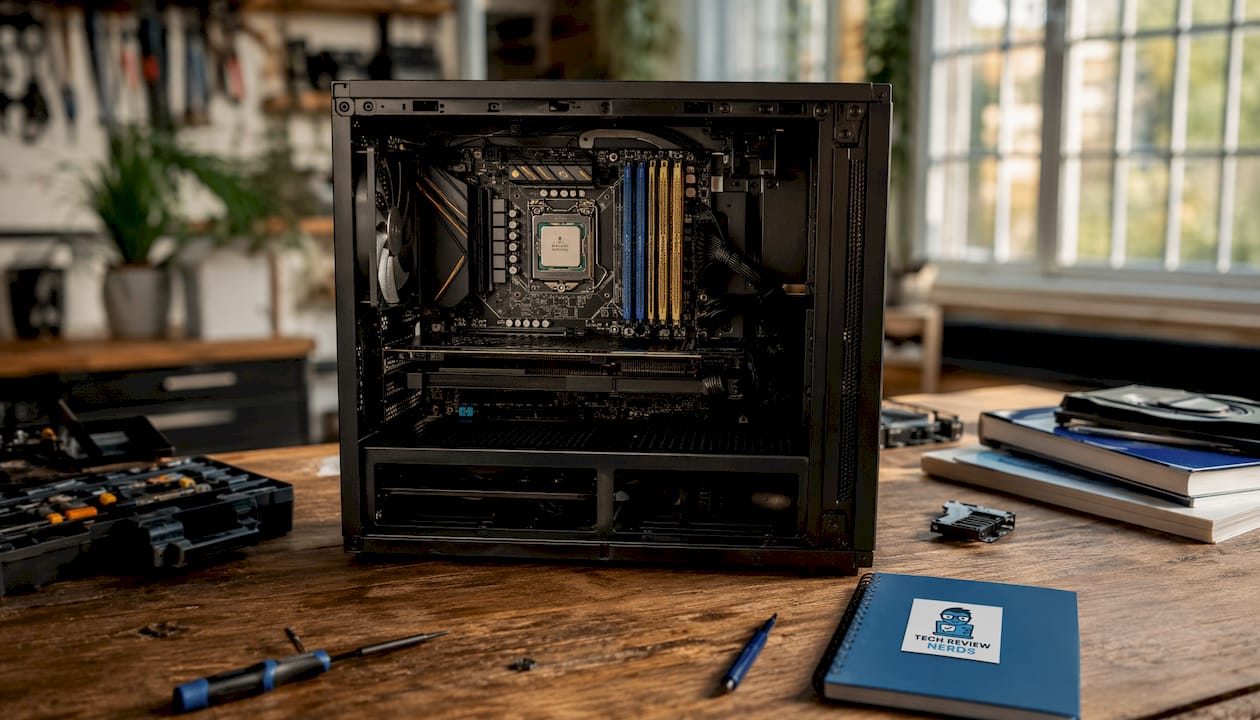
RAM stores volatile, temporary data to stage tasks for the CPU. When you open a browser with twenty tabs, all of that data lives in RAM for quick access. The moment you shut down, RAM is wiped clean. Upgrading RAM improves multitasking only when current capacity is the actual limiting factor — if your system already has more RAM than your workload demands, adding more won’t change anything noticeable.
GPU: built for visual workloads
The GPU handles graphical rendering, taking the load off the CPU for tasks like displaying video, running game engines, or processing AI workloads. Many modern CPUs include an integrated GPU on the same die, which handles everyday display tasks. A discrete GPU, installed as a separate card, is what you need for gaming, video editing, or machine learning.
Motherboard: the nervous system
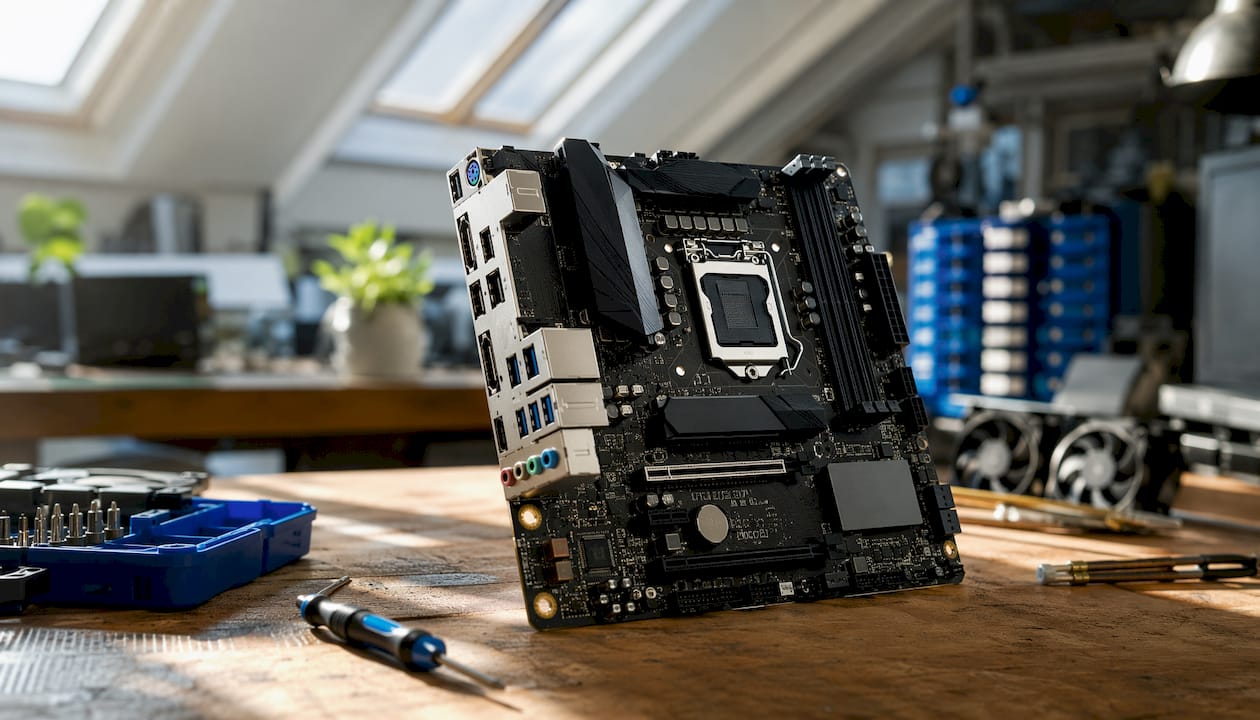
The motherboard connects every internal component and houses the BIOS/UEFI firmware that runs the Power-On Self-Test (POST) before the operating system loads. If POST fails, the motherboard is usually the first place to investigate. The bus on the motherboard determines how fast data moves between components, making it a quiet but critical factor in overall system speed.
Power Supply Unit (PSU)
The PSU converts AC power from your wall outlet into the DC voltages that internal components require. An underpowered PSU causes instability and random shutdowns, particularly under heavy GPU load. Sizing the PSU correctly for your component list is one of the most overlooked steps when people build a computer.
Storage: HDD vs. SSD
HDDs use spinning magnetic platters; SSDs use flash memory with no moving parts. SSDs are faster and more durable, but cost more per gigabyte. Many systems use both: an SSD for the operating system and frequently used applications, and an HDD for large files that don’t need fast access. For laptop hardware especially, SSDs are now the standard because they’re lighter and handle bumps without data loss.
Input and output peripherals
Keyboards and mice send data into the computer; monitors and speakers push information back out. These peripherals connect via USB, HDMI, Ethernet, Bluetooth, or audio jacks. USB ports supply power at 5 volts and up to 500 milliamps for standard connections, while powered USB variants can deliver significantly more. Choosing the right port types for your setup matters more than most people realize, especially when connecting multiple external displays or high-speed storage devices.
How components interact as a system
Pairing high-end components with weak supporting hardware creates bottlenecks. A fast CPU paired with slow RAM forces the processor to wait for data. A powerful GPU connected to a PSU that can’t deliver enough wattage will throttle under load. The motherboard’s bus speed sets the ceiling for how quickly all of these components can communicate. Thinking of hardware as an integrated system, rather than a collection of individual parts, is what separates a well-built machine from an expensive disappointment.
Component comparison at a glance:
| Component | Primary function | Volatile? | Key spec to check |
|---|---|---|---|
| CPU | Executes instructions | No | Clock speed (GHz), core count |
| RAM | Temporary working memory | Yes | Capacity (GB), speed (MHz) |
| GPU | Renders graphics and visual data | No | VRAM (GB), clock speed |
| Motherboard | Connects all components | No | Socket type, chipset, bus speed |
| PSU | Supplies power | No | Wattage, efficiency rating |
| HDD | Long-term magnetic storage | No | Capacity (TB), RPM |
| SSD | Long-term flash storage | No | Capacity (GB/TB), read/write speed |
| Keyboard | Text and command input | No | Switch type, layout |
| Mouse | Pointer input | No | DPI, polling rate |
| Monitor | Visual output | No | Resolution, refresh rate, panel type |
| Speakers | Audio output | No | Frequency response, wattage |
Basic troubleshooting tips:
- No display on boot: Check that the GPU is seated properly and the monitor cable is connected to the GPU, not the motherboard’s video output.
- Random crashes or shutdowns: Often a PSU wattage problem or overheating. Check temperatures with a tool like HWMonitor.
- Slow performance: Run Task Manager to see whether CPU, RAM, or disk usage is maxed out. That tells you which component is the bottleneck.
- POST failure (no beep, no boot): Reseat RAM sticks and check that all power connectors are fully plugged into the motherboard.
Thinking about your next hardware purchase?
Whether you’re evaluating a new laptop or planning a full desktop build, understanding the components above puts you in a much stronger position. Techreviewnerds covers laptop reviews and hardware comparisons with hands-on testing, so you’re reading real-world results rather than recycled spec sheets. If you’re working through a buying decision right now, the 2026 laptop buying guide walks through exactly which specs matter for different use cases.

Key Takeaways
Computer hardware consists of physical components organized into four functions — input, processing, storage, and output — and every performance problem traces back to one of those layers.
| Point | Details |
|---|---|
| Four core functions | All hardware falls into input, processing, storage, or output categories. |
| CPU runs the show | The fetch-decode-execute cycle drives every instruction a computer performs. |
| RAM is temporary | RAM loses all data when power is cut; capacity limits multitasking performance. |
| SSDs outperform HDDs | Flash memory gives SSDs faster speeds and better durability than spinning platters. |
| System balance matters | Mismatched components create bottlenecks; the weakest link limits the whole machine. |
FAQ
What is computer hardware?
Computer hardware is the collection of physical components that make up a computer system, including the CPU, RAM, motherboard, storage drives, and peripherals like keyboards and monitors. These components work together to perform input, processing, storage, and output functions.
What are 10 examples of computer hardware?
The ten most common examples are the CPU, motherboard, RAM, GPU, PSU, HDD or SSD, keyboard, mouse, monitor, and speakers. Together they cover the core processing, memory, storage, and input/output functions of any standard computer.
What are the four main types of computer hardware?
The four main types are processing hardware (CPU, GPU), memory hardware (RAM, ROM), storage hardware (HDD, SSD), and input/output hardware (keyboards, mice, monitors, speakers). Every component in a computer fits into one of these four categories.
How does hardware relate to software?
Hardware provides the physical infrastructure; software provides the instructions that tell hardware what to do. Neither works without the other — an operating system like Windows or macOS is meaningless without a CPU to run it, and a CPU is inert without software directing its operations.
What is the difference between RAM and storage?
RAM is volatile working memory that holds data only while the computer is powered on, while storage devices like SSDs and HDDs retain data permanently even after shutdown. RAM is much faster but far more limited in capacity compared to long-term storage.