
A NAS device, short for network-attached storage, is a dedicated, always-on storage server that connects to your router and makes files available to every device on your network without a host PC needing to stay powered on. Think of it as a private home server you own outright, sitting quietly on a shelf, ready whenever your laptop, phone, or TV asks for a file.
Three things make a NAS worth understanding right away:
- Centralized access and backups. Every PC, phone, and tablet on your network can read from and write to one place automatically, on a schedule you control.
- Local media streaming and private control. Your photo library, movie collection, and home-security footage live on hardware you own, not on a subscription service that can raise prices or shut down.
- Redundancy built in, but not a full backup. A NAS with RAID keeps your data safe if a drive fails. It does not protect against fire, theft, or accidental deletion. Off-site backup is still necessary.
As How-To Geek notes, practically any storage you can reach over your network without plugging in directly counts as a NAS—from a single drive attached to a router all the way up to a multi-bay appliance with hot-swap bays.
Key Takeaways
A NAS device is a dedicated, always-on network storage server that gives you private control over your files, automated backups, and local media streaming without relying on cloud subscriptions.
| Point | Details |
|---|---|
| What a NAS is | A dedicated, always-on storage server on your local network, accessible to all devices without a host PC. |
| Main use cases | Home media streaming, automated multi-device backups, surveillance storage, and small-office file sharing. |
| Primary buying factors | Bay count, planned RAID level, hardware transcoding support, network speed, and vendor OS ecosystem. |
| RAID is not a backup | RAID protects against drive failure only; off-site backup (cloud or remote replica) is required for full data protection. |
| Setup starting point | Connect via Ethernet, run the web-based OS wizard, configure RAID, create user accounts, and enable scheduled backups. |
Table of Contents
- What is a NAS device and how does it actually work?
- What components are inside a NAS device?
- Who actually benefits from a NAS, and for what tasks?
- Which NAS brands should you know about?
- How much does a home NAS cost, and what should you consider before buying?
- NAS vs. cloud, DAS, and SAN: which storage type fits your needs?
- How do you set up a home NAS for the first time?
- Why the evidence points toward NAS for privacy and long-term cost control
- A NAS is a private server, not just a big hard drive
- Sources
- FAQ
What is a NAS device and how does it actually work?
A NAS sits on your local area network with its own IP address, behaving like an independent node rather than a peripheral attached to one computer. You connect it to your router or switch via Ethernet, power it on, and every device on the same network can reach it through a shared folder or a mapped drive. Newegg’s explainer puts it plainly: a NAS connects directly to a router via Ethernet and makes files accessible to all devices simultaneously without needing a host computer to stay on.
File-sharing protocols: SMB, NFS, and AFP
The protocol your NAS uses depends on what clients are connecting. SMB/CIFS is the standard for Windows machines and works fine on modern macOS and Linux too. NFS is the preferred protocol for Linux and Unix environments, offering lower overhead in mixed server setups. AFP (Apple Filing Protocol) was Apple’s legacy choice, though macOS has largely moved to SMB since macOS High Sierra. In a mixed household, SMB handles almost everything cleanly.
File-level vs. block-level storage
Consumer NAS devices use file-level storage, meaning the NAS manages the file system and clients request individual files or folders. Block-level storage, used in SANs (Storage Area Networks), presents raw disk blocks to a client that then manages its own file system. For home users and small offices, file-level is simpler, more compatible, and perfectly adequate. TechTarget’s definition describes NAS as dedicated file storage that provides centralized disk capacity to multiple users and client devices, managed via a browser-based utility as an independent network node.
RAID: redundancy, not backup
RAID protects against a drive failure. It does not protect against accidental deletion, ransomware, or a house fire. A NAS with RAID 1 keeps running if one drive dies — but if you delete a folder, that deletion mirrors instantly to both drives. Off-site backup is the only real safety net.
Common RAID levels in consumer NAS units:
- RAID 1 (mirroring): two drives hold identical data; one can fail without data loss. Capacity equals one drive.
- RAID 5: data and parity spread across three or more drives; one drive can fail. Usable capacity is total minus one drive.
- RAID 6: like RAID 5 but tolerates two simultaneous drive failures; requires at least four drives.
- RAID 10: mirrors pairs of drives, then stripes across them; fast and resilient but uses half your raw capacity.
What actually affects NAS speed?
Drive type matters most at the individual file level: HDDs top out around 200 MB/s sequential, while SSDs can push well beyond that. Your network interface is often the real bottleneck. A standard gigabit Ethernet port caps at roughly 125 MB/s; a 2.5Gb port raises that ceiling to about 312 MB/s. For 4K video editing or simultaneous access from many users, a 10Gb interface changes the experience noticeably. CPU and RAM determine how well the NAS handles transcoding, running apps, and serving multiple clients at once.
What components are inside a NAS device?
Modern NAS units are closer to a small server than a glorified external drive. How-To Geek’s deep-dive makes this point directly: a NAS includes a processor and RAM, runs a Linux-based or embedded OS, and can host apps that extend functionality well beyond file storage.
Here is what you will find inside a typical consumer NAS:
- Drive bays. The slots that hold your storage drives. Hot-swap bays let you remove a failed drive without powering down. More bays mean more capacity and RAID flexibility.
- Storage drives (HDD or SSD). Most home NAS units ship diskless or with NAS-rated HDDs (Seagate IronWolf, Western Digital Red). SSDs cost more but run quieter and faster.
- CPU. Handles file serving, encryption, and app workloads. For basic backups, a low-power ARM chip is fine. For hardware transcoding of 4K video, you want an Intel Celeron or better with a hardware encoder.
- RAM. More RAM lets the NAS run more apps simultaneously and cache more data. 2 GB handles basic file serving; 4–8 GB is better if you plan to run Docker containers or a media server.
- NAS OS/firmware. Synology runs DSM, QNAP runs QTS, and Western Digital runs its own simplified interface. These browser-based operating systems handle everything from RAID configuration to app installation.
- Network interface. Most home NAS units include one or two gigabit Ethernet ports. Higher-end models offer 2.5Gb or 10Gb ports, and some support link aggregation (combining two ports for higher throughput or redundancy).
- USB ports. Used for connecting external drives for additional backup, attaching a UPS (uninterruptible power supply), or direct file transfers.
- Power supply. Sized for low idle power. A typical 2-bay home NAS draws 15–30 watts at idle, comparable to a light bulb.
On expandability: many NAS platforms support expansion enclosures (JBOD units) that add bays without replacing the main unit. Synology and QNAP both offer expansion shelves that connect via USB or proprietary interfaces, letting you grow storage without migrating data.
Who actually benefits from a NAS, and for what tasks?
PCWorld’s breakdown and Wirecutter’s buyer guide both position NAS devices as the right tool for automatic, scheduled backups and centralized media serving. Here is where that plays out in practice.
Home media library. If your photo and video collection has outgrown Google Photos’ free tier or you want to stop paying for iCloud storage, a NAS running Plex or Jellyfin turns your drives into a private streaming server. Your smart TV, Fire TV Cube, or phone connects to it the same way it connects to Netflix. For photo sharing across family devices, a NAS pairs naturally with digital picture frame storage workflows.
Automated backups. A NAS running Time Machine (for Macs) or Windows Backup handles every device in the house on a schedule, without leaving a PC on overnight. That is the core value for most households.
Surveillance footage. IP cameras can write directly to a NAS using ONVIF or the NAS vendor’s surveillance app. A 4-bay NAS with 8–16 TB of storage holds weeks of footage from multiple cameras.
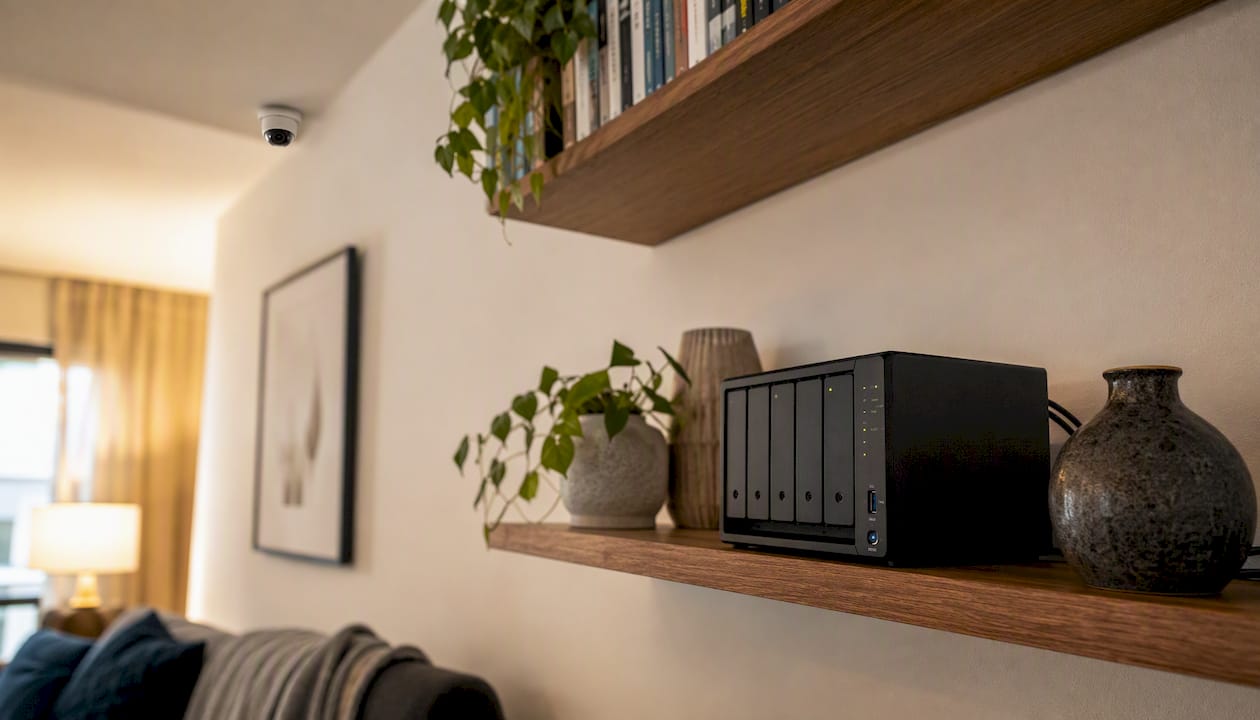
Small-team file sharing. A 2–4 bay NAS with SMB shares replaces a shared external drive passed around the office. User accounts, permissions, and version history are all manageable from the browser-based OS.
Homelabbers and self-hosters. A NAS running Docker containers can host Nextcloud (private cloud), Home Assistant, Bitwarden, or a dozen other self-hosted services. This is where a NAS starts to feel genuinely like a private server.
When a NAS is not the right answer
A portable SSD is simpler and cheaper if you only have one device and do not need network access. Cloud storage is the better fit if you need files accessible from anywhere with no local infrastructure to maintain. And if you want zero maintenance, a NAS will disappoint you. Drive replacements, OS updates, and occasional troubleshooting are part of the deal.
Which NAS brands should you know about?
Four brands dominate the U.S. consumer and prosumer market. Wirecutter’s home NAS guide consistently positions these as the reference points for buyers.
Synology is widely regarded as the most polished experience for home users. Its DSM operating system is genuinely approachable, the app ecosystem is mature, and the documentation is thorough. Most first-time NAS buyers land here.
QNAP targets users who want more hardware flexibility and advanced features out of the box, including PCIe expansion slots, 10Gb networking on mid-range models, and a wider range of app integrations. The interface is denser than Synology’s but rewards power users.
Western Digital (My Cloud) positions its NAS line toward value buyers and those who prefer a bundled drive option. The My Cloud Home and My Cloud EX series are straightforward to set up and lean toward personal backup rather than advanced server use.
Netgear (ReadyNAS line) targets the small-business and prosumer segment, with a focus on reliability and SMB file sharing rather than consumer media features.
For specific model recommendations and hands-on comparisons, consult detailed reviews rather than brand positioning alone. Each vendor releases new hardware regularly, and the right model depends heavily on your bay count, transcoding needs, and budget.
How much does a home NAS cost, and what should you consider before buying?
Pricing breaks down roughly by form factor and drive count. A single-bay enclosure starts around $100–$150 diskless. A 2-bay home NAS, the most common starting point, typically runs a few hundred dollars diskless. Four-bay prosumer units cost more, again without drives. NAS-rated HDDs add an additional cost per drive, so a fully loaded 2-bay setup with moderate capacity drives costs several hundred dollars total.
Buying diskless gives you full control over drive selection and makes future replacements straightforward. Bundled drive kits cost more upfront but save the research step and sometimes include drives optimized for the enclosure.
Buying checklist:
- Bay count. Two bays cover most households. Four bays give you RAID 5/6 options and room to grow.
- RAID level. Decide before you buy: RAID 1 needs 2 bays, RAID 5 needs 3, RAID 6 needs 4.
- Hardware transcoding. If you plan to stream video to devices that cannot play your file format natively, an Intel-based CPU with Quick Sync handles real-time transcoding without taxing the system.
- Network speed. Gigabit is fine for most homes. If you edit large video files over the network, look for 2.5Gb or 10Gb.
- RAM. 2 GB for basic file serving; 4–8 GB if you plan to run apps or containers.
- Power and noise. A 2-bay NAS with spinning drives produces a low hum. SSDs run silently. Check idle wattage if it will run 24/7.
- Vendor OS and ecosystem. Synology’s DSM and QNAP’s QTS have different strengths. Try the demo versions online before committing.
Pro Tip: Buy diskless and choose NAS-rated drives (Seagate IronWolf or WD Red) rather than desktop drives. NAS-rated drives are built for 24/7 operation and vibration tolerance in multi-drive enclosures, and they typically carry a longer warranty.
NAS vs. cloud, DAS, and SAN: which storage type fits your needs?
| Storage type | Access model | Best use case | Cost profile | Complexity |
|---|---|---|---|---|
| Consumer NAS | File-level, LAN/remote via VPN | Home backups, media, small-office sharing | Moderate upfront, low ongoing | Low to moderate |
| Direct-attached storage (DAS) | USB/Thunderbolt, one device at a time | Single-user portable or desktop storage | Low upfront | Very low |
| Enterprise SAN | Block-level, high-speed fabric | Large-scale virtualization, databases | High upfront and ongoing | High |
| Cloud storage | File or object, anywhere with internet | Remote access, off-site backup, collaboration | Low upfront, recurring monthly fees | Very low |
For a home media user, a NAS wins on local speed and private control. A photographer who works from one laptop and travels frequently will often find a portable SSD simpler and more practical. A small office that needs shared file access without a dedicated IT person lands squarely in NAS territory. Enterprise SANs are a different category entirely, built for block-level workloads at a scale and cost that consumer NAS never approaches.
The cloud comparison is worth a direct word. Cloud storage is genuinely better for global access, zero-maintenance operation, and off-site redundancy. Where NAS wins is on large local transfers (copying 500 GB over gigabit Ethernet takes minutes; uploading it to the cloud takes hours or days), long-term cost for large data volumes, and keeping sensitive files off third-party servers. The practical answer for most users is both: a NAS for local speed and control, plus a cloud backup for off-site protection.
How do you set up a home NAS for the first time?
Setup is more approachable than most people expect. Here is the sequence that works for nearly every consumer NAS:
- Unbox and install drives. Slide drives into the bays following the manufacturer’s guide. Most home NAS units use tool-free trays.
- Connect to your router or switch via Ethernet. Wi-Fi is possible but introduces latency and instability for large transfers.
- Power on and find the NAS on your network. Synology uses find.synology.com; QNAP uses qfinder.qnap.com. Both tools detect the NAS automatically.
- Run the initial OS setup via web browser. You will name the device, create an admin account, and install the latest firmware.
- Create a storage pool and volume. Choose your RAID level here. The OS wizard walks you through it.
- Create user accounts and shared folders. Set permissions so each user sees only what they need.
- Enable scheduled backups. Point Time Machine (Mac) or Windows Backup at the NAS share. Install the vendor’s backup app on phones.
- Configure remote access if needed. Use the vendor’s DDNS service for easy access, but prefer a VPN tunnel over raw port forwarding for security.
Pro Tip: For remote access, set up a VPN on your router (WireGuard or OpenVPN) rather than forwarding NAS ports directly to the internet. Exposed NAS ports are a known attack surface, and a VPN adds a strong authentication layer with minimal performance cost. Pair this with a shared family password vault to keep your NAS credentials secure across household members.
Quick troubleshooting:
- NAS not visible on network. Check that the Ethernet cable is seated, the NAS has a valid IP (check your router’s DHCP table), and that the NAS is fully booted (give it 2–3 minutes).
- Slow transfers. Confirm you are on a wired gigabit connection, not Wi-Fi. Check SMB version (SMB 3 is faster than SMB 1). Disable SMB 1 entirely if your OS supports SMB 3.
- Drive rebuild taking a long time. RAID rebuilds on large HDDs can take 12–48 hours. Do not power off during a rebuild. Avoid heavy read/write workloads until it completes.
Why the evidence points toward NAS for privacy and long-term cost control
Statista’s data on worldwide data creation is regularly cited as context for why consumers and small businesses are rethinking where their data lives. As personal data volumes grow, the recurring cost of cloud storage scales with them. A NAS does not.
The consolidation and control argument is real. TechTarget’s analysis highlights that owning your hardware means you control access, privacy settings, and the physical location of your data rather than relying on a third-party provider. For photographers, video editors, and small businesses handling client files, that matters.
The honest cons: a NAS requires maintenance. Drives fail, firmware needs updating, and occasional troubleshooting is part of ownership. Off-site backup is not optional if you care about the data. A NAS with RAID handles drive failure; it does not handle a flooded basement. The 3-2-1 backup rule (three copies, two media types, one off-site) applies here as much as anywhere.
Best practices worth following: keep the NAS OS updated, apply least-privilege account settings (users get access only to what they need), enable two-factor authentication on the admin account, and disable any services you are not actively using. The attack surface of an exposed NAS is real, and the vendor OS updates patch known vulnerabilities regularly.
A NAS is a private server, not just a big hard drive
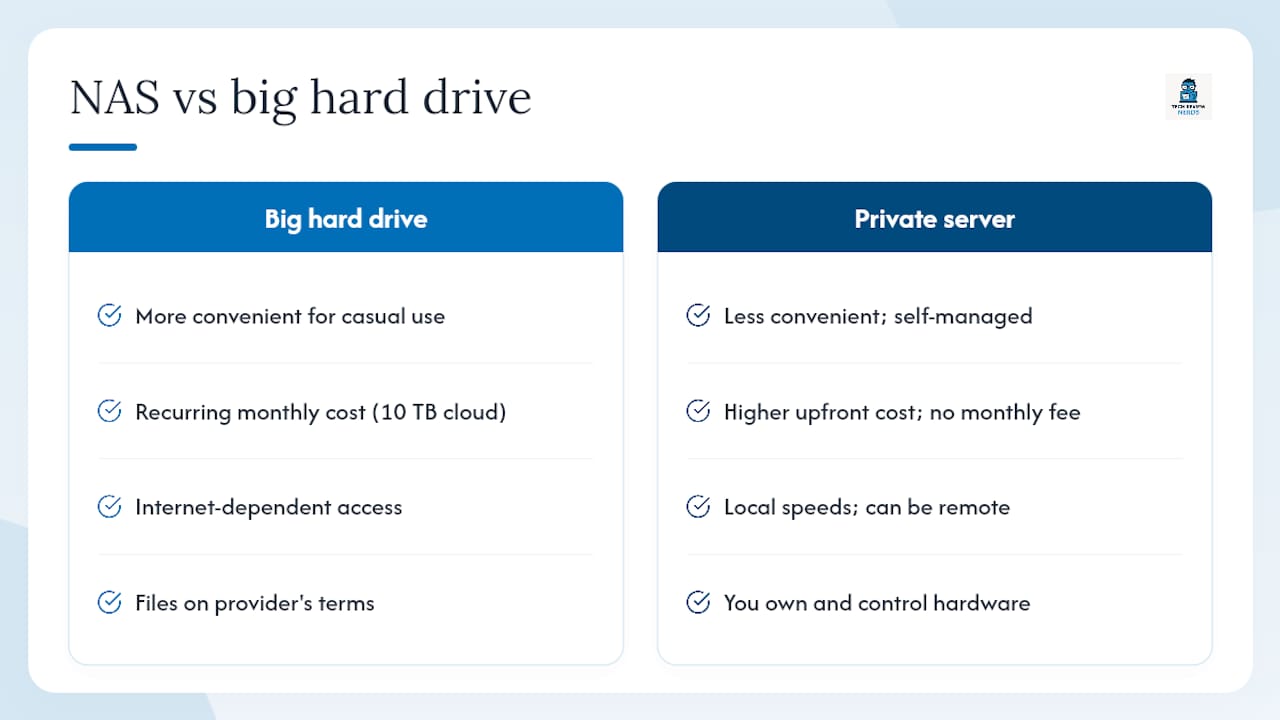
Most NAS explainers sell the device short. They describe it as a “big hard drive on your network,” which is technically accurate and practically misleading. The framing makes it sound passive, when the more useful mental model is a private server you own and control.
That distinction changes how you evaluate one. If you think of a NAS as a hard drive, you compare it to cloud storage on convenience and lose every time. Cloud storage is more convenient for casual use. But if you think of a NAS as a private server, the comparison shifts. You are asking whether you want to own your infrastructure or rent it, whether you want local speeds or internet-dependent access, and whether you want your files on hardware you control or on a provider’s terms.
For photographers storing raw files, that question has a clear answer. A 10 TB cloud plan costs real money every month, indefinitely. A NAS with 10 TB of drives costs more upfront and nothing after that. For families running Plex or Jellyfin, the NAS is the only option that gives you a private Netflix without a subscription. For small businesses sharing files internally, a NAS with proper user permissions is more controllable than a shared Google Drive folder.
Where I think conventional advice falls short is on the backup conversation. Too many guides treat RAID as a backup strategy and move on. It is not. RAID is availability insurance. Backup is a separate discipline, and a NAS without an off-site copy is one house fire away from total loss. The right setup is a NAS for local speed and redundancy, plus a cloud backup service (Backblaze B2, for example) running automatically in the background. That combination gives you the best of both worlds without pretending either one is sufficient alone.
If you are pairing a NAS with a new laptop for mobile editing or home-office work, Techreviewnerds has hands-on laptop reviews and a practical laptop buying guide to help you find a machine that handles large file transfers and network storage workflows without bottlenecks.
Sources
These references cover the core topics this guide introduces, from protocol documentation to hands-on buying advice:
- What is NAS and do you actually need one?
- Network-attached storage
- What is a NAS and do you really need one? (How-To Geek)
- The 3 Best NAS Devices for Most Home Users in 2026 | Reviews by Wirecutter
- Why you should invest in a NAS drive: 6 real benefits you’ll love | PCWorld
- Statista: worldwide data created
- Network-attached storage
FAQ
What is an example of a NAS device?
Synology’s DiskStation series and QNAP’s TS line are among the most widely used consumer NAS devices in the U.S. Western Digital’s My Cloud EX2 Ultra is a common entry-level option for households wanting a simpler setup.
Why do people need a NAS?
People adopt a NAS for centralized file access, automated backups of multiple devices, home media streaming, and surveillance footage storage, often to avoid recurring cloud subscription fees while keeping data on hardware they own.
How much does a home NAS cost?
A 2-bay home NAS, the most common starting point, typically runs a few hundred dollars diskless. NAS-rated HDDs add an additional cost per drive, so a fully loaded 2-bay setup with moderate capacity drives costs several hundred dollars total.
What should you not store on a NAS?
Avoid storing your only copy of critical data on a NAS without an off-site backup. A NAS with RAID protects against drive failure but not against fire, theft, ransomware, or accidental deletion. Sensitive credentials should also be managed through a dedicated password manager rather than a plain text file on a shared NAS folder.
How does a NAS differ from an external hard drive?
An external hard drive connects directly to one computer via USB or Thunderbolt and is only accessible from that machine. A NAS connects to your router and is accessible to every device on your network simultaneously, with its own OS, user accounts, and scheduled backup capabilities.