
A slow laptop is defined by one root cause: the gap between what your hardware can deliver and what your current settings, software, and thermal conditions actually allow. Knowing how to make your laptop faster means closing that gap through targeted fixes rather than guessing. The good news is that most laptops have significant untapped performance sitting idle because of default power plans, clogged vents, and software clutter. This guide covers the exact steps to speed up your laptop, from free settings changes you can do in two minutes to hardware upgrades that transform an aging machine. You will find practical advice on power management, thermal maintenance, software cleanup, and storage upgrades, all ranked by impact.
How to make your laptop faster by fixing power settings
Your power plan is the single fastest fix most people never touch. Battery Saver mode caps CPU frequency at 50% or less of its maximum speed. That means your processor is running at half its potential every time you work unplugged with default settings active.
Switching to the High Performance or Balanced power plan removes that artificial ceiling immediately. Here is how to do it on Windows 10 and 11:
- Press Win + R, type
powercfg.cpl, and hit Enter. - Select High Performance from the list. If you do not see it, click “Show additional plans.”
- On Windows 11, go to Settings > System > Power & Sleep > Additional power settings to find the same options.
- If you want maximum control, search for “Choose a power plan” in the Start menu and select Ultimate Performance after enabling it via PowerShell with the command
powercfg -duplicatescheme e9a42b02-d5df-448d-aa00-03f14749eb61. - Plug in your charger whenever you need full speed, since High Performance drains battery faster on battery power.
Power management defaults throttle performance when running on battery, so many users experience slow speeds purely because of settings rather than any hardware problem. Switching plans takes under 60 seconds and delivers an immediate laptop performance boost you can feel.
Pro Tip: If your laptop still feels slow after switching power plans, open Task Manager (Ctrl + Shift + Esc) and check the CPU column. If any single process is consuming over 30% consistently, that process is your real bottleneck, not the power plan.
Does overheating slow down your laptop?
Yes, overheating is one of the most common and least diagnosed causes of poor laptop performance. Thermal throttling reduces CPU and GPU clock speeds automatically when temperatures exceed 85–90°C. The processor slows itself down to avoid permanent damage, and your laptop feels sluggish as a direct result.

Dust is the primary culprit. Vents and fans accumulate debris over months of use, blocking airflow and trapping heat inside the chassis. Cleaning vents and fans with compressed air improves airflow and reduces thermal throttling significantly. A can of compressed air costs around $10 and takes five minutes to use properly.
Here is what to check and fix for thermal management:
- Compressed air cleaning: Hold the can upright, spray in short bursts into the vents, and hold the fan blades still with a toothpick to prevent spin damage.
- Thermal paste replacement: On laptops older than three years, the original thermal paste dries out and loses conductivity. Reapplying quality thermal paste like PTM7950 reduces sustained CPU and GPU temperatures by several degrees Celsius, which is enough to stop throttling entirely on many machines.
- Cooling pads: A good cooling pad like the Havit HV-F2056 or Thermaltake Massive TM adds 3–5°C of temperature reduction. That helps, but it does not replace cleaning internal components.
- Temperature monitoring: Use HWMonitor or Core Temp to check your CPU temperature under load. Anything above 90°C during normal tasks signals a thermal problem worth addressing.
Thermal throttling is a silent performance killer that most users blame on software or hardware age. If your laptop fan runs loudly and performance drops after 10–15 minutes of use, thermal throttling is almost certainly the cause. You can read more about what that fan noise means at Techreviewnerds’ guide on loud laptop fans.
Pro Tip: Reapplying thermal paste is an intermediate repair. If you are not comfortable opening your laptop, a local repair shop can do it for $30–$60. The performance recovery on a three-year-old machine is often worth every dollar.
What software changes actually speed up a laptop?
Software cleanup delivers the fastest free performance gains available. Disabling unnecessary startup programs frees up 1.5–2 GB of RAM immediately, which translates directly into faster boot times and a more responsive desktop from the moment you log in.
Follow these steps to clean up your software environment:
- Open Task Manager (Ctrl + Shift + Esc) and click the Startup tab. Disable anything you do not need at boot, such as Spotify, Discord, OneDrive, or manufacturer utilities you never use.
- Go to Settings > Apps > Installed Apps and uninstall bloatware. Pre-installed apps from manufacturers like Lenovo Vantage (unless you use it), McAfee trials, and Candy Crush variants consume memory and run background processes.
- In Google Chrome, enable the Memory Saver feature under Settings > Performance. Microsoft Edge has a similar option called Sleeping Tabs. Both reduce RAM usage from open browser tabs by up to 40% on heavy browsing sessions.
- Turn on Windows Storage Sense under Settings > System > Storage. It automatically deletes temporary files, empties the Recycle Bin, and clears the Downloads folder on a schedule you set.
- Run a malware scan with Windows Defender or Malwarebytes at least once a month. Malware frequently causes CPU spikes and unexplained slowdowns that mimic hardware failure.
A full shutdown clears memory leaks and refreshes system resources better than sleep mode. Sleep mode keeps data in RAM but does not fix background processes that accumulate over days of use. Shutting down fully at least every two to three days keeps your system running at its best without any additional tools.
Pro Tip: Keep at least 15–20% of your SSD capacity free at all times. SSD performance degrades when the drive operates near full capacity because the controller has less room to manage caching and wear leveling. A full drive is a slow drive.
SSD vs RAM: which hardware upgrade speeds up a laptop more?
Hardware upgrades are the most impactful way to increase laptop speed when software fixes have reached their limit. The two upgrades that matter most are RAM and storage, and they solve different problems.
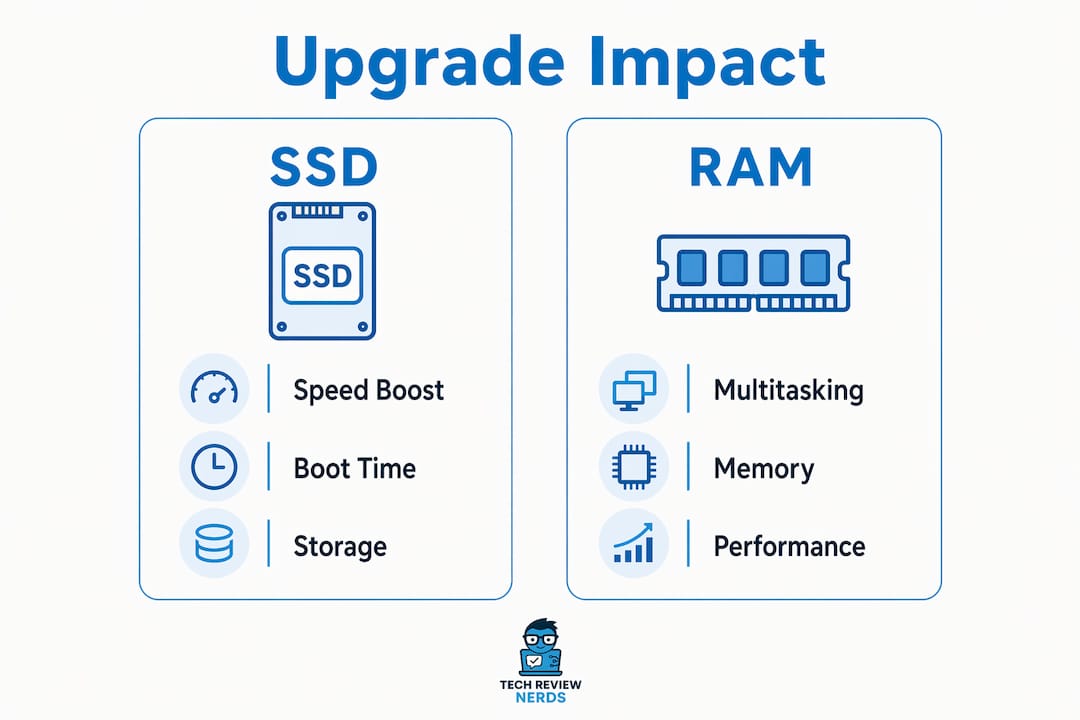
RAM affects multitasking. When your laptop runs out of physical memory, it starts using the SSD as overflow storage, which is dramatically slower. Upgrading from 8GB to 16GB of RAM eliminates most of that overflow and makes switching between apps, browser tabs, and documents feel immediate. For users running creative software like Adobe Premiere Pro or running virtual machines, 32GB is worth considering.
Storage affects everything else. Upgrading from an HDD to an SSD is the single biggest hardware speed jump most laptops can receive. HDDs deliver read speeds below 120 MB/s. SATA SSDs deliver 500 MB/s or more. NVMe Gen 3 SSDs reach 3,500 MB/s, and NVMe Gen 4 SSDs push past 7,000 MB/s. The table below shows the practical difference:
| Storage Type | Read Speed | Boot Time (approx.) | Best For |
|---|---|---|---|
| HDD (7200 RPM) | ~120 MB/s | 45–90 seconds | Basic file storage only |
| SATA SSD | ~500 MB/s | 10–20 seconds | Budget upgrades, older laptops |
| NVMe Gen 3 SSD | ~3,500 MB/s | 8–12 seconds | Most modern laptops |
| NVMe Gen 4 SSD | ~7,000 MB/s | 6–10 seconds | High-end machines, content creation |
Before buying, check your laptop’s service manual or use CPU-Z to confirm whether your M.2 slot supports NVMe or only SATA. Buying a Gen 4 NVMe for a slot that only supports SATA is a common and expensive mistake.
Pro Tip: If your laptop has soldered RAM (common in thin ultrabooks like certain Dell XPS and MacBook models), storage is your only upgrade path. Check iFixit.com for your specific model’s repairability score before purchasing any parts.
For a deeper look at when to upgrade versus replace, Techreviewnerds has a practical breakdown of laptop upgrade decisions worth reading alongside this guide.
Advanced BIOS and system tweaks for extra performance
BIOS-level changes sit below the operating system and can unlock performance that Windows settings alone cannot reach. BIOS settings for thermal profiles and enabling AHCI mode can significantly improve laptop responsiveness, though options vary by model and require careful configuration.
Here is what to explore at the BIOS and system level:
- AHCI mode for SSDs: If your BIOS shows the storage controller set to IDE or RAID mode, switching to AHCI unlocks the full speed of your SSD. This requires a registry edit in Windows before the BIOS change to avoid a boot failure. Follow Microsoft’s official documentation for the exact steps.
- Thermal performance profiles: Many laptops from ASUS, Lenovo, and MSI expose performance modes in BIOS (sometimes labeled “Performance,” “Turbo,” or “Extreme”). These modes raise power limits and fan curves, allowing the CPU to sustain higher clock speeds for longer.
- Virtual memory adjustment: Setting virtual memory manually to 1.5 times your RAM size improves system stability during heavy workloads on laptops with limited RAM and fast SSDs. Go to Control Panel > System > Advanced System Settings > Performance Settings > Advanced > Virtual Memory to set a custom size.
- Undervolting: Tools like Intel XTU (Intel Extreme Tuning Utility) or ThrottleStop allow you to reduce the voltage your CPU uses without reducing its speed. This lowers heat output and reduces thermal throttling. Start conservatively at minus 50mV and test for stability before going further.
- When to stop: If your laptop is under warranty, BIOS changes can void it. If you are not comfortable with the process, a repair checklist from a qualified technician is a safer starting point.
Pro Tip: Always write down your original BIOS settings before changing anything. Most BIOS menus have a “Load Defaults” option, but knowing your original values lets you restore specific settings without resetting everything.
Key takeaways
The fastest way to improve laptop speed is to fix power settings and thermal issues first, then address software clutter, and finally consider hardware upgrades when those free fixes reach their ceiling.
| Point | Details |
|---|---|
| Fix power settings first | Switch from Battery Saver to High Performance mode to remove CPU speed caps immediately. |
| Clean thermals regularly | Use compressed air on vents every few months and replace thermal paste on laptops older than three years. |
| Disable startup programs | Freeing 1.5–2 GB of RAM at boot is the fastest free software fix for slow responsiveness. |
| Upgrade storage before RAM | An HDD-to-SSD swap delivers the biggest single hardware speed gain most laptops can receive. |
| Use full shutdowns | Shutting down fully every few days clears memory leaks that sleep mode leaves unresolved. |
What i think actually works (and what people get wrong)
I have spent a lot of time testing laptops across different price points, and the pattern I keep seeing is the same: people jump straight to hardware upgrades when a $0 settings change would have solved the problem. I get it. Buying a new SSD feels productive. Changing a power plan feels too simple to matter. But software tweaks provide immediate relief and aging laptops eventually need hardware upgrades or lighter operating systems for continued speed. The order matters.
Thermal management is the area I think gets the least attention relative to how much it affects performance. I have tested laptops that felt completely different after a compressed air cleaning and a fresh application of thermal paste. The CPU was no longer throttling, sustained performance improved noticeably, and the fan noise dropped. None of that required spending money on new hardware.
My honest recommendation is to treat laptop maintenance like car maintenance. You would not skip oil changes and then wonder why the engine runs rough. Clean your vents twice a year. Shut down fully instead of relying on sleep mode. Keep your SSD at least 20% free. These habits cost nothing and prevent the gradual slowdown that makes people think their laptop is dying when it just needs attention.
When hardware upgrades do become necessary, prioritize storage over RAM unless you are a heavy multitasker. The jump from an HDD to even a budget SATA SSD like the Samsung 870 EVO or Crucial MX500 transforms the everyday feel of a machine more than doubling RAM does for most users. And if you are weighing upgrades against replacement, check what your current machine is worth before spending money on parts. Sometimes the math points toward a newer machine rather than patching an old one.
— K. Connors
Find your next fast laptop at Techreviewnerds
If you have worked through every fix in this guide and your laptop still cannot keep up, it may be time to look at a newer machine rather than continuing to invest in aging hardware.

Techreviewnerds publishes hands-on, bias-free reviews of laptops across every budget and use case. Whether you need a fast everyday machine or something built for demanding workloads, the best laptops for work and school guide covers tested options with real performance data. Students can also check the best laptops for college in 2026 for lightweight, affordable picks that run fast out of the box. Browse the full laptop catalog at Techreviewnerds to find a machine that matches your needs and budget without the guesswork.
FAQ
What is the fastest free way to speed up a laptop?
Switching from Battery Saver to High Performance mode and disabling unnecessary startup programs are the two fastest free fixes. Together they can remove CPU speed caps and free up 1.5–2 GB of RAM without spending anything.
How do i know if my laptop is thermal throttling?
Download HWMonitor or Core Temp and check your CPU temperature under load. Sustained temperatures above 90°C combined with dropping clock speeds confirm thermal throttling is active.
Does adding RAM make a laptop faster?
RAM upgrades improve multitasking speed when your laptop regularly runs out of physical memory. Upgrading from 8GB to 16GB makes the biggest difference for users with many browser tabs, documents, or applications open at once.
Is an SSD upgrade worth it on an old laptop?
Yes, replacing an HDD with a SATA SSD or NVMe SSD is the single most impactful hardware upgrade for most laptops. Boot times drop from 45–90 seconds to under 20 seconds, and everyday app launches feel dramatically faster.
How often should i clean my laptop vents?
Clean your laptop vents with compressed air every three to six months, or more frequently if you use the laptop on soft surfaces like beds or couches that block airflow and accelerate dust buildup.
Recommended
- How to Speed Up a Slow Laptop Without Replacing It – Tech Review Nerds
- Best Laptops for College Students in 2026 (Lightweight, Fast, and Affordable) – Tech Review Nerds
- How Laptop Resale Value Works: 2026 Seller’s Guide
- Why Is My Laptop Fan So Loud? Common Causes and Fixes That Work – Tech Review Nerds