

The right laptop for college classes is defined by three factors: performance specs that handle academic software, portability that survives a full campus day, and a price that fits a student budget. Most students get this wrong by chasing specs they don’t need. A laptop with 16GB RAM and 512GB SSD storage covers the vast majority of coursework reliably for four years. That baseline matters more than a flashy processor or a high-wattage GPU you’ll rarely use. Getting this right from the start saves you money, frustration, and a mid-semester laptop crisis.
How to choose a laptop for college classes: hardware that actually matters
The most important hardware decision you’ll make is RAM. 16GB of RAM is the floor for 2026, not the ceiling. Running a browser with 15 tabs, a PDF reader, a video call, and a word processor simultaneously is a normal Tuesday for most students. Anything less than 16GB starts to show cracks under that kind of load.
Storage is equally non-negotiable. A 512GB SSD gives you room for course files, software installs, and a reasonable media library without constantly managing space. An SSD also boots faster and opens files quicker than a traditional hard drive, which matters when you’re rushing between classes. Pairing 16GB RAM with a 512GB SSD and a processor released within the last 24 months gives you a machine that won’t feel outdated by your junior year.

Build quality deserves more attention than most students give it. Repairability and durability matter more than peak specs for a device you carry across campus every day. A laptop that survives a backpack drop or a coffee spill is worth more than one with a slightly faster chip that cracks under pressure. Look for aluminum or magnesium alloy chassis over plastic shells, and check whether the manufacturer offers repair programs or sells replacement parts.
The table below maps hardware tiers to common academic use cases.
| Major type | Recommended RAM | Recommended storage | Processor tier |
|---|---|---|---|
| General studies, humanities | 16GB | 256GB–512GB SSD | Mid-range, last 24 months |
| Business, social sciences | 16GB | 512GB SSD | Mid-range, last 24 months |
| Engineering, architecture | 32GB | 512GB–1TB SSD | High-performance, last 12 months |
| Graphic design, video editing | 32GB | 1TB SSD | High-performance, last 12 months |
| Computer science | 16GB–32GB | 512GB SSD | Mid to high-range, last 24 months |
Pro Tip: Check your department’s software page before you buy. Some engineering and design programs list minimum hardware specs, and buying below those means you’ll hit walls on day one.
How do portability and battery life affect daily campus use?
Weight is the spec most students underestimate until they’re carrying a laptop across campus for six hours straight. Under 3 pounds is the target for a laptop you’ll carry between classes daily. That threshold keeps shoulder strain manageable and fits comfortably in most backpacks alongside textbooks and a water bottle.
Battery life follows the same logic. A minimum of 10 hours of real-world performance keeps you off the power outlet hunt during long class days. Manufacturer battery claims are almost always measured under ideal conditions, so real-world performance typically runs 20–30% lower. When a laptop advertises 13 hours, expect closer to 10 in actual use.
Screen size creates a direct trade-off with portability. A 13-inch or 14-inch display hits the sweet spot for most students. It’s large enough to work comfortably on a cramped lecture hall desk and light enough to carry without noticing the weight. A 15-inch or 16-inch screen gives you more screen real estate but adds weight and bulk that compounds over a long day.
Here’s what to check before committing to a laptop for all-day campus use:
- Weight under 3 pounds for daily carry comfort
- Rated battery life of at least 13 hours to account for real-world drop-off
- A 13-inch or 14-inch display for the best size-to-portability ratio
- Fast charging support, so a 30-minute plug-in during lunch gives you hours of buffer
- A matte screen finish to reduce glare in brightly lit classrooms
Pro Tip: Invest in a padded laptop sleeve that fits inside your backpack. A sleeve adds almost no weight but absorbs the kind of everyday bumps that crack hinges and screens over a semester.
High-end GPUs are often unnecessary and counterproductive for most students because they add weight and cut battery life. Unless your major demands 3D rendering or video production, skip the dedicated graphics card and put that money toward battery capacity and build quality instead.
Does your major determine which operating system you need?
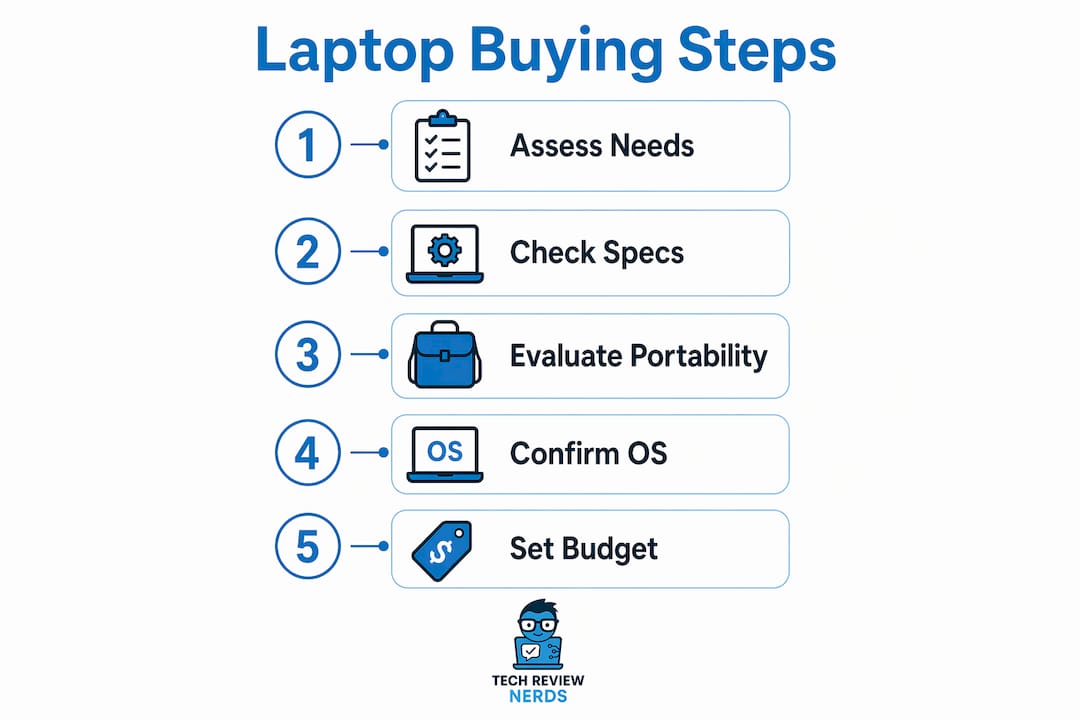
Your operating system choice is not just a preference. It directly affects which software you can run, and that affects your grades. Certain majors require specialized Windows or high-RAM macOS machines to support software that doesn’t run on ARM processors or ChromeOS. Getting this wrong means buying a second laptop or scrambling for lab access.
Here’s how to think about OS by major:
- macOS: Best for students already using an iPhone or iPad. The MacBook Air’s seamless syncing across Apple devices makes file management nearly effortless. It also runs well for writing-heavy majors, media studies, and most business programs.
- Windows: The broadest software compatibility of any platform. Engineering students using AutoCAD, architecture students on Revit, and business students running specialized financial modeling tools almost always need Windows. Windows 2-in-1 laptops also offer touchscreen flexibility that works well for note-taking.
- ChromeOS: A legitimate option for general studies, education, and humanities majors who live primarily in a browser. Chromebooks in the $400–$600 range handle Google Workspace, web-based research tools, and video streaming without issue. They are not suitable for majors requiring locally installed professional software.
The single most important step before buying is to confirm software requirements with your department directly. Many programs list required or recommended software on their website. Some architecture and engineering departments even specify minimum GPU requirements. Spending five minutes on that page before you buy can save you hundreds of dollars in regret.
Understanding why OS choice matters for your specific major is one of the most overlooked steps in the laptop buying process. Students who skip it often end up with a machine that can’t run the tools their professors require.
What budget should you set for a college laptop?
Budget ranges for student laptops break into two clear tiers. Chromebooks and budget Windows laptops fall in the $400–$600 range and cover general coursework well. Premium, durable laptops built for demanding software and long-term use start at $900–$1,200. There’s not much worth buying in the gap between those two tiers.
- Set your OS first. Your major determines your OS, and your OS largely determines your price floor. A capable Windows laptop for engineering starts higher than a Chromebook for a writing-heavy major.
- Budget for accessories. Laptops with only USB-C ports require dongles and hubs that typically cost $50–$100 more. That’s a real line item, not a minor inconvenience. Check the port selection before you buy.
- Factor in warranty coverage. A two or three-year warranty on a $1,000 laptop is worth paying for. A single out-of-warranty repair can cost $300–$400, which erases any savings from skipping coverage.
- Consider resale value. Some laptops hold their value far better than others after two or three years. Understanding laptop resale value before you buy helps you think about the total cost of ownership, not just the sticker price.
- Don’t overbuy on specs. A student who needs a $600 Windows laptop for general coursework doesn’t benefit from spending $1,400 on a machine with a dedicated GPU. That extra money is better spent on a quality backpack, external storage, or a monitor for your dorm room.
Port selection is worth a dedicated look before finalizing any purchase. A 2026 port selection guide breaks down exactly which ports matter for different academic setups, from lab work to remote learning. Skipping this step is one of the most common and most avoidable mistakes students make.
Key Takeaways
Choosing the right laptop for college comes down to matching hardware specs, portability, OS, and budget to your actual academic needs, not to marketing claims.
| Point | Details |
|---|---|
| Start with 16GB RAM and 512GB SSD | These specs handle four years of academic software without bottlenecks. |
| Prioritize weight and battery life | Under 3 pounds and 10+ real-world hours covers a full campus day. |
| Match your OS to your major | Engineering and design students often need Windows; general majors can use ChromeOS. |
| Budget for accessories | USB-C only laptops add $50–$100 in dongle costs that students frequently overlook. |
| Verify department software requirements | Check your program’s software list before buying to avoid compatibility problems. |
What I’ve learned from watching students buy the wrong laptop
I’ve seen this play out more times than I can count. A student walks in excited about a laptop with a powerful GPU and a 15-inch screen, convinced it’ll handle everything college throws at them. Six weeks later, they’re complaining that the battery dies by noon and their back hurts from carrying it.
The mistake is almost always the same. Students optimize for specs that look impressive on paper and ignore the two things that actually define daily usability: weight and battery life. A laptop that lasts all day and fits in your bag without strain is worth more in practice than one that benchmarks higher but needs a power outlet by 11 AM.
My honest recommendation is to buy the lightest, longest-lasting laptop that runs your required software. That’s it. If your major doesn’t require a dedicated GPU, don’t buy one. If ChromeOS runs everything your department uses, a $500 Chromebook is a smarter buy than a $1,200 Windows machine with specs you’ll never tap.
The other thing I’d push hard on is repairability. Durability and repairability affect long-term usability more than raw specs for daily academic use. A laptop you can get repaired quickly when something breaks is worth more than a slightly faster machine that becomes a paperweight after a hinge cracks. Buy something built to last, and buy it with a warranty.
— K. Connors
Techreviewnerds’ laptop picks for college students
Techreviewnerds publishes hands-on, independently tested laptop recommendations for students at every budget level. Every review is based on real use, not spec sheets, so you get an honest picture of how a laptop performs in the conditions you’ll actually face.

The best laptops for college students in 2026 guide covers lightweight picks, budget-friendly options, and performance machines for demanding majors. If you’re still narrowing down your options, the best laptops for work, school, and everyday use page gives you a broader look at machines that balance portability and power. Techreviewnerds cuts through the noise so you can buy with confidence and get back to studying.
FAQ
What are the minimum specs for a college laptop in 2026?
The minimum recommended specs are 16GB of RAM, a 512GB SSD, and a processor released within the last 24 months. These specs handle multitasking, academic software, and four years of coursework without major slowdowns.
Is a Chromebook good enough for college?
A Chromebook works well for general studies, humanities, and education majors who rely on browser-based tools and Google Workspace. Students in engineering, architecture, or design programs typically need Windows or macOS to run required professional software.
How much should a college student spend on a laptop?
Budget laptops and Chromebooks run $400–$600 and cover general coursework reliably. Premium laptops built for demanding software and long-term durability start at $900–$1,200. Factor in accessory costs like dongles if the laptop has only USB-C ports.
Does battery life really matter that much for college?
A minimum of 10 hours of real-world battery life keeps you off the outlet hunt during a full class day. Manufacturer ratings run higher than real-world performance, so target a laptop rated for at least 13 hours to land at 10 in actual use.
Should I buy a Mac or a Windows laptop for college?
Your major determines the better choice. macOS suits Apple ecosystem users and writing-heavy programs. Windows offers broader software compatibility for engineering, business, and design majors. Always check your department’s required software list before deciding.