

Thunderbolt is a high-speed I/O protocol that carries data, video, and power over a single USB-C connector, developed by Intel and now found across Apple and Windows machines alike. If you’ve ever wondered why two laptops with identical-looking ports perform so differently with the same dock or external drive, Thunderbolt is usually the answer.
TL;DR:
- Thunderbolt is a superset of USB-C: same physical connector, but with certified higher bandwidth, PCIe tunneling, and guaranteed display support that plain USB-C ports don’t promise.
- Thunderbolt 4 runs at 40 Gbps; Thunderbolt 5 pushes up to 80 Gbps bi-directional, with up to 120 Gbps available for video-heavy workloads via Bandwidth Boost.
- Most everyday users don’t need it. Creators, video editors, and anyone running external GPUs or multi-monitor docks will feel the difference immediately.
Table of Contents
- How does Thunderbolt work?
- Thunderbolt versions 1 through 5: how do they compare?
- How does Thunderbolt compare with USB-C, USB4, DisplayPort, and HDMI?
- Cables, connectors, and compatibility: what to check before you plug in
- What can you actually do with Thunderbolt?
- Do you actually need Thunderbolt on your laptop?
- How to check if your laptop’s port supports Thunderbolt
- Limits, myths, and security considerations
- Practical buying tips for cables, docks, and external drives
- Key Takeaways
- The Thunderbolt picture most guides miss
- Useful sources and further reading
- FAQ
How does Thunderbolt work?
Thunderbolt’s core trick is tunneling. Rather than being a single protocol, it bundles PCIe, DisplayPort, and USB signals into one connection and routes them simultaneously over a single cable. PCIe is what gives external SSDs and eGPUs their speed, because the device behaves almost like an internal component rather than something plugged in from the outside. DisplayPort handles video, and USB covers everything else, from keyboards to webcams.
Thunderbolt tunnels PCIe and DisplayPort over a single connector, which is why a Thunderbolt dock can replace an entire cable nest on your desk. One cable from your laptop to the dock, and you get multiple monitors, fast storage, Ethernet, and USB peripherals all at once. That’s the single-cable workstation setup that makes Thunderbolt genuinely useful for professionals.

The USB-C connector is just the physical shape. Thunderbolt uses that same connector, but the protocol running through it is entirely different. Plugging a USB-C cable into a Thunderbolt port works fine, but you’ll only get USB speeds, not Thunderbolt speeds. The protocol determines performance; the connector just determines whether the plug fits.
Intel stewards the Thunderbolt specification, which means certified devices must meet a defined performance baseline. You don’t need custom drivers, and plug-and-play reliability is part of the certification requirement. That consistency is a big part of why Thunderbolt docks and drives tend to just work, even across different machines.
Thunderbolt versions 1 through 5: how do they compare?
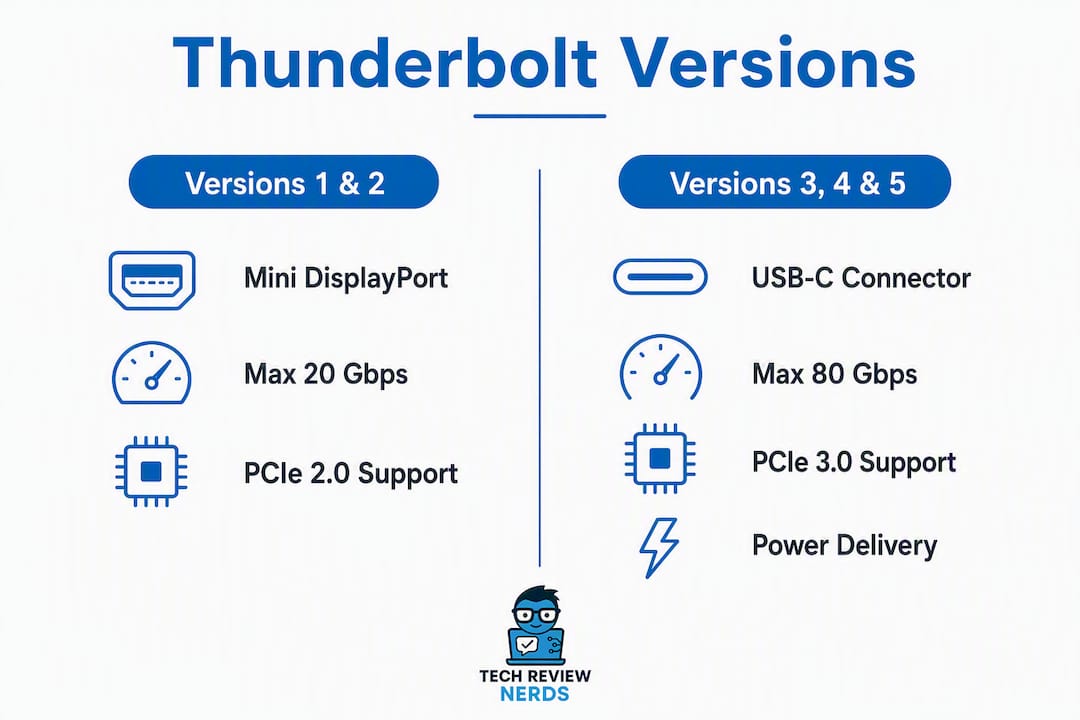
The technology has moved fast since its 2011 debut. Here’s how each generation stacks up on the specs that actually matter.
| Version | Connector | Max Bandwidth | PCIe Support | Max Display Output | Power Delivery |
|---|---|---|---|---|---|
| Thunderbolt 1 | Mini DisplayPort | — | PCIe x4 | 1x DisplayPort | — |
| Thunderbolt 2 | Mini DisplayPort | 20 Gbps | PCIe x4 | 1x 4K DisplayPort | — |
| Thunderbolt 3 | USB-C | 40 Gbps | PCIe x4 | 2x 4K or 1x 5K | Up to 100W |
| Thunderbolt 4 | USB-C | 40 Gbps | PCIe x4 (min 32 Gbps) | 2x 4K or 1x 8K | Up to 100W |
| Thunderbolt 5 | USB-C | 80 Gbps (120 Gbps Boost) | PCIe 4.0 x4 | 2x 8K or 3x 4K | Up to 240W |
Thunderbolt 1 and 2 used the Mini DisplayPort connector), which is why older Mac Pro and MacBook Pro machines have that small, square-ish port. Starting with Thunderbolt 3, Intel switched to USB-C, which dramatically broadened adoption since the connector was already everywhere.
Thunderbolt 4 didn’t raise the 40 Gbps ceiling from Thunderbolt 3, but it made previously optional features mandatory: minimum PCIe bandwidth of 32 Gbps, support for two 4K displays or one 8K display, and stricter cable certification. In practice, Thunderbolt 4 is the more reliable version of Thunderbolt 3.
Thunderbolt 5 is the current generation. It doubles the base bandwidth to 80 Gbps and adds Bandwidth Boost, which can reallocate up to 120 Gbps for video in one direction while keeping strong data rates for everything else. Early Thunderbolt 5 support appeared in select Apple M4 Pro and M4 Max machines, but the peripheral ecosystem is still catching up, so most users won’t need it yet.
Thunderbolt 3, 4, and 5 are all backward compatible with each other and with USB4, meaning a Thunderbolt 4 cable works in a Thunderbolt 3 port, just at Thunderbolt 3 speeds. USB4 and Thunderbolt 4 share enough of the spec that many USB4 devices work in Thunderbolt ports, though full Thunderbolt certification isn’t guaranteed on the USB4 side.
How does Thunderbolt compare with USB-C, USB4, DisplayPort, and HDMI?
This is where most of the confusion lives, so let’s be direct about it.
USB-C is a connector shape, not a protocol. Thunderbolt 3, 4, and 5 all use the USB-C connector, but so does basic USB 3.2, USB4, and plain charging cables. The port looks identical. What’s inside is completely different.
Here’s how the main options compare on the dimensions that matter:
- Thunderbolt 4 (40 Gbps): PCIe tunneling, guaranteed dual 4K or single 8K display support, up to 100W power delivery, certified interoperability. Best for docks, external SSDs, and eGPUs.
- Thunderbolt 5 (80 Gbps / 120 Gbps Boost): Adds PCIe 4.0, higher display bandwidth, up to 240W power delivery. Aimed at demanding video workflows and next-gen displays.
- USB4 Gen 2×2 (20 Gbps) / Gen 3×2 (40 Gbps): Shares architecture with Thunderbolt 4 at 40 Gbps, but certification is optional, so performance isn’t guaranteed. No PCIe tunneling requirement.
- USB-C (USB 3.2, up to 20 Gbps): Fine for charging, mice, keyboards, and basic external monitors. Not suitable for high-speed storage or eGPUs.
- DisplayPort / HDMI: Video-only connections. No data or power. HDMI 2.1 supports up to 48 Gbps for video, which is excellent for TVs and gaming monitors, but it carries no data and no power.
Real-world example: copying a 50GB video file from an external NVMe drive takes a few minutes over Thunderbolt 4 and noticeably longer over USB 3.2. Plugging in a basic 1080p monitor? USB-C with DisplayPort Alt Mode handles that without any help from Thunderbolt.
USB-C devices work in Thunderbolt ports at whatever speed the device supports. The Thunderbolt port is backward compatible. But a USB-C cable in a Thunderbolt device won’t unlock Thunderbolt speeds. The cable and the device both need to be Thunderbolt-certified for full performance.
Cables, connectors, and compatibility: what to check before you plug in
The cable is where most people get burned. Two USB-C cables sitting side by side look identical. One might be a basic 5 Gbps USB 3.2 cable; the other might be a Thunderbolt 4 certified cable rated for 40 Gbps and 100W power delivery. The difference is invisible until your dock doesn’t work or your external SSD runs at a fraction of its rated speed.
What to check before buying or using a cable:
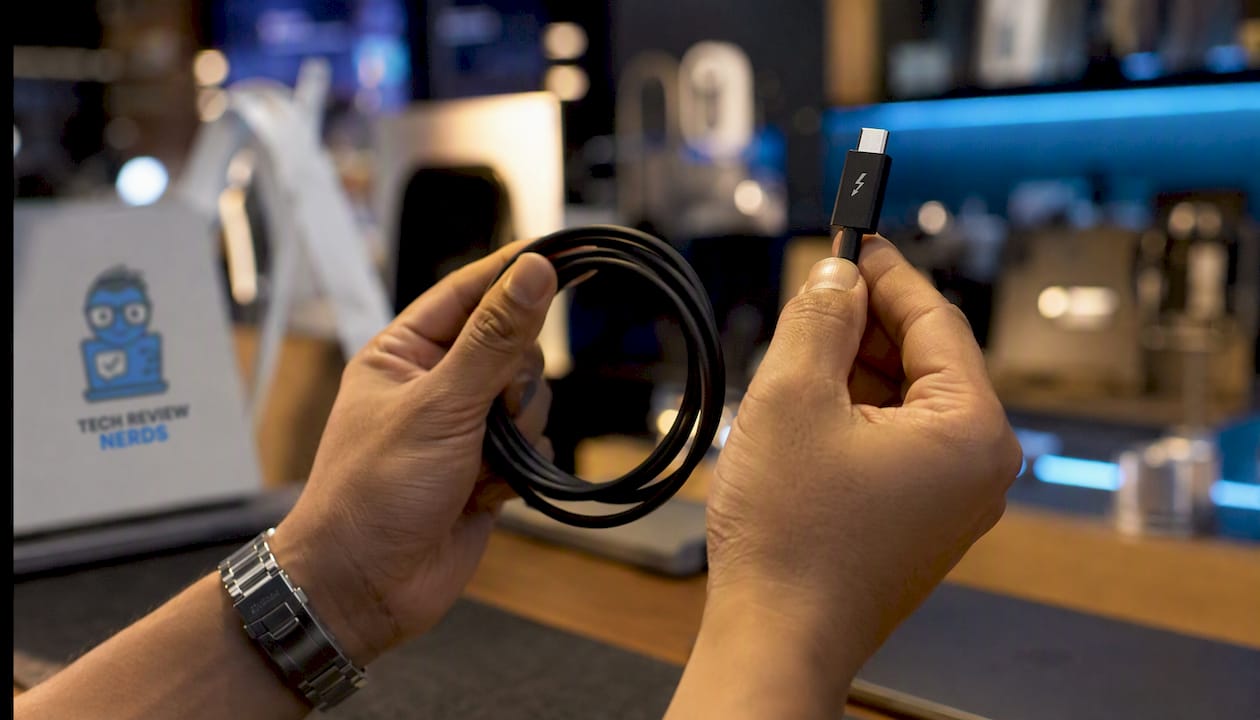
- Look for the lightning-bolt symbol. Thunderbolt cables carry a small lightning-bolt icon near the connector. No icon usually means it’s a standard USB-C cable.
- Check the certification label. Thunderbolt-certified cables are labeled with the version (Thunderbolt 3, 4, or 5) and the maximum bandwidth.
- Active vs. passive cables. Passive Thunderbolt cables work up to about 0.5–0.8 meters at full speed. Active cables use signal amplification to maintain full Thunderbolt performance at up to 2 meters. For longer runs, active is the only option.
- Match the cable to the device. A Thunderbolt 5 dock paired with a Thunderbolt 4 cable will fall back to Thunderbolt 4 speeds. Always match cable certification to the highest version you need.
- Power delivery rating. Thunderbolt cables vary in their power delivery support. If you’re powering a laptop through a dock, confirm the cable supports the required wattage.
Pro Tip: Always use a Thunderbolt-certified cable with high-performance peripherals like external SSDs and docks. A plain USB-C cable that came bundled with a phone charger will silently limit your speeds without any error message.
For everyday peripherals like a mouse, keyboard, or basic webcam, a standard USB-C cable is perfectly fine. Save the Thunderbolt cable for the gear that actually needs it.
What can you actually do with Thunderbolt?
The technology earns its price premium in specific, high-demand scenarios. Here’s where it genuinely shines:
- External NVMe SSDs: Thunderbolt 4 drives can sustain high read speeds, making moving large video projects or raw photo libraries fast enough to work from directly rather than copying first. Check out top portable SSD picks for options that take full advantage of Thunderbolt bandwidth.
- External GPUs (eGPUs): Thunderbolt’s PCIe tunneling lets a desktop-class GPU connect to a thin laptop, turning it into a capable gaming or rendering machine at a desk. The PCIe bandwidth isn’t quite as wide as a native slot, but it’s close enough for most workloads.
- Multi-monitor docking stations: A single Thunderbolt cable from laptop to dock can drive two 4K monitors, connect Ethernet, charge the laptop, and power USB peripherals simultaneously, making it ideal for team apps for ops, sales, product, and more that benefit from streamlined, multi-monitor workflows. That’s the single-cable workstation setup. For a detailed look at the best options, Techreviewnerds covers USB-C hubs and docking stations across both Mac and Windows.
- High-resolution and high-refresh-rate displays: Thunderbolt 5’s Bandwidth Boost is particularly relevant for ultrawide and high-resolution gaming monitors that push beyond what a standard DisplayPort connection can handle.
- Professional capture and playback: Video production workflows that involve real-time capture, color grading, or audio interfaces benefit from the low-latency, high-bandwidth PCIe connection Thunderbolt provides.
Where Thunderbolt adds almost nothing: email, web browsing, video calls, basic office work, and connecting a single 1080p or standard 4K monitor. A USB-C port handles all of that without breaking a sweat.
Do you actually need Thunderbolt on your laptop?
Probably not, unless your work involves moving large files or running demanding external hardware. That’s the honest answer.
For most people, standard USB-C is more than enough. Thunderbolt is primarily valuable for creators, power users, and gamers who need consistent, high sustained throughput. If your heaviest task is a video call and a spreadsheet, you’re paying for bandwidth you’ll never use.
Here’s a quick way to think through it:
- You likely need Thunderbolt if you edit 4K or 8K video, use an external GPU, run a multi-monitor dock, or work with professional audio/video interfaces that require PCIe bandwidth.
- You probably don’t need it if you browse the web, handle documents, use a single external monitor at 1080p or standard 4K, and connect basic USB peripherals.
- Budget consideration: Thunderbolt peripherals and certified cables cost more than their USB-C equivalents. A Thunderbolt 4 dock typically runs more than a basic USB-C dock, so consider your budget and needs carefully. If you don’t need the bandwidth, the premium doesn’t pay off.
If you’re buying a new laptop and Thunderbolt is available at the same price point, take it. The flexibility to connect high-performance peripherals later is worth having. But if choosing Thunderbolt means spending significantly more, weigh that against your actual workflow. Techreviewnerds’s laptop buying guide walks through port selection as part of the broader purchase decision.
How to check if your laptop’s port supports Thunderbolt
Confirming Thunderbolt support takes less than two minutes. Here’s how to do it on any machine.
- Look at the port itself. Thunderbolt ports carry a small lightning-bolt icon (⚡) next to or above the port. Some machines also print “TB3,” “TB4,” or “TB5” directly on the chassis. No icon means it’s likely a standard USB-C port.
- Check the manufacturer’s spec page. Search your laptop model plus “specifications” and look for the port section. It will explicitly list Thunderbolt version if supported. This is the most reliable method.
- On macOS: Open Apple menu > About This Mac > System Report > Hardware > Thunderbolt/USB4. You’ll see every Thunderbolt controller and connected device listed there.
- On Windows: Open Device Manager and expand the “Universal Serial Bus controllers” or “Thunderbolt” section. A Thunderbolt controller entry confirms support. Alternatively, open System Information (msinfo32) and search for “Thunderbolt.”
- Run Intel’s Thunderbolt Software (Windows): Intel offers a Thunderbolt control panel that shows connected devices and port capabilities. It’s available from Intel’s support site.
Troubleshooting when a device isn’t recognized:
- Swap the cable first. A non-Thunderbolt cable is the most common reason a Thunderbolt dock or drive doesn’t perform as expected.
- Update Thunderbolt firmware and drivers. Intel releases firmware updates that fix compatibility issues, especially with newer peripherals.
- Try a different port. Some laptops have one Thunderbolt port and one standard USB-C port that look identical. Confirming which port is which via the spec page saves a lot of frustration.
Limits, myths, and security considerations
Myth vs. fact:
“All USB-C ports support Thunderbolt.” This is false. USB-C is a connector shape; Thunderbolt is a protocol. Most USB-C ports on budget and mid-range laptops are standard USB 3.2 or USB4 without Thunderbolt certification. Always check the spec sheet.
A few other common misunderstandings worth clearing up: Thunderbolt cables are not interchangeable with all USB-C cables for high-speed use. A longer cable doesn’t always mean slower speeds, but passive Thunderbolt cables do have practical length limits around 0.5–0.8 meters for full performance. Active cables extend that to about 2 meters.
Security: Thunderbolt’s PCIe tunneling creates a real, documented attack surface. Because connected devices get direct memory access (DMA) to the host system, a malicious device plugged into a Thunderbolt port can theoretically read or write system memory. This class of attack has been demonstrated in research settings. Practical mitigations include:
- Enabling Thunderbolt security settings in your system BIOS/UEFI (most modern machines offer “User Authorization” or “Secure Connect” modes that require you to approve new devices).
- Keeping Thunderbolt firmware updated.
- Never plugging in Thunderbolt devices from untrusted sources, especially in public or shared spaces.
- On Windows, Kernel DMA Protection (available on modern systems) provides OS-level defense against DMA attacks.
Apple Silicon Macs handle Thunderbolt security through their own chip architecture, which limits DMA exposure by design. For most home users, the risk is low in practice, but it’s worth knowing the exposure exists.
Peripheral availability for Thunderbolt 5 is still limited as of 2026. The spec is solid, but the ecosystem of TB5-certified drives, docks, and cables is smaller than Thunderbolt 4’s. If you’re buying peripherals today, Thunderbolt 4 offers the widest selection.
Practical buying tips for cables, docks, and external drives
Getting the right gear the first time saves money and avoids the frustration of underperforming hardware. Here’s what to check before you buy.
- Match cable certification to your device. A Thunderbolt 4 dock needs a Thunderbolt 4 certified cable. Don’t assume the cable in the box is the right one. Check the packaging for the lightning-bolt symbol and the version number.
- Verify power delivery wattage. If you’re charging a laptop through a dock, confirm the dock and cable together support the wattage your laptop requires. A 65W cable won’t charge a 96W laptop at full speed.
- Choose active cables for runs over 0.5 meters. Passive Thunderbolt cables are fine for short desktop connections. For anything longer, active cables maintain full bandwidth without signal degradation.
- Check dock display specs carefully. Not all Thunderbolt docks support the same display configurations. A dock might support two 4K displays at 60Hz but not one 8K display. Match the dock’s display output specs to your monitor setup before buying.
- Verify PCIe lane allocation for eGPUs. Thunderbolt 4 provides up to 32 Gbps of PCIe bandwidth for external devices. That’s enough for most eGPU setups, but check the eGPU enclosure’s specs to confirm compatibility.
- Don’t overspend on Thunderbolt if USB-C meets your needs. A USB-C dock at $60–$80 is the right call for a single monitor, a few USB peripherals, and basic charging. Thunderbolt’s premium is only worth paying when you actually need the bandwidth or PCIe access.
For a broader look at accessories worth buying, Techreviewnerds’s computer accessories guide covers cables, docks, and drives with real-world testing behind the recommendations.
Key Takeaways
Thunderbolt is a certified, high-bandwidth I/O protocol that uses the USB-C connector but delivers far more than standard USB-C, making it the right choice for creators and power users who need sustained performance from external hardware.
| Point | Details |
|---|---|
| Thunderbolt vs. USB-C | Same connector, different protocol: Thunderbolt is a certified superset of USB-C with guaranteed bandwidth and PCIe tunneling. |
| Version bandwidth | Thunderbolt 4 runs at 40 Gbps; Thunderbolt 5 reaches 80 Gbps, with up to 120 Gbps for video via Bandwidth Boost. |
| Who needs it | Creators, video editors, eGPU users, and multi-monitor professionals benefit most; everyday users are fine with USB-C. |
| Cable matters | Only Thunderbolt-certified cables guarantee full speeds; a plain USB-C cable silently limits performance. |
| Security awareness | Enable Thunderbolt device authorization in BIOS and keep firmware updated to reduce DMA-related exposure. |
The Thunderbolt picture most guides miss
Most explainers treat Thunderbolt as a spec race: bigger numbers, newer version, better. That framing misses the more interesting point. Thunderbolt’s real value isn’t raw bandwidth. It’s the certification guarantee.
When Intel certifies a Thunderbolt device, it’s promising a baseline of interoperability that USB-C alone can’t provide. A USB4 port at 40 Gbps might look identical to a Thunderbolt 4 port on paper, but the certification requirement means a Thunderbolt 4 dock is tested to work with Thunderbolt 4 laptops without surprises. USB4 doesn’t carry that same guarantee, and in practice, compatibility issues between USB4 devices and hosts are more common than the spec sheet suggests.
The other thing worth saying plainly: Thunderbolt 5 is genuinely exciting for a narrow audience. If you’re editing 8K footage, running a high-refresh-rate ultrawide at 5K or above, or building a portable workstation around an eGPU, the bandwidth headroom is real and useful. For everyone else, Thunderbolt 4 is more than enough, and the peripheral ecosystem around it is far more mature. Chasing Thunderbolt 5 right now means paying a premium for hardware that has limited compatible accessories.
The practical advice I’d give anyone buying a laptop in 2026: prioritize Thunderbolt 4 over USB-C-only ports if the price difference is small. Skip Thunderbolt 5 unless your workflow specifically demands it. And always, always check the cable.
Useful sources and further reading
| Source | What it covers | Best used for |
|---|---|---|
| Intel Thunderbolt Overview | Official Intel page covering Thunderbolt certification, plug-and-play reliability, and the protocol’s design goals | BLUF, how it works, certification claims |
| Thunderbolt 5 Technology Brief | Official Thunderbolt Technology Community spec brief covering TB5 bandwidth, Bandwidth Boost, and TB4 mandatory features | Versions table, use cases, TB5 details |
| Thunderbolt (interface) — Wikipedia) | Comprehensive version history, connector types, and backward compatibility notes | Versions timeline, connector history |
| Lenovo: Thunderbolt vs. USB-C | Clear vendor explainer on the superset relationship between Thunderbolt and USB-C | Compare ports, cables and compatibility |
| ProGrade Digital: TB4 vs. TB5 Performance | Real-world performance comparison of Thunderbolt 4 and 5 with external storage context | How it works, use cases |
| HP Tech Takes: USB-C vs. Thunderbolt | Practical guide to when Thunderbolt is worth it versus standard USB-C | Do you need it, buying tips |
| Cult of Mac: USB-C vs. Thunderbolt | Apple-focused comparison with cable identification tips and real-world use guidance | Cables and compatibility, buying tips |
| TidBITS: Thunderbolt 5 — Only for Demanding Uses | Honest assessment of TB5 adoption timeline and who actually needs it | Versions section, do you need it |
FAQ
Is Thunderbolt the same as USB-C?
No. USB-C is a connector shape; Thunderbolt is a protocol that uses the USB-C connector. Not every USB-C port supports Thunderbolt, but every Thunderbolt 3, 4, and 5 port uses a USB-C connector.
Do I need Thunderbolt on my laptop?
Most everyday users don’t. Thunderbolt is most valuable for video editors, eGPU users, and anyone running a multi-monitor dock with high-speed external storage. For web browsing, email, and basic peripherals, standard USB-C is sufficient.
Which is better, HDMI or Thunderbolt?
They serve different purposes. HDMI is a video-only connection ideal for TVs and gaming monitors. Thunderbolt carries data, video, and power simultaneously, making it more versatile for professional setups, though HDMI 2.1 delivers excellent video bandwidth for display-only use.
Can I plug a USB-C cable into a Thunderbolt port?
Yes, and it will work, but only at the speed the USB-C cable and device support. You won’t get Thunderbolt performance from a standard USB-C cable. Only a Thunderbolt-certified cable unlocks full Thunderbolt speeds.
Recommended
- Best USB-C Hubs and Docking Stations for MacBook and Windows Laptops – Tech Review Nerds
- Best Portable SSDs in 2026: Top Picks for Every Buyer
- Port Selection for Work Laptops: A 2026 Productivity Guide
- Best External SSD for Mac and Windows in 2026 (Fast, Portable, Reliable): Samsung T7 Shield 2TB – Tech Review Nerds