

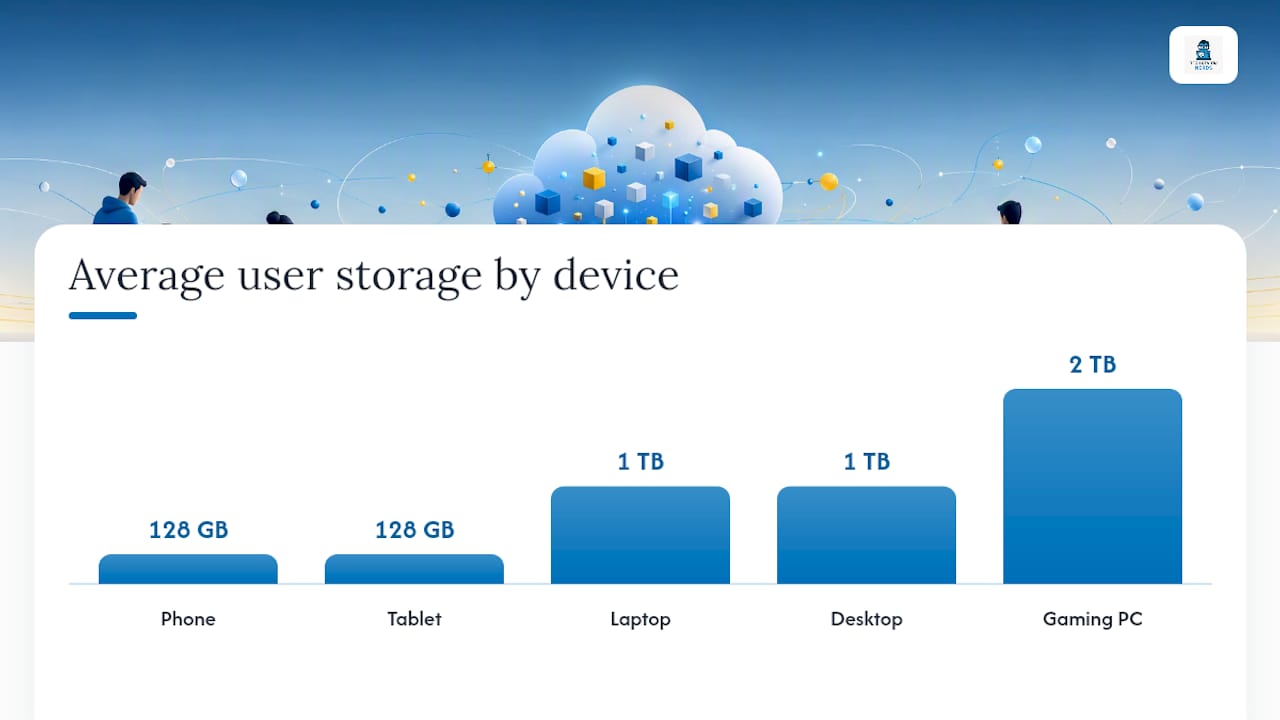
For most people, the right target is straightforward: 128GB for most phones, 256GB–512GB for power phone and tablet users, 1TB for most laptops, 2TB+ for gamers and creators, and backups sized separately at 2–3× your protected data. Those numbers cover the majority of buying decisions without overthinking it.
Here’s a quick reference to match your device and usage pattern to a single recommended capacity:
| Device | Light User | Average User | Power User | Pro / Creator |
|---|---|---|---|---|
| Phone | 64GB | 128GB | 256GB | 512GB |
| Tablet | 64GB | 128GB | 256GB | 512GB |
| Laptop | 512GB | 1TB | 2TB | 2TB+ |
| Desktop | 512GB | 1TB | 2TB | 4TB+ |
| Gaming PC | 1TB | 2TB | 4TB | 4TB+ |
Backup and archive storage is a separate calculation entirely. Plan it at 2–3× the data you’re protecting, and keep it off your primary drive.
Key Takeaways
For most buyers, 128GB covers a phone, 1TB covers a laptop, and 2TB covers a gaming PC, with backups sized separately at 2–3× your protected data.
| Point | Details |
|---|---|
| Phone baseline | 128GB suits most users; choose 256GB if you shoot video regularly or travel without cloud access. |
| Laptop baseline | 1TB is the practical minimum for a modern laptop in 2026; 512GB feels tight after OS and updates claim their share. |
| Gaming storage | 2TB is the sweet spot for most players; AAA installs run 80–150GB each, so a 1TB drive fills fast. |
| Backup sizing | Plan backup capacity at 2–3× your protected data; use HDD or cloud for archives at roughly $50 per TB. |
| Techreviewnerds picks | Hands-on laptop and device guides at Techreviewnerds help you match your storage decision to a specific machine. |
Table of Contents
- Why the storage label on your device isn’t what you actually get
- How much storage do you need by device and user type?
- How to calculate exactly how much storage you need
- What actually eats your storage?
- Practical ways to extend or manage your storage
- When should you actually upgrade your storage?
- Techreviewnerds’ storage recommendations
- The honest truth about storage advice
- Techreviewnerds makes the next step easier
- Sources
- FAQ
Why the storage label on your device isn’t what you actually get
Buy a “512GB” laptop and you won’t see 512GB of free space on day one. Several factors quietly eat into that number before you’ve installed a single app.
- Overprovisioning: SSD manufacturers reserve a portion of raw NAND flash for wear-leveling and error correction, so the usable capacity is always lower than the physical chip total.
- Formatting overhead: File systems (NTFS, APFS, exFAT) consume space for their own structure and metadata.
- OS and preloaded apps: Windows, macOS, or Android claims a meaningful chunk immediately. PCWorld notes that a labeled 512GB SSD provides significantly less usable space after the OS, updates, and factory apps are accounted for.
- Unit conversion: Drive makers measure in decimal gigabytes (1GB = 1,000,000,000 bytes), while your OS measures in binary gibibytes (1GiB = 1,073,741,824 bytes). That gap alone accounts for roughly 7% less space than the label suggests.
Windows 11 system requirements set the bar at a 64GB minimum storage device, but that’s the floor for installation, not comfortable daily use. Copilot+ PCs require a minimum of 256GB storage, but update storage needs vary, and a 256GB drive may become cramped after major updates.
Pro Tip: On a new Windows laptop, open Settings > System > Storage immediately after setup. The “Used” figure tells you exactly what the OS and preloads have already claimed. Subtract that from your drive’s total to see your real starting headroom.
How much storage do you need by device and user type?
Knowing your user profile is the fastest way to land on the right capacity. Most people fall into one of four categories, and the honest answer is that most people underestimate which tier they belong to.
Phones and tablets
Phone storage guidance breaks down cleanly by behavior:
- Light user (64GB): Streams music and video, takes occasional photos, uses a handful of apps, and relies on cloud sync for everything.
- Average user (128GB): Keeps a local photo library, uses social media apps, downloads podcasts or playlists for offline use. This is the right pick for most people.
- Power user (256GB): Shoots a lot of video, keeps large app libraries, travels frequently without reliable Wi-Fi, or plays mobile games with large downloads.
- Pro / creator (512GB): Records 4K video regularly, edits on-device, or uses the phone as a primary camera for client work.
Tablets follow the same tiers. If you use a tablet mainly for streaming and light browsing, 128GB is plenty. If you’re running creative apps, keeping large project files, or using it as a laptop replacement, 256GB is the safer floor.
Laptops
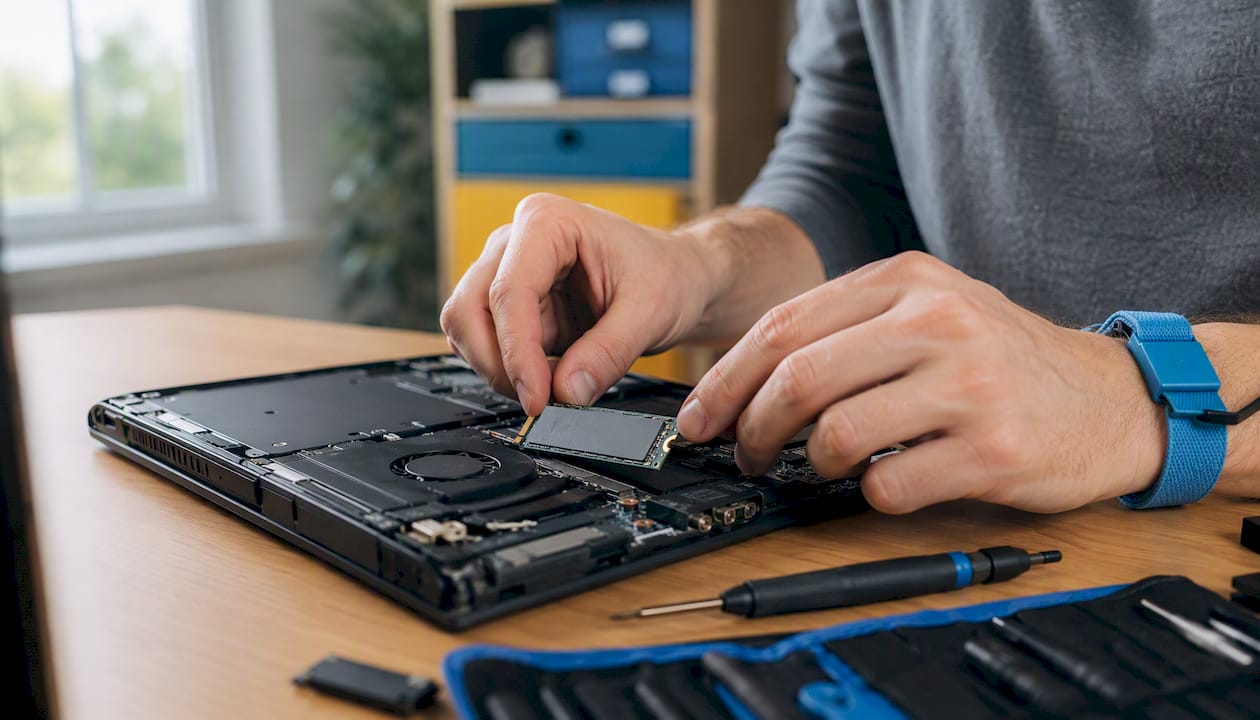
PCWorld makes a strong case that 1TB should be the baseline for modern laptops in 2026. A student who keeps a few large game installs, a local video project folder, and the usual app stack will fill a 512GB drive faster than expected. A remote worker running virtual machines or large design files needs 2TB. Check what specs matter in a laptop before finalizing any purchase, because storage interacts with RAM and CPU in ways that affect real-world performance.
Desktops and gaming PCs
Desktops have more flexibility because you can add drives later, but starting with 1TB NVMe for the OS and active work is a reasonable floor. For gaming, 1TB is a sensible minimum, 2TB is the practical sweet spot for most players, and 4TB suits large libraries. Modern AAA titles commonly run 80–150GB each, and some live-service games exceed 200GB. Three or four current games plus the OS can fill a 1TB drive with little room left. If you’re weighing a gaming laptop against a desktop, the storage tradeoffs between portable and desktop setups are worth reading before you commit.
How to calculate exactly how much storage you need
A repeatable five-step method works for any device. Run through it once and you’ll have a specific number to shop against.
- Measure your current used space. On iPhone: Settings > General > iPhone Storage. On Android: Settings > Storage. On Windows: Settings > System > Storage. On macOS: Apple menu > About This Mac > Storage. Write down the total used figure.
- Estimate 12–24 months of growth. Think about what you’ll add: more photos, new game installs, a growing project folder. A conservative estimate is 20–30% more than your current usage per year.
- Add working headroom of 15–25%. Active SSDs perform best with at least 15–20% free space. For media editing or virtual machines, push that to 25% or more.
- Factor in backups. If you’re sizing a backup drive, plan for 2–3× the data you’re protecting when versioning or multiple devices are involved.
- Round up to the nearest practical tier. Drives come in 256GB, 512GB, 1TB, 2TB, and 4TB increments. Always round up, not down.
Quick worked example: You currently use 280GB on your laptop. You expect 60GB of growth over the next year. That’s 340GB of data. The nearest practical tier above that is 512GB, but given that OS and updates will claim some of that, a 1TB drive is the smarter buy.
How to check used space quickly:
- iPhone/iPad: Settings > General > [Device] Storage
- Android: Settings > Storage (varies by manufacturer)
- Windows 11: Settings > System > Storage
- macOS: Apple menu > About This Mac > More Info > Storage
What actually eats your storage?
Understanding where space goes helps you prioritize what to manage and what to buy around.
- Photos and video: A single minute of 4K video at 60fps can run 400MB–1.5GB depending on the codec. A year of casual iPhone shooting can easily accumulate 20–50GB. Shooting in RAW format for photography pushes individual files to 25–50MB each.
- AAA game installs: As noted above, modern titles land between 80–150GB, with some exceeding 200GB. Three games can consume the better part of a 512GB drive on their own.
- Operating system and updates: Windows 11 alone occupies roughly 20–30GB at install, and cumulative updates add more over time. macOS is comparable.
- Apps and software: Creative suites like Adobe Premiere Pro or DaVinci Resolve can claim 10–20GB each. Developer tools, virtual machines, and Docker containers can run into hundreds of gigabytes.
- Cache and temporary files: Browsers, video editors, and streaming apps accumulate cache that can balloon to several gigabytes without you noticing. On macOS, tools like CleanMyMac X or the built-in Storage Management utility can surface these. On Windows, Disk Cleanup and Storage Sense handle the same job.
Worth knowing: Variable-bitrate codecs like Apple ProRes and HEVC produce wildly different file sizes for the same footage length. A 10-minute ProRes clip can be 10× larger than the same clip in H.264. If you shoot in a high-bitrate format, your storage math changes dramatically.
Practical ways to extend or manage your storage
Buying more internal storage isn’t always the right move. The smarter approach for most people is a layered strategy: fast internal SSD for active work, external or cloud for everything else.
Cloud storage and offloading:
- iCloud Photos with “Optimize Storage” keeps full-resolution originals in the cloud and stores compressed versions locally. On a 128GB iPhone, this alone can reclaim dozens of gigabytes.
- Google Photos and OneDrive offer similar offload behavior for Android and Windows users.
- Cloud storage adds a monthly cost ($2.99–$9.99/month for 200GB–2TB tiers across major providers) but removes the need to buy larger internal storage upfront.
External SSDs and HDDs:
- External SSDs are fast enough for active project work and genuinely portable. The best portable SSDs can read at 1,000–2,000MB/s over USB 3.2 or Thunderbolt.
- External HDDs cost far less per terabyte. Price-per-terabyte data shows HDDs averaging around $50 per TB versus SSDs at around $180 per TB, making HDDs the clear choice for bulk archives and backups.
- For macOS users, format external drives as APFS or HFS+ for native compatibility. For cross-platform use between Windows and Mac, exFAT is the practical standard.
MicroSD cards: Still supported on many Android phones and tablets, and on handheld gaming devices like the Steam Deck. Not suitable for app installs on most modern Android versions, but useful for media storage.
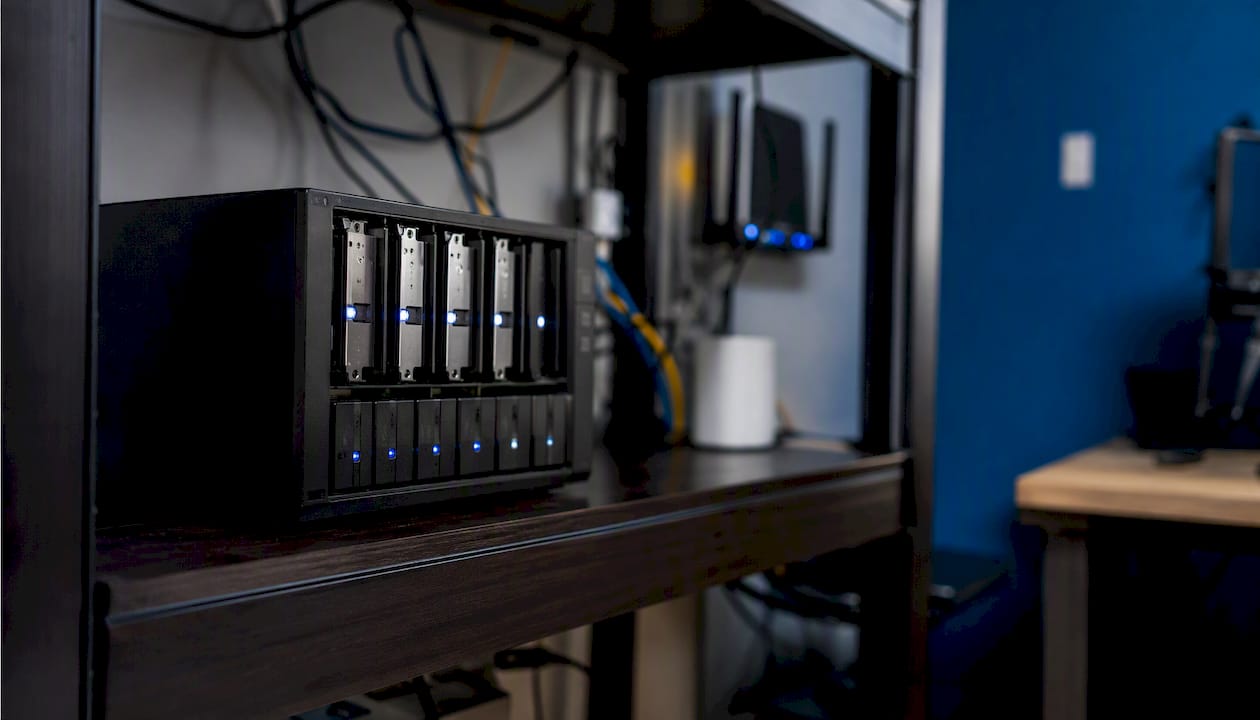
NAS (Network Attached Storage): A home NAS running drives like WD Red or Seagate IronWolf gives you multi-terabyte shared storage accessible from every device on your network. It’s the most cost-efficient long-term solution for households with multiple devices and large media libraries.
To move a photo library from your phone to an external drive: connect the drive, use the Files app (iOS) or a file manager (Android), and copy the DCIM folder. Then enable cloud offloading so the phone stops keeping originals locally.
When should you actually upgrade your storage?
A few clear signals tell you it’s time to act rather than manage around the problem.
- Your drive is more than 80–85% full. SSD performance degrades noticeably as free space shrinks. Below 15% free, write speeds can drop significantly and the drive’s wear-leveling has less room to operate.
- You’re constantly uninstalling and reinstalling apps or games to make room for new ones. That cycle wastes time and risks losing local data.
- Project work requires fast local storage. Video editing, 3D rendering, and software development all benefit from NVMe speeds. Offloading project files to a slow external drive mid-project creates real bottlenecks.
- Windows updates are failing or stalling. Microsoft’s Windows 11 specs note that update storage needs vary with installed apps and previous versions. A nearly full drive is a common reason updates fail to apply.
On the future-proofing question: if you’re buying a laptop you plan to keep for four or more years, the longer device lifespan argument strongly favors buying one tier larger than you think you need today. Storage is often soldered on modern thin-and-light laptops, so you can’t upgrade it later. Copilot+ PCs require a minimum of 256GB, but 512GB is a more realistic floor for that class of machine given the AI feature workloads they’re designed for.
Techreviewnerds’ storage recommendations
After reviewing dozens of devices across phones, laptops, and gaming rigs, here’s where the practical advice lands:
- Phones: 128GB for most people, 256GB if you shoot a lot of video or travel without reliable cloud access. Avoid 64GB on any phone you plan to keep for two or more years.
- Laptops: 1TB as the baseline for any laptop purchase in 2026. If you’re on a tight budget, a budget laptop with 512GB can work if you pair it with cloud sync and an external drive from day one.
- Gaming: 2TB internal SSD as the sweet spot. One tier down (1TB) works if you’re disciplined about rotating your game library, but you’ll feel the squeeze within a year.
- Backups: Size your backup drive at 2–3× your current data. A 2TB external HDD covers most households comfortably and costs well under $100.
- Active work storage: Always prefer SSD for your boot drive and working files. HDD is fine for archives and backups where speed isn’t the priority.
Pro Tip: The most cost-efficient setup for most people is a 1TB internal SSD for the OS and active projects, a portable SSD for work-in-progress files you carry between locations, and a 2–4TB external HDD or cloud subscription for long-term archives and backups. That three-layer approach keeps your primary drive fast and your data protected without overspending on internal capacity.
The honest truth about storage advice
Most storage guides tell you to “buy more than you think you need” and leave it there. I think that’s only half the answer. The more useful insight is that where your storage lives matters as much as how much you have.
I’ve seen plenty of setups where someone bought a 2TB internal SSD and still ran into problems because all of it was filled with archived footage that never needed to be on a fast drive. Meanwhile, their active project folder was competing for space with years of old downloads. The real performance gain comes from keeping your internal SSD lean and fast, not just large.
The other thing most guides underplay is the cost curve. HDDs at roughly $50 per TB versus SSDs at roughly $180 per TB means that for archive and backup purposes, you’re paying a 3.5× premium for speed you don’t need. That money is better spent on a larger internal SSD for your boot drive and a cheap spinning disk for everything else.
Storage decisions also age faster than most people expect. Game sizes, OS footprints, and camera resolutions all trend upward. What feels like plenty today tends to feel tight in two years. Buying one tier larger than your current math suggests is almost always the right call.
Techreviewnerds makes the next step easier
Sizing your storage is one piece of the puzzle. Picking the right device to put it in is where most buyers get stuck.

Techreviewnerds publishes hands-on, regularly updated laptop reviews and buying guides that cut through spec-sheet noise and tell you what actually matters in real use. Whether you’re choosing between a 1TB student laptop and a 2TB gaming rig, or trying to figure out if a portable SSD covers your workflow, the site’s device-specific guides give you a concrete next step rather than a list of maybes. Head to the 2026 laptop buying guide to match your storage decision to the right machine.
Sources
- Windows 11 Specs and System Requirements | Microsoft Windows
- It’s time to make 1TB SSDs the default in PCs | PCWorld
- Pcpartsuk
- Phone Storage: How Much Do You Really Need? – Optimum
FAQ
How much storage does a normal person need?
Most people are well served by 128GB on a phone and 1TB on a laptop. Those two numbers cover the average mix of apps, photos, and files without constant management.
Do I really need 2TB of storage?
If you game regularly or work with video, yes. Modern AAA game installs run 80–150GB each, so a 2TB drive fills up faster than most people expect. For everyday laptop use, 1TB is sufficient.
Is 500GB a lot of storage?
It’s a reasonable starting point for a laptop, but after the OS, updates, and a few large apps claim their share, usable space is closer to 350GB. For most users in 2026, 1TB is the more comfortable choice.
How much phone storage is normal?
128GB is the most common and practical choice for the majority of smartphone users. Light users can manage on 64GB with cloud sync enabled, while power users who shoot 4K video or keep large app libraries should target 256GB or more.