
Cooling is the single biggest predictor of sustained performance in a budget laptop, outweighing CPU clock speeds, GPU tier names, and RAM capacity. Budget laptop thermal management determines whether your machine runs at full speed for hours or slows to a crawl after 20 minutes of real work. Every affordable laptop ships with a fixed thermal envelope, and how well that envelope handles heat decides everything from frame rates to how long the hardware actually lasts. If you are shopping under $800, understanding laptop thermals before you buy is the difference between a smart purchase and an expensive disappointment.
How cooling affects budget laptops: the thermal throttling problem
Thermal throttling is the automatic process where a laptop’s CPU or GPU reduces its clock speed to prevent damage from excess heat. It is not a flaw. It is a safety mechanism. The problem is that budget laptops trigger it far sooner and far more aggressively than premium machines.
Thermal throttling begins 20 to 40 minutes into sustained use on sub-$1,200 laptops, causing performance drops of 20–40%. That is not a minor dip. A laptop that benchmarks well in a 5-minute burst test can feel sluggish and unresponsive during a long gaming session or a video render.

The reason budget laptops are especially vulnerable comes down to chassis design. Manufacturers cut costs by using thinner plastic shells with fewer heat pipes and smaller fans. Less internal volume means less airflow. Less airflow means heat builds up faster. The processor hits its thermal limit sooner, and the throttling kicks in.
Here is how the throttling sequence typically plays out:
- Load begins. The CPU and GPU ramp up to their rated clock speeds, drawing full power.
- Temperatures climb. With limited airflow, heat accumulates quickly inside the chassis.
- Thermal threshold reached. The processor hits its programmed temperature limit, usually around 90–95°C for most budget chips.
- Clock speed drops. The CPU cuts its frequency to reduce heat output, sometimes by 30% or more.
- Performance degrades. Frame rates fall, render times stretch, and the machine feels noticeably slower.
- Cycle repeats. The chip cools slightly, ramps back up, overheats again, and throttles again in a loop.
This cycle is why sustained load benchmarks matter far more than peak burst scores when evaluating a budget laptop. A 5-minute Cinebench run tells you the ceiling. A 30-minute stress test tells you what you will actually experience.
Pro Tip: When researching a budget laptop, search for its name alongside “30-minute stress test” or “sustained performance.” If reviewers only post short benchmark scores, treat that as a red flag.
What cooling systems do budget laptops actually use?
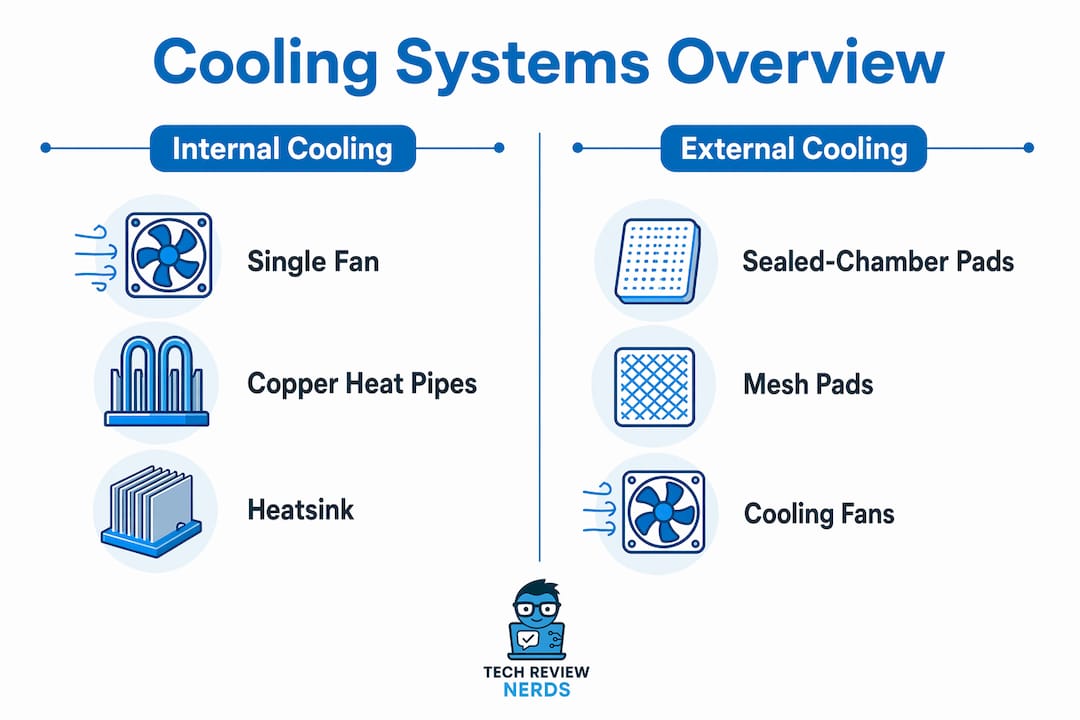
Budget laptop cooling systems fall into two categories: what is built into the machine and what you can add externally. Both matter, and understanding the difference helps you spend wisely.
Internal cooling components
Most affordable laptops ship with a single fan, one or two copper heat pipes, and a small heatsink over the CPU. Higher-end budget models sometimes include a secondary fan or a vapor chamber, but those are rare below $700. The fan pulls air through intake vents on the bottom of the chassis and exhausts it out the sides or rear. The heat pipes carry thermal energy away from the processor and toward the heatsink fins where the fan can move it out.
The limiting factor is chassis volume. A thicker laptop has more room for larger fans, longer heat pipes, and better vent placement. A well-cooled thicker chassis outperforms a thin machine with a higher-wattage GPU because the thin machine cannot sustain that wattage without throttling. A 115W GPU in a properly ventilated body beats a 75W GPU in a slim chassis under real load. Thinness is a marketing feature. Thermal headroom is a performance feature.
External cooling options
External cooling pads are the most common aftermarket solution. They range from basic mesh platforms to sealed-chamber designs, and the difference in effectiveness is significant.
| Cooling pad type | Temp reduction | Noise level | Typical price |
|---|---|---|---|
| Sealed-chamber pad | 8–10°C | Low | $30–$60 |
| Mesh fan pad | 1–3°C | Moderate to high | $15–$35 |
| Passive stand (no fan) | 0–2°C | Silent | $10–$25 |
Sealed-chamber cooling pads reduce peak laptop temperatures by 8–10°C during intensive benchmarks. That is enough to delay or prevent throttling in many budget machines. The sealed design forces airflow directly into the laptop’s intake vents rather than letting air scatter across the bottom surface.
Mesh pads deliver only 1–3°C of reduction because they miss up to 60% of the airflow that should reach the intake vents. They also generate more noise per degree of cooling than sealed alternatives. Many cooling pads marketed with RGB lighting and aggressive styling provide negligible thermal benefit without proper airflow engineering behind the design.
Pro Tip: Before buying a cooling pad, check where your laptop’s intake vents are located. If they are on the bottom, a sealed-chamber pad will help. If vents are only on the sides, a pad will do almost nothing.
How does heat affect laptop hardware lifespan and resale value?
Heat degrades hardware faster than almost any other factor in everyday laptop use. Every 10°C increase in operating temperature approximately halves the lifespan of laptop components, including the battery, CPU, and storage chips. That is not a gradual decline. It is an exponential one.
The battery suffers most visibly. Lithium-ion cells degrade faster at high temperatures, and a budget laptop that runs hot during daily use will lose battery capacity noticeably within 18 months. The CPU and GPU experience silicon degradation over time, which shows up as instability and reduced maximum performance. NVMe and SATA SSDs also have rated operating temperature ranges, and sustained heat pushes them toward their limits.
“Well-cooled laptops retain performance consistency longer and command better resale prices.” — Newegg Insider, 2026
Higher operating temperatures reduce resale value because buyers can test performance and battery health before purchasing. A two-year-old laptop that ran cool will benchmark close to its original scores. One that ran hot will show clear degradation. If you plan to sell or trade in your laptop within three years, thermal management is a direct financial concern, not just a performance one.
For buyers focused on longevity, Techreviewnerds consistently flags thermal design as a key factor in laptops built to last. A machine with a larger chassis, dual fans, and well-placed vents will outlast a sleek thin model with identical specs on paper.
How to evaluate and improve cooling when buying a budget laptop
Knowing what to look for before you buy saves more money than any cooling pad you could add afterward. Here are the most effective ways to evaluate and improve thermal performance on a budget.
Check sustained benchmarks, not burst scores. Short benchmark tests do not reveal throttling behavior. Look for reviews that include at least 20–30 minutes of continuous load testing. If a reviewer only posts peak scores, the sustained performance picture is missing.
Prioritize chassis thickness and vent design. A laptop with visible bottom intake vents, rear exhaust, and a body thicker than 20mm has more thermal headroom than an ultra-slim alternative. Spec sheets do not list cooling quality, so you need to read hands-on reviews that address it directly.
Monitor temperatures during use. Free tools like HWiNFO64 and MSI Afterburner display real-time CPU and GPU temperatures. Temperatures below 75°C during 15 minutes of heavy load suggest the internal cooling is sufficient and external accessories may not be necessary.
Use your laptop on hard, flat surfaces. Soft surfaces like beds and couches block bottom intake vents completely. This alone can raise internal temperatures by several degrees and trigger throttling that would not otherwise occur.
Keep vents clean. Dust accumulates in fan blades and heatsink fins over time, reducing airflow. A can of compressed air directed into the vents every few months maintains cooling efficiency without requiring disassembly.
Elevate the rear of the laptop. Even a small stand that tilts the machine 10–15 degrees improves airflow under the chassis. Many budget-friendly stands cost under $15 and deliver a measurable temperature reduction.
- Avoid placing the laptop on pillows, blankets, or carpet during use
- Clean intake vents with compressed air every 3–6 months
- Use a sealed-chamber cooling pad if temperatures regularly exceed 85°C under load
- Monitor fan noise as a signal: loud sustained fan noise means the cooling system is working at its limit
- Check TDP ratings before buying to understand how much heat the chip is designed to produce
Pro Tip: Fan noise is a free thermal diagnostic tool. If your laptop fan runs at full speed constantly during light tasks like web browsing, the internal cooling is already struggling. That is a sign of either dust buildup or a chassis that cannot handle the chip’s heat output.
Key Takeaways
Cooling is the most underrated factor in budget laptop performance, and poor thermal management costs you speed, hardware life, and resale value simultaneously.
| Point | Details |
|---|---|
| Thermal throttling is the core issue | Budget laptops lose 20–40% performance after 20–40 minutes of sustained load due to heat buildup. |
| Chassis design matters more than GPU names | A thicker, well-ventilated chassis sustains higher performance than a slim machine with a higher-tier GPU. |
| Heat halves component lifespan | Every 10°C rise in operating temperature approximately doubles the rate of hardware degradation. |
| Sealed-chamber pads outperform mesh pads | Sealed designs reduce temperatures by 8–10°C; mesh pads deliver only 1–3°C of improvement. |
| Sustained benchmarks reveal the truth | Short burst tests hide throttling; always check 20–30 minute load test results before buying. |
Cooling is the spec sheet item that does not exist
I’ve tested enough budget laptops to know that the spec sheet is almost useless for predicting real-world performance. You can read the CPU model, the GPU tier, the RAM speed, and the storage type, and still have no idea how the machine will feel after 30 minutes of actual use. That information lives in the thermal design, and manufacturers do not advertise it.
The mistake I see most often is buyers fixating on GPU brand names. A higher-tier GPU label sounds impressive, but GPU wattage and cooling design determine sustained real-world performance far more than the name on the chip. I’ve watched a mid-tier GPU in a well-cooled chassis outperform a higher-tier chip in a thin machine during extended gaming sessions. The thin machine throttled hard after 25 minutes. The thicker one kept running at near-peak speeds.
The other common mistake is buying a cooling pad without checking whether it actually aligns with the laptop’s intake vents. I’ve seen buyers spend $40 on a mesh pad that delivered essentially no thermal benefit because the airflow never reached the right spots. A sealed-chamber pad costs a bit more, but it works. The engineering behind it is sound.
My honest advice: spend 10 minutes reading a thorough hands-on review before you buy any budget laptop. Look specifically for thermal test results under sustained load. If a review does not include them, find one that does. That single piece of information will tell you more about the machine’s real-world usability than every other spec combined. Cooling is not a secondary consideration. It is the primary one.
— K. Connors
Techreviewnerds covers the laptops that actually hold up
Techreviewnerds tests every laptop under real-world conditions, including sustained load thermal tests that reveal throttling behavior most spec sheets hide.

If you are shopping for a budget laptop and want to know which machines handle heat well, the Techreviewnerds laptop reviews cover thermal performance alongside everyday usability. For buyers focused on mid-range options, the best mid-range laptops guide highlights machines that balance price, cooling design, and sustained performance. Every recommendation comes from hands-on testing, not spec sheet comparisons. You will find the thermal context that budget laptop shoppers actually need before committing to a purchase.
FAQ
What is thermal throttling in a laptop?
Thermal throttling is when a laptop automatically reduces its CPU or GPU clock speed to prevent overheating. It typically begins after 20–40 minutes of sustained load on budget machines and can cause 20–40% performance drops.
Do cooling pads actually help budget laptops?
Sealed-chamber cooling pads reduce peak temperatures by 8–10°C and can delay or prevent throttling. Basic mesh pads deliver only 1–3°C of improvement and are far less effective.
How does heat affect a laptop’s lifespan?
Every 10°C increase in operating temperature approximately halves the lifespan of laptop components including the battery, CPU, and storage. Running a laptop cool is one of the most effective ways to extend its usable life.
What temperature is too hot for a budget laptop?
CPU temperatures above 90–95°C under sustained load indicate the cooling system is at its limit. Peaks below 75°C during heavy use suggest the internal cooling is adequate without external accessories.
Should I prioritize cooling design when buying a budget laptop?
Yes. A budget laptop’s cooling design is a stronger predictor of sustained performance than its GPU tier or clock speed. Always check hands-on reviews that include sustained load thermal tests before buying.