
Thermal paste is a thermally conductive compound applied between a gaming laptop’s CPU or GPU and its heatsink to transfer heat away from the processor. Without it, microscopic air gaps between those two surfaces act as insulators, trapping heat and causing temperatures to spike fast. If you’ve ever wondered what is thermal paste in gaming laptops and why it matters so much, the short answer is this: it’s the difference between a laptop that runs cool under load and one that throttles itself into sluggishness mid-session. Understanding how it works, when to replace it, and how to apply it correctly gives you real control over your laptop’s thermal performance.
What is thermal paste in gaming laptops and why does it matter?
Thermal paste is defined as a thermally conductive interface material that fills microscopic gaps between the processor’s surface and the heatsink. Those gaps, invisible to the naked eye, trap air. Air is a poor conductor of heat. Thermal paste replaces that air with a compound that moves heat far more efficiently.
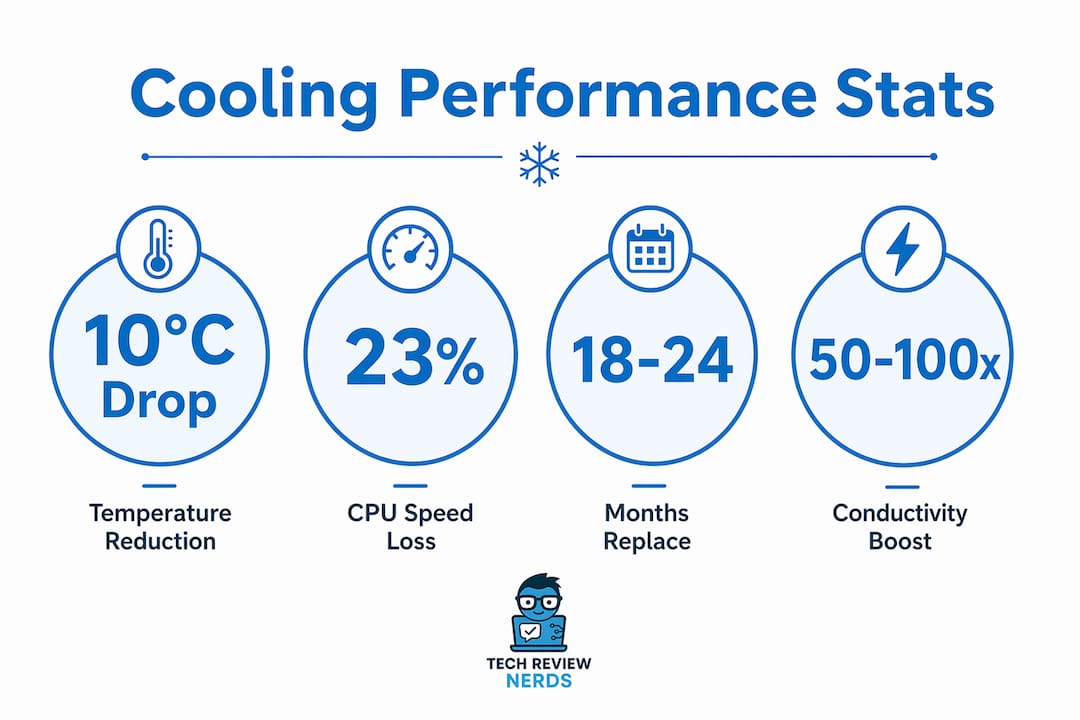
The performance gap is significant. Thermal paste conducts heat 50–100 times better than trapped air gaps. That number is not a marketing claim. It reflects the physical difference between a thermally conductive compound and stagnant air sitting between two metal surfaces.
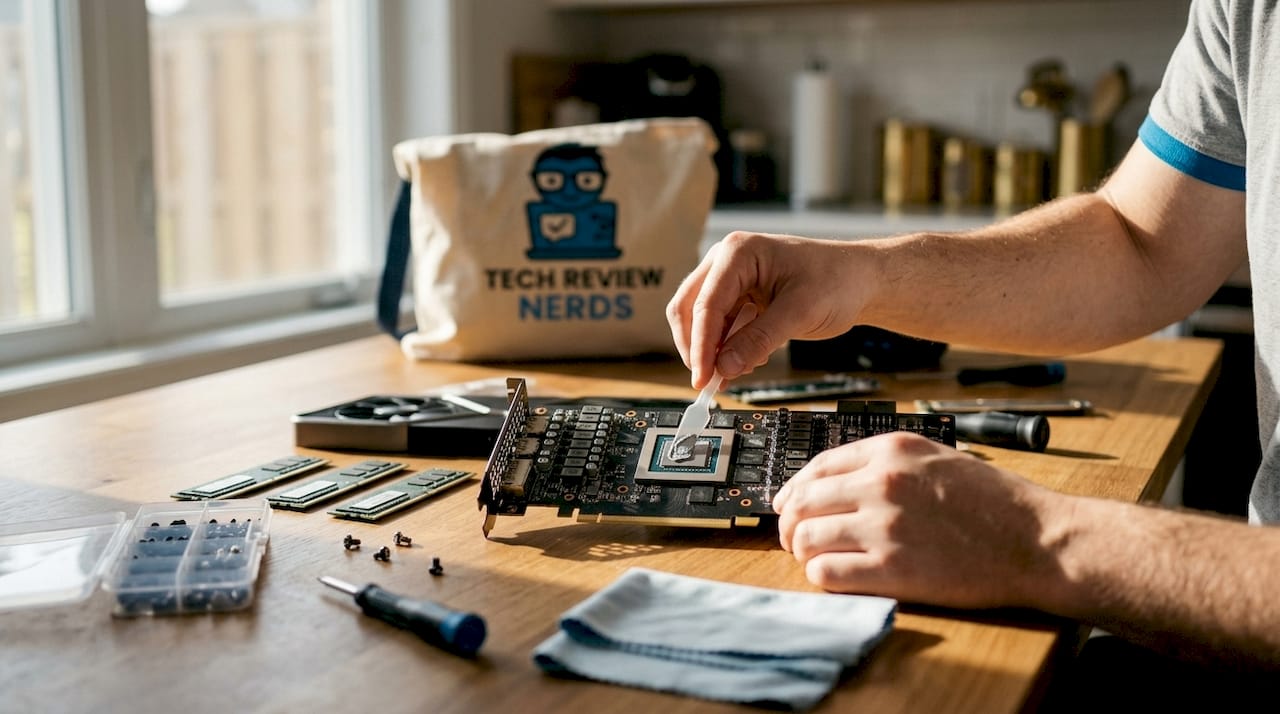
Gaming laptops push this challenge harder than any other category. A high-performance gaming laptop can generate serious heat from both the CPU and GPU simultaneously, especially during extended sessions. The heatsink and fan system can only do their job if heat actually reaches them. Thermal paste is the bridge that makes that transfer possible.
Over time, paste dries out, cracks, or gets pumped out through heat cycling. When that happens, the thermal connection weakens and temperatures climb. That’s when gaming laptop thermal management starts to break down, and you feel it in frame rates and fan noise before you ever see a temperature reading.
How does thermal paste improve gaming laptop cooling performance?
The science here is straightforward. Without thermal paste, air pockets between the CPU die and the heatsink base act as insulation. Heat builds up at the processor surface instead of flowing into the heatsink. The cooling system spins fans harder but moves less heat because the transfer point is compromised.
With fresh, properly applied paste, heat moves efficiently from the chip into the heatsink. The fans can then do their actual job. Temperatures stay lower, and the processor runs at its intended clock speeds.
The performance impact of degraded paste is measurable. Thermal throttling at 90–100°C can cause a 23% drop in CPU clock speed and an 8–15% loss in frame rate during gaming. That’s not a minor inconvenience. That’s your laptop actively cutting its own performance to avoid damage.
Replacing old paste delivers real results. Repasting reduces temperatures by 8–15°C in most gaming laptops. A 10°C drop can mean the difference between a CPU that throttles at 90°C and one that cruises at 80°C with full clock speeds intact.
Temperature impact at a glance
| Condition | Typical CPU Temp | Performance Impact |
|---|---|---|
| Fresh factory paste | 75–85°C under load | Full clock speeds |
| Degraded paste (2+ years) | 90–100°C under load | Up to 23% clock drop |
| After repasting | 8–15°C lower than before | Clock speeds restored |
| After repasting + dust cleaning | Additional 5–7°C reduction | Maximum thermal headroom |
Pro Tip: Monitor your CPU and GPU temperatures with a free tool like HWiNFO64 or HWMonitor before and after repasting. A side-by-side comparison tells you exactly how much the new paste helped.
What type of thermal paste should you choose for a gaming laptop?
Not all thermal pastes are equal, and gaming laptops have specific requirements that desktop users rarely think about. The three main categories are silicone-based compounds, nano-diamond or ceramic pastes, and liquid metal.
Silicone-based pastes are the most common and the safest. They’re electrically non-conductive, which means accidental contact with nearby components won’t cause a short circuit. They work well for most mid-range gaming laptops and are the right starting point for anyone doing their first repaste.
Nano-diamond and ceramic pastes offer better thermal conductivity than standard silicone compounds without the risk of liquid metal. They suit high-wattage gaming laptops where temperatures run consistently hot. These pastes are still non-conductive, making them a practical upgrade over basic silicone options.
Liquid metal is the highest-performing option, but it carries real risk. It is electrically conductive. A single drop on the wrong component can destroy a motherboard. Thin-chassis gaming laptops use specialized cooling with vapor chambers and liquid metal in some cases, but those applications are factory-controlled. DIY liquid metal application on a laptop requires confidence, the right tools, and a compatible heatsink material. Aluminum heatsinks react badly with liquid metal and will corrode.
Beyond conductivity type, longevity matters as much as peak performance. Thermal paste pump-out from repeated heat cycling is a primary degradation mechanism in laptops. A high-viscosity paste with strong pump-out resistance will outlast a lower-viscosity paste with a slightly higher conductivity rating. For gaming laptops that cycle between hot and cold constantly, that durability is worth more than a marginal conductivity advantage.
Key factors to weigh when choosing paste for a gaming laptop:
- Electrical conductivity risk: Non-conductive pastes (silicone, ceramic, nano-diamond) are the safe choice for most gamers.
- Viscosity and pump-out resistance: Higher viscosity holds up better through repeated heat cycles in compact chassis.
- Compatibility with heatsink material: Liquid metal reacts with aluminum. Check your heatsink material before using it.
- Wattage demands: High-TDP gaming laptops benefit from pastes rated for higher heat density. You can learn more about TDP and thermal efficiency to match paste selection to your laptop’s power envelope.
When and how to apply thermal paste on a gaming laptop
The recommended repasting interval for gaming laptops is every 18–24 months under normal use, or annually if you’re already seeing overheating symptoms. That timeline shortens if you game heavily every day or use the laptop in warm environments.
Signs that your laptop needs repasting now, not later:
- Fans running at full speed constantly, even during light tasks.
- Thermal throttling during gaming, where frame rates drop suddenly and inconsistently.
- Unexpected shutdowns during demanding sessions. This is the processor protecting itself.
- Temperatures above 90°C under moderate load, not just peak stress.
- Loud fan noise that wasn’t present when the laptop was new.
Step-by-step application principles
The application process matters as much as the paste itself. Getting it wrong wastes a good product.
- Power down and discharge the laptop fully. Remove the battery if it’s accessible. Ground yourself to avoid static discharge.
- Remove the heatsink carefully. Unscrew in a cross pattern to release pressure evenly. Lift straight up, don’t slide.
- Clean the old paste off both surfaces. Use isopropyl alcohol at 90% concentration or higher and a lint-free cloth or cotton swab. Both the chip surface and the heatsink contact plate need to be clean.
- Clean the heatsink fins while you have access. Dust buildup alone can raise temperatures by 5–7°C. Compressed air works well here.
- Apply the paste. A pea-sized dot in the center of the CPU die is the standard method. For larger GPU dies, a thin line or cross pattern spreads more evenly. The heatsink pressure will spread it when you remount.
- Remount the heatsink. Tighten screws in a cross pattern, gradually, to apply even pressure across the die.
- Test immediately. Boot the laptop and run a stress test. Check temperatures to confirm the improvement.
Excessive thermal paste acts as an insulator rather than a conductor. More is not better. A pea-sized amount or a thin line is the correct quantity. Overapplication pushes paste onto the motherboard and can cause shorts.
Pro Tip: If your laptop has both a CPU and a GPU under the same heatsink, apply paste to both dies. Missing one chip defeats the purpose of the repaste.
What software and hardware strategies complement thermal paste?
Thermal paste is one part of a broader gaming laptop thermal management approach. Paste alone won’t fix a laptop that’s thermally compromised from multiple directions.
Software undervolting tools like ThrottleStop and Ryzen Master should be attempted before any hardware intervention. Undervolting reduces the voltage fed to the processor, which lowers heat output without affecting clock speeds. Many gaming laptops run with more voltage than they actually need, and a modest undervolt can drop temperatures by several degrees with no hardware work at all.
Fan curve adjustments are the next step. Most gaming laptops allow manual fan curve control through manufacturer software or third-party utilities. Setting fans to ramp up earlier keeps temperatures lower before they reach throttling territory. The trade-off is noise, but most gamers accept that during heavy sessions.
Physical maintenance rounds out the approach:
- Compressed air through vents every 3–6 months prevents dust from accumulating on heatsink fins.
- Laptop cooling pads raise the chassis off the desk surface, improving intake airflow.
- Avoiding soft surfaces like beds or couches during gaming keeps intake vents clear.
- Checking chassis airflow design matters more than most gamers realize. Understanding chassis airflow in gaming laptops helps you position the laptop for maximum cooling efficiency.
Repasting is the right move after you’ve exhausted software tuning and physical cleaning. If temperatures are still unacceptable after undervolting and dust removal, fresh paste is the next logical step.
How do you troubleshoot thermal paste and cooling problems?
The most common mistake gamers make is assuming a new laptop is thermally fine. Many new gaming laptops have poor factory thermal paste application, causing overheating within the first year. Factory paste is often applied quickly and inconsistently on production lines. A brand-new laptop that runs hot out of the box is not necessarily defective. It may simply need a repaste.
Common symptoms that point to a thermal paste problem:
- Thermal throttling during gaming that wasn’t present when the laptop was new.
- Sudden performance drops mid-session, especially in CPU-heavy titles.
- Fan noise that has increased noticeably over the past few months.
- Temperatures that spike quickly rather than building gradually under load.
Incompatible paste choices create their own problems. Using electrically conductive paste near exposed components risks a short circuit. Using liquid metal on an aluminum heatsink causes corrosion that permanently damages the cooling system. These are not recoverable mistakes.
When to call a professional rather than doing it yourself: if your laptop is under warranty, opening it voids coverage in most cases. If the heatsink design is complex or the screws are stripped, a repair shop is the safer call. For most modern gaming laptops with accessible bottom panels, repasting is a reasonable DIY task for anyone comfortable with basic hardware work.
Key Takeaways
Thermal paste is the most overlooked factor in gaming laptop cooling, and replacing it on schedule delivers measurable temperature drops that restore full CPU and GPU performance.
| Point | Details |
|---|---|
| Thermal paste function | It fills microscopic air gaps between the CPU/GPU and heatsink, enabling efficient heat transfer. |
| Repasting interval | Replace paste every 18–24 months or sooner if temperatures exceed 90°C under moderate load. |
| Temperature improvement | Proper repasting reduces temperatures by 8–15°C, preventing throttling and frame rate loss. |
| Paste type selection | Use non-conductive paste for safety; prioritize high-viscosity options for pump-out resistance. |
| Complementary steps | Combine repasting with dust cleaning and software undervolting for maximum thermal headroom. |
My take on thermal paste after years of laptop testing
I’ve opened a lot of gaming laptops over the years, and the thermal paste situation inside most of them is genuinely surprising. Factory application is inconsistent at best. I’ve seen blobs of paste covering half the motherboard and paper-thin smears that barely touched the die. Neither extreme does the job well.
The thing I keep coming back to is this: gamers obsess over GPU specs and refresh rates, but they rarely think about what’s keeping those components alive under load. Thermal paste is unglamorous. It costs a few dollars. But it has a more direct impact on sustained gaming performance than most hardware upgrades people spend hundreds on.
I’ve also watched people make the liquid metal mistake. The conductivity numbers look impressive, and they are. But liquid metal on an incompatible heatsink, or applied without proper masking, causes damage that no amount of repasting can fix. My honest recommendation is to use a quality nano-diamond or ceramic paste for most gaming laptops. The performance difference versus liquid metal is small. The risk difference is enormous.
One thing I think gets underplayed is the combination effect. Repasting alone is good. Repasting plus cleaning the heatsink fins plus a modest undervolt through ThrottleStop or Ryzen Master is genuinely transformative. I’ve seen laptops that were throttling constantly turn into machines that hold full clock speeds through long gaming sessions, just from those three steps done together. None of it requires expensive tools or advanced skills. It just requires knowing what to do and doing it carefully.
Track your thermals before and after any intervention. Free tools like HWiNFO64 give you a clear before-and-after picture. That data tells you whether the work made a difference and whether more intervention is needed.
— K. Connors
Gaming laptops with strong thermal management, reviewed by Techreviewnerds
Thermal performance is one of the first things Techreviewnerds evaluates in every gaming laptop review. A fast GPU means nothing if the cooling system can’t sustain it under load.

If you’re shopping for a gaming laptop and want to know which models actually hold their temperatures during extended sessions, the Techreviewnerds laptop reviews cover real-world thermal testing across budget, mid-range, and high-performance categories. Every recommendation is based on hands-on testing, not spec sheets. Whether you’re looking for a laptop that ships with solid factory paste application or one that responds well to aftermarket upgrades, the reviews give you the thermal picture before you buy.
FAQ
What does thermal paste do in a gaming laptop?
Thermal paste fills microscopic air gaps between the CPU or GPU and the heatsink, allowing heat to transfer efficiently to the cooling system. Without it, trapped air acts as an insulator and temperatures spike under load.
How often should you replace thermal paste in a gaming laptop?
The recommended interval is every 18–24 months, or annually if the laptop shows overheating symptoms like thermal throttling or unexpected shutdowns.
Can bad thermal paste cause FPS drops in games?
Yes. Degraded paste causes thermal throttling at 90–100°C, which can reduce CPU clock speeds by up to 23% and cut frame rates by 8–15% during gaming sessions.
Is liquid metal thermal paste safe for gaming laptops?
Liquid metal delivers high thermal conductivity but is electrically conductive and reacts with aluminum heatsinks. It carries significant risk for DIY application and is best avoided unless you have confirmed heatsink compatibility and experience with the process.
Does cleaning dust help as much as replacing thermal paste?
Dust removal from heatsink fins can independently reduce temperatures by 5–7°C. For best results, combine dust cleaning with a fresh paste application and software undervolting.