
For fast, portable working storage, choose an external SSD. For cheap bulk archives at 4TB and above, an external HDD is the smarter buy. For most people, the right answer is both.
- Modern portable SSDs deliver much higher speeds than portable HDDs, often finishing large transfers in a fraction of the time, making them far more efficient for active work.
- Price per GB continues to favor HDDs at higher capacities, while the premium SSD cost at 1–2TB capacities is often justified by their speed and durability advantages for active use.
- SSDs generally report lower annualized failure rates than HDDs, though HDD mechanical failures often allow easier physical data recovery compared to SSD controller failures.
One-line action: Traveling or editing? Buy a 1–2TB SSD. Archiving large media libraries? Buy a 4TB+ HDD. Doing both? Pair one of each.
Table of Contents
- How external SSD vs HDD actually compare: the full breakdown
- Why external SSDs win for active work, travel, and creative projects
- Where external HDDs still make more sense
- What actually controls your real-world transfer speeds
- What storage actually costs at common capacities
- Reliability, lifespan, and what happens when drives fail
- Which drive fits your situation: a buyer profile checklist
- Ten questions to ask before you buy an external drive
- What the data and third-party testing actually show
- The final verdict: who should buy what
- Key Takeaways
- The case for the hybrid approach (and why single-drive thinking costs you)
- Techreviewnerds’ tested picks for external drives
- Useful sources and further reading
- FAQ
How external SSD vs HDD actually compare: the full breakdown
The table below captures the key dimensions side by side. Read it top to bottom, then check the interface notes underneath before you buy.
| Dimension | External SSD | External HDD |
|---|---|---|
| Sequential read/write speed | 400–2,000 MB/s (interface-dependent) | 100–150 MB/s |
| Typical external capacities | 500GB–4TB (mainstream); 8TB emerging | 1TB–20TB |
| Price per GB (US) | Higher for SSDs at 1–2TB | Lower for HDDs at 2TB+ |
| Durability / shock resistance | High — no moving parts | Low — spinning platters vulnerable to drops |
| Portability / weight | Palm-sized, lightweight | Larger form factor, heavier |
| Power | Bus-powered via USB-C | Bus-powered or uses AC adapter |
| Noise | Silent | Audible spin/seek noise |
| Recoverability complexity | High — controller failures can be unrecoverable | Lower — platter data often physically recoverable |
Interface reality check: USB 3.2 Gen 1 (5 Gbps) caps real throughput at roughly 400–500 MB/s; Gen 2 (10 Gbps) reaches 800–1,000 MB/s; USB4 and Thunderbolt 3/4 push 2,000 MB/s or more. If your laptop only has a USB-A port or a Gen 1 USB-C port, a premium NVMe-class SSD will be throttled to HDD-adjacent speeds. Check your host port before paying for top-tier transfer rates.
Why external SSDs win for active work, travel, and creative projects
Speed is the obvious headline, but the practical advantages run deeper than raw MB/s.

No moving parts means an SSD survives a bag drop, a bumpy flight, or a field shoot without the risk of a head crash that would destroy an HDD mid-transfer. For a travel photographer or a videographer pulling footage on location, that alone is worth the price premium.
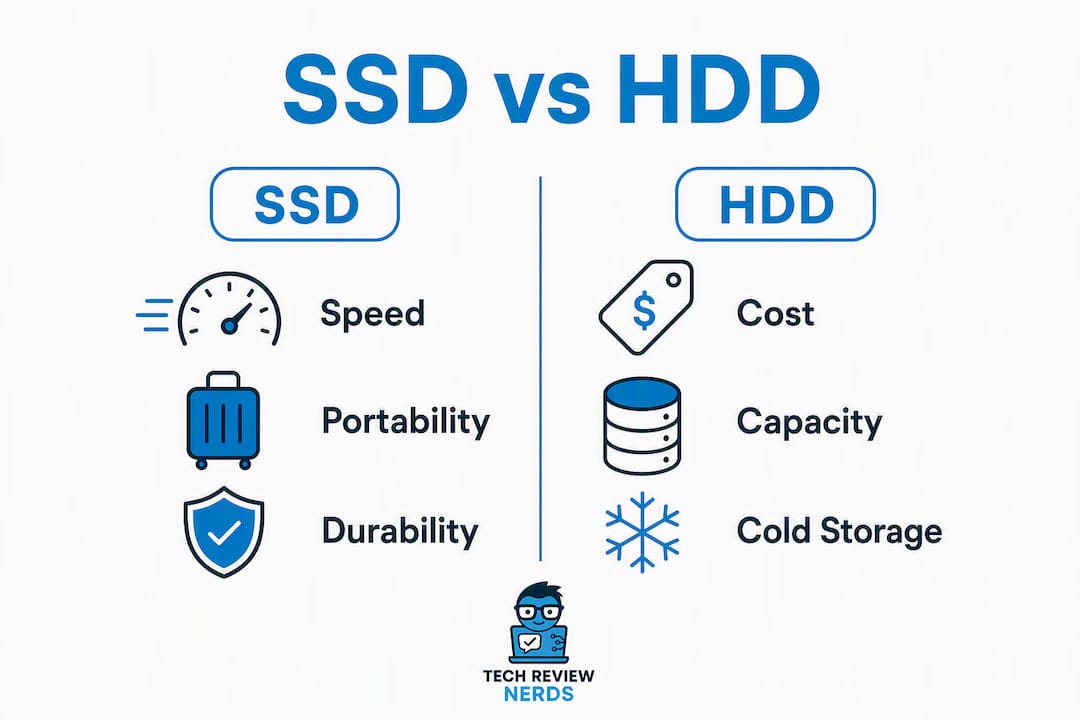
Power draw is lower too. Most portable SSDs run comfortably off a single USB-C cable, drawing less current than a 2.5" HDD under load. That matters when you’re working from a laptop on battery.
The speed difference becomes visceral in real workflows. Importing a 50GB card of RAW files, running Lightroom catalog previews, or editing a 4K timeline from an external drive — these tasks feel sluggish on an HDD and fluid on a fast SSD. Running games or applications directly from an external drive is another area where SSD class storage is often required; some newer console titles won’t install or run from an HDD at all.
Kingston sits in the value-to-mid-range flash controller space, offering dependable options for buyers who want SSD speed without paying for a premium brand. Worth considering if budget is a constraint but portability and speed still matter.
Pro Tip: Don’t fill your SSD past 80–85% capacity. As free space shrinks, the pseudo-SLC write cache shrinks with it, and sustained write speeds can drop noticeably. Buying a larger capacity than you think you need today preserves performance over the drive’s life.
Where external HDDs still make more sense
HDDs aren’t obsolete. For the right jobs, they’re the obvious choice.
Cost per terabyte is the clearest argument. At 4TB and above, HDDs are dramatically cheaper, and that gap widens as capacity climbs. A 4TB portable HDD typically runs $90–$120 in the US market. A 4TB portable SSD costs two to three times as much. For a home media library, a video archive, or a full system backup destination, that math is hard to argue with.
On recoverability: Western Digital notes that when an HDD fails mechanically, the data often remains intact on the platters and can be retrieved by a professional recovery service. SSD controller failures, by contrast, can render data completely inaccessible — even to specialists. If you store irreplaceable files on a single drive, the recovery risk profile of each technology matters.
For true long-term cold storage, HDDs also hold an advantage: NAND flash cells slowly lose their charge when unpowered over multi-year timelines, which can cause data degradation on SSDs sitting on a shelf. Magnetic platters don’t share that vulnerability, making HDDs the preferred medium for shelf archives kept physically secure.
Western Digital’s guidance on HDD vs SSD recoverability is worth reading if you’re deciding where to store files you can’t afford to lose.
What actually controls your real-world transfer speeds
Manufacturer specs are best-case numbers. What you experience depends on three things: your host interface, your cable, and your workload type.
Interface ceilings by class:
- USB 3.2 Gen 1 (5 Gbps): ~400–500 MB/s real-world ceiling
- USB 3.2 Gen 2 (10 Gbps): ~800–1,000 MB/s
- USB4 / Thunderbolt 3/4: 2,000–3,000+ MB/s for capable drives and hosts
A USB4-rated SSD connected to a Gen 1 port will perform like a mid-range drive. That’s the most common buyer mistake, and it’s entirely avoidable by checking your laptop’s port spec before purchasing. The Techreviewnerds laptop buying guide covers what port specs to look for if you’re unsure.
Workload type changes the equation too. Sequential transfers (copying large video files) play to an SSD’s peak MB/s rating. Random IOPS workloads (photo culling, database access, running applications) expose the gap between SSD and HDD even more dramatically, because HDDs must physically seek between sectors while SSDs access any cell instantly.
Pro Tip: Use the cable that ships with the drive, or verify that your replacement cable is rated for the full bandwidth of your interface. A USB-C cable rated for USB 2.0 speeds will bottleneck even a Gen 2 drive. Check the cable spec, not just the port.
Thermal throttling is a real factor for NVMe-class external SSDs during sustained large transfers. Enclosures without adequate ventilation can trigger throttling after several minutes of continuous writes, dropping speeds by 30–50% until the drive cools. For occasional transfers this rarely matters; for sustained video ingest workflows, look for drives or enclosures with aluminum housings that dissipate heat.
What storage actually costs at common capacities
Prices shift, but the relative economics are stable enough to budget from.
| Capacity | Typical Portable HDD Price | Typical Portable SSD Price | HDD Cost per GB | SSD Cost per GB |
|---|---|---|---|---|
| 1TB | Lower price range | Higher price range | HDD generally cheaper | SSD generally more expensive |
| 2TB | Lower price range | Higher price range | HDD generally cheaper | SSD generally more expensive |
| 4TB | Lower price range | Higher price range | HDD notably cheaper | SSD notably more expensive |
| 8TB | Lower price range | Higher price range | HDD notably cheaper | SSD notably more expensive |
The economic crossover is clearest at 4TB and above, where HDDs cost roughly half as much per gigabyte. At 1–2TB, the SSD premium is modest enough that speed and durability advantages often justify it for active working drives.
A simple rule of thumb: if you’re buying storage for files you actively open, edit, or run, pay the SSD premium. If you’re buying storage for files you rarely touch, buy the cheapest terabytes you can find, which means HDD.
- Photography workflows (20–50MP RAW files): 1–2TB SSD for culling and editing, HDD for archive
- 4K video editing: 2TB SSD minimum for active project files; HDD for finished exports
- Console gaming: SSD for titles you’re actively playing; HDD for installed-but-idle games
- Full system backups: 4–8TB HDD, ideally two copies in different locations
Reliability, lifespan, and what happens when drives fail
Backblaze-style aggregated data shows SSDs averaging an annualized failure rate of approximately 0.98% versus 1.64% for HDDs. That’s a meaningful difference in baseline reliability, but the failure mode matters as much as the failure rate.
HDD failures tend to be sudden and mechanical: a head crash, often triggered by a drop or shock during operation, can destroy the drive instantly. SSD failures are more gradual and predictable, driven by NAND wear-leveling and TBW (terabytes written) limits. Consumer SSDs typically carry TBW ratings of 300–1,200 TBW depending on capacity; for most everyday users, that rated endurance exceeds realistic lifetime writes by a wide margin.
The recovery story flips the reliability narrative, though. When an HDD fails mechanically, a professional recovery service can often read data directly from the platters. SSD controller failures can make data completely inaccessible, even to specialists, because the controller manages encryption and addressing for the NAND cells.
Backup rules that apply to both:
- Follow the 3-2-1 backup rule: three copies of your data, on two different media types, with one copy offsite or in cloud storage.
- Never treat any single external drive as your only copy of important files, regardless of whether it’s an SSD or HDD.
- For cold archives, power up HDDs at least once a year to verify integrity and refresh the magnetic state.
- For SSDs in long-term storage, keep them connected to power occasionally to prevent NAND charge loss.
Which drive fits your situation: a buyer profile checklist
The right drive depends on the job, not on which technology sounds more impressive.
- Travel photographer or videographer: 1–2TB portable SSD. Speed for fast card imports, durability for field conditions, compact size for a camera bag.
- Home media archivist: 4–8TB portable HDD. Cost per terabyte is the priority; the drive stays on a desk, so shock resistance matters less.
- Console gamer: SSD for active titles (some newer games require it); HDD for a larger library of installed-but-idle games.
- Remote worker / laptop user: 1TB SSD for project files and app data; fast enough to run virtual machines or large databases from external storage.
- Desktop backup user: 4–8TB HDD connected to a desktop, ideally paired with a cloud backup service. Check our best desktop computers guide for compatible setups.
- Hybrid workflow (recommended for most users): 1–2TB SSD as the primary working drive for active projects, synced nightly to a 4TB+ HDD for cold archive. Multiple 2026 guides converge on this hybrid approach as the practical sweet spot.
Ten questions to ask before you buy an external drive
Work through this checklist at the product page before you add anything to your cart.
- What USB or Thunderbolt ports does my laptop or desktop actually have, and what generation are they?
- Does the drive’s interface match my host port, or will I be throttled to a lower speed tier?
- What’s my minimum capacity today, and how much will I realistically need in two years?
- Am I buying this for active working files (SSD) or long-term archive (HDD)?
- Does the drive include AES-256 hardware encryption, or do I need software encryption?
- Is it bus-powered from USB-C, or does it require an external AC adapter?
- What’s the warranty length, and does the manufacturer offer a data recovery service?
- Is the drive formatted for my OS out of the box (exFAT for cross-platform, APFS for Mac, NTFS for Windows)?
- Does the listed cable support the full bandwidth of the drive’s interface?
- For SSDs: what is the TBW rating, and does it match my expected write workload?
Red flags to watch for:
- No interface generation listed (just “USB-C” with no Gen spec)
- Missing cable in the box for your host port type
- No warranty information or warranty under one year
- Formatted as NTFS with no mention of Mac compatibility (read-only on macOS without third-party software)
What the data and third-party testing actually show
The reliability and price data together point to a clear pattern for 2026 buyers.
On reliability: SSDs carry a lower annualized failure rate (~0.98% vs ~1.64% for HDDs), but the practical implication isn’t “buy SSD and stop worrying.” It’s that SSDs are safer for portable, shock-prone use, while HDDs remain viable for stationary archive setups where physical recovery is a priority if something goes wrong.
On price trends: SSD prices have declined steadily, and the 1–2TB range is now close enough in cost to HDDs that the speed and durability advantages tip the balance for most active-use buyers. The economics at 4TB and above still favor HDDs by a wide enough margin that switching to SSD at those capacities is hard to justify unless speed is genuinely critical.
The authoritative recommendation across multiple 2026 sources is the hybrid approach: SSD for working storage, HDD for cold archive. That’s not a hedge — it’s the most cost-efficient way to get fast access where you need it and cheap capacity where you don’t.
The final verdict: who should buy what
- Buy an SSD if you need speed, portability, or shock resistance: travel, creative work, gaming, running apps from external storage.
- Buy an HDD if you need maximum capacity at minimum cost: bulk backups, media archives, cold storage at 4TB and above.
- Buy both if you have active projects and a growing archive: use the SSD as your working drive and the HDD as your backup destination.
Immediate action: If you need speed and portability, buy a 1–2TB SSD today. If you need archive capacity, buy a 4TB+ HDD and run nightly backups to it. If you’re not sure, start with a 2TB SSD and add an HDD when your archive outgrows it.
Key Takeaways
For most buyers in 2026, the right external storage strategy is a 1–2TB SSD for active work paired with a 4TB+ HDD for cold archive — not one or the other.
| Point | Details |
|---|---|
| Speed gap is decisive | Portable SSDs deliver 400–2,000 MB/s; HDDs top out at 100–150 MB/s, making SSDs far faster for active work. |
| Price crossover at 4TB | HDDs cost roughly $0.02–$0.03/GB at 4TB+; SSDs cost $0.06–$0.10/GB, making HDDs the clear budget choice for bulk storage. |
| Failure mode matters | SSDs fail at ~0.98% annually vs ~1.64% for HDDs, but HDD platter data is often physically recoverable; SSD controller failures may not be. |
| Match interface to host | USB 3.2 Gen 1 caps at ~400–500 MB/s; USB4/Thunderbolt reaches 2,000+ MB/s. Check your port before buying a premium drive. |
| Techreviewnerds recommendation | Techreviewnerds tests real-world throughput, thermal behavior, and durability to match drives to specific buyer workflows. |
The case for the hybrid approach (and why single-drive thinking costs you)
The most common mistake I see buyers make isn’t choosing the wrong drive type. It’s choosing only one.
The external SSD vs HDD debate gets framed as a binary, but the two technologies solve different problems. An SSD is a working tool. An HDD is a vault. Treating either one as both is where people run into trouble: the photographer who stores their entire archive on a single portable SSD and loses everything to a controller failure, or the videographer who shoots on an HDD and spends twenty minutes waiting for a 50GB transfer to finish.
What I think gets underestimated is how cheap the hybrid approach actually is. A 1TB SSD for active projects and a 4TB HDD for archive storage can cost less than $200 combined at current prices. That’s less than most people spend on a single premium SSD, and it gives you speed where you need it and redundancy where it matters.
The other thing worth saying plainly: no drive, SSD or HDD, is a backup. A backup is a second copy in a different location. The 3-2-1 rule exists because drives fail, and they tend to fail at the worst possible moment. The reliability data is encouraging, but it doesn’t change the math on what happens when you’re the 0.98% or the 1.64%.
Techreviewnerds’ tested picks for external drives
Choosing between an SSD and an HDD is step one. Finding a specific model that actually delivers on its spec sheet is where most buyers get stuck.

Techreviewnerds tests external drives for real-world sequential throughput, sustained write performance, thermal behavior under load, and durability — not just the numbers on the box. The best portable SSD roundup covers tested picks across budget, mid-range, and performance tiers, with notes on which models hold their rated speeds during sustained transfers and which throttle under pressure. If you’re also in the market for a laptop to pair with your new drive, the how to choose a laptop guide covers which port specs to prioritize so your drive and host actually work together at full speed. Head to the Techreviewnerds gadgets section to browse the full range of storage and accessory recommendations.
Useful sources and further reading
The claims in this article draw from the following sources. Each is worth reading if you want to go deeper on a specific topic.
- DrivesHero: External SSD vs External HDD (2026) — Practical speed comparisons, transfer time examples, and use-case breakdowns including gaming and creative workflows.
- Hubkub: External SSD vs External HDD (2026) — Interface ceiling data, pseudo-SLC cache behavior, and the hybrid recommendation.
- SlashGear: HDD or SSD — which has a longer lifespan? — Backblaze-referenced annualized failure rate comparison.
- Western Digital: HDD vs SSD solutions overview — Manufacturer guidance on failure characteristics and recoverability differences.
- StoredBits: SSD vs HDD for long-term storage — NAND charge retention risk for powered-off SSDs and why HDDs suit cold archives.
- MyAwesomeBuy: External HDD vs Portable SSD (2026) — US price snapshots and cost-per-GB analysis for current market conditions.
- TechTimes: Portable SSD or external HDD? — 2026 hybrid recommendation and market summary.
- MacWest: Data backup best practices — 3-2-1 backup strategy and offsite storage workflows.
- Techreviewnerds — Independent hands-on reviews and buying guides for laptops, storage, and everyday tech.
FAQ
What is the main downside of an external SSD?
The primary downside is cost per gigabyte, which runs roughly two to three times higher than an HDD at equivalent capacities. SSD controller failures can also make data recovery complex or impossible, unlike HDD platter failures where professional recovery is often feasible.
Is 2TB of SSD storage overkill for most users?
Not for active creative work or gaming. For everyday document and photo storage, 1TB is usually sufficient, but 2TB gives meaningful headroom and helps preserve sustained write performance by keeping the drive below 80–85% capacity.
Which lasts longer, an SSD or an HDD?
SSDs report lower annualized failure rates (~0.98% vs ~1.64% for HDDs), suggesting better baseline longevity. However, HDDs may be preferable for multi-year powered-off storage because NAND flash cells can lose charge over time without power.
Is a 256GB SSD equal to 1TB HDD in terms of usable space?
No. A 256GB SSD provides less formatted usable space than its nominal size, while a 1TB HDD offers significantly more capacity. The SSD is significantly faster, but the HDD holds far more data.
Should I buy an SSD or HDD for travel and fieldwork?
Buy an SSD. The shock resistance from having no moving parts, combined with compact size and fast transfer speeds, makes portable SSDs the clear choice for travel, field photography, and any situation where the drive might get bumped or dropped.
Recommended
- Best Portable SSDs in 2026: Top Picks for Every Buyer
- Best External SSD for Mac and Windows in 2026 (Fast, Portable, Reliable): Samsung T7 Shield 2TB – Tech Review Nerds
- Samsung T7 Shield 2TB Portable SSD Review: Worth Paying More for Speed and Durability? – Tech Review Nerds
- MacBook Air M1 Vs Windows Laptops – Tech Review Nerds