
If you’ve used a modern MacBook or a thin Windows laptop for more than a day or two, you’ve probably had the same moment I did. You sit down to work, realize you need an external monitor, a mouse, maybe an SD card, and suddenly that single USB-C port feels like a cruel joke. USB-C hubs and docking stations exist to fix that problem, but choosing the right one is where things get messy.
I’ve used a lot of these over the years, from tiny travel hubs that live in a backpack to full docking stations that basically turn a laptop into a desktop replacement. Some work beautifully. Others cause random display issues, overheating, or mysterious disconnects that make you question your setup. This guide is meant to cut through that noise and help you pick something that actually fits how you work, whether you’re on macOS or Windows.
|

|

|

|

|
|
|
$379.99
|
$159.99
|
$64.12
|
$163.22
|
The difference between a USB-C hub and a docking station
Most people use the terms interchangeably, but there’s a real difference. A USB-C hub is usually small, bus-powered, and meant to add a handful of ports. Think HDMI, a couple of USB-A ports, maybe SD card readers. These are ideal if you travel a lot or just need occasional expansion without carrying extra power bricks.
Docking stations are larger and more capable. They often use external power, support multiple monitors, deliver higher laptop charging wattage, and offer more stable performance for full-time desk setups. If your laptop stays plugged in most of the day, a dock is usually the better long-term solution. In my experience, hubs are about convenience, while docks are about consistency.
What to look for before you buy
Before jumping into specific models, it helps to be clear about what you actually need. A lot of people overspend on features they’ll never use, or worse, buy something that can’t handle their setup. Display support is usually the biggest sticking point. MacBooks with Apple silicon have specific limits on external monitors, while Windows laptops vary widely depending on the chipset and GPU.
Power delivery is another big one. Some hubs only provide 60W charging, which can struggle to keep up with larger laptops under load. If you’re running external displays and charging at the same time, 85W or higher is much safer. Finally, think about port layout. Front-facing ports sound minor, but when you’re plugging and unplugging devices all day, they matter more than you’d expect.
Best compact USB-C hub for everyday use
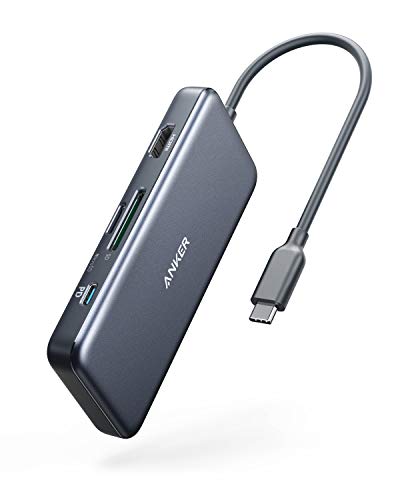
For most people, a compact hub is all they really need. The Anker PowerExpand+ 7-in-1 USB-C Hub is a good example of this category done right. It’s small, lightweight, and reliable, which is why I’ve kept one in my bag for years. You get HDMI, USB-A ports, USB-C power pass-through, and SD card slots without it feeling crowded or fragile.
It’s not designed for dual-monitor setups or high-end desk use, but that’s not its job. Where it shines is flexibility. I’ve used it with MacBooks, Dell laptops, and even tablets without issues. If you want something that just works when you need extra ports and doesn’t demand a dedicated space on your desk, this type of hub is hard to beat.
Best docking station for MacBook users
Mac users tend to run into more compatibility quirks, especially with displays. That’s why purpose-built docks matter. The CalDigit TS4 Thunderbolt Dock is one of the most reliable options I’ve used with MacBooks. It’s expensive, but it earns that price with stability, strong power delivery, and excellent port selection.
This dock handles multiple high-resolution monitors, fast external drives, Ethernet, and audio without breaking a sweat. More importantly, it doesn’t randomly drop connections or need frequent reboots, which is something cheaper docks often struggle with on macOS. If your MacBook is your main computer and you want a single-cable desktop setup, this is the kind of dock that actually delivers on that promise.
Best docking station for Windows laptops
Windows users generally have more flexibility, but that also means more variation in quality. The Plugable UD-6950H Docking Station is a solid choice if you want something that works across a wide range of Windows laptops. It uses DisplayLink technology, which allows for multiple monitors even on systems with limited native support.
DisplayLink isn’t perfect, especially for gaming or color-critical work, but for office tasks, coding, and general productivity, it’s very dependable. I’ve seen this dock used in corporate setups for years, which says a lot about its stability. If you want dual monitors and lots of ports without worrying too much about hardware compatibility, it’s a safe bet.
Best mid-range option for mixed setups
Not everyone needs a massive dock, but not everyone wants a tiny hub either. The Satechi Aluminum Multi-Port Adapter V2 sits nicely in the middle. It’s well-built, looks good next to a MacBook or Windows ultrabook, and offers enough ports for most people without getting bulky.
I like this style of hub for home offices where you occasionally plug into a monitor but still move your laptop around. It won’t replace a full docking station, but it’s more capable than entry-level hubs. If you want something that feels premium and handles everyday tasks without fuss, this category makes a lot of sense.
Thunderbolt docks for power users
If you run multiple monitors, external SSDs, and demanding peripherals, Thunderbolt docks are worth a look. The Dell WD22TB4 Thunderbolt Dock is a strong option, especially for Windows users, but it also works well with compatible Macs. Thunderbolt offers higher bandwidth and better performance consistency compared to basic USB-C.
These docks tend to be more expensive, but they’re also more future-proof. In my experience, a good Thunderbolt dock lasts through several laptop upgrades, which helps justify the cost. If your desk setup is central to how you work, this is where investing a bit more usually pays off.
Common mistakes people make
One of the biggest mistakes I see is assuming all USB-C ports are the same. They’re not. Some support Thunderbolt, some don’t. Some handle multiple displays, others barely manage one. Always check your laptop’s specifications before buying a hub or dock.
Another issue is ignoring heat and build quality. Cheap hubs often run hot, especially when driving displays and charging at the same time. Over time, that can lead to throttling or outright failure. Spending a little more upfront often saves frustration later.
Final recommendation
If you want a simple, affordable solution for travel or light use, a compact USB-C hub from a trusted brand like Anker is usually enough. For full-time desk setups, especially with external monitors, a proper docking station makes a noticeable difference in stability and convenience. Mac users should lean toward Thunderbolt docks designed with macOS in mind, while Windows users have more flexibility depending on their needs.
A compact 7-in-1 USB-C hub with 4K HDMI output, 85W power delivery, fast USB data ports, and SD/microSD card readers, ideal for laptops with limited ports.