
If you need multi-device access, built-in redundancy via RAID, and the ability to run services like Plex or automated backups, a NAS is the right call—especially if you also set up off-site or cloud backups, since RAID is not a substitute for backup. If you need portable, low-cost storage for a single machine or occasional offsite backups, an external hard drive does the job cleanly and without the overhead.
Quick verdicts by reader type:
- Single-device user or student: An external drive is enough. Plug it in, copy your files, unplug it.
- Backup-only household: A 2TB external HDD paired with a cloud service covers the 3-2-1 backup rule at minimal cost.
- Multi-device household or home office: A NAS pays for itself in convenience once you’re backing up three or more machines.
- Photographer or videographer with large catalogs: A NAS with RAID 1 or RAID 5 gives you shared access and drive-failure protection that no single external drive can match.
- Small team needing shared file access: A NAS with user accounts and permissions is the only practical option here.
- Long-term cold archival: A powered-off external drive actually beats a 24/7 NAS for ransomware resistance and mechanical longevity.
Key Takeaways
A NAS is the right choice for multi-device access and redundancy, but even with RAID, you still need off-site or cloud backups since RAID alone is not a proper backup strategy; an external drive wins on portability, simplicity, and cold archival; for both, apply the 3-2-1 backup rule.
| Point | Details |
|---|---|
| Match the tool to the workflow | NAS for multi-device, automated, or shared storage; external drive for single-device, portable, or cold archival use. |
| RAID is not a backup | RAID protects against drive failure only; ransomware, deletion, and site disasters still require off-site or cloud copies. |
| External drives are a single point of failure | One drive failure typically means total data loss without a separate backup copy in place. |
| NAS has real ongoing costs | Factor in enclosure price, NAS-rated drives, electricity, and maintenance time when comparing total cost of ownership. |
| Apply the 3-2-1 rule regardless | Keep 3 copies, on 2 media types, with 1 offsite, whether your primary storage is a NAS or an external drive. |
Table of Contents
- How does a NAS compare to an external hard drive?
- When an external hard drive is the right choice
- When a NAS is the right choice
- What are the key technical differences between NAS and external drives?
- What does a NAS actually cost compared to an external drive?
- What does setting up and maintaining a NAS actually involve?
- What are the real downsides of a NAS, and what shouldn’t you store on one?
- How do you choose between a NAS and an external drive?
- My honest take on NAS vs external drives
- Sources
- FAQ
How does a NAS compare to an external hard drive?
The table below covers the eight dimensions that matter most when choosing between these two storage approaches.
| Dimension | NAS | External Hard Drive |
|---|---|---|
| Best for | Multi-device access, media streaming, shared workflows | Single-device backups, portability, cold archival |
| Cost / TCO | Higher upfront ($150–$500+ enclosure plus drives); lower per-GB cost at scale | Low upfront ($50–$120 for 2–4TB HDD); costs multiply as you add drives |
| Redundancy | RAID 1/5/SHR protects against individual drive failure | None built-in; single point of failure |
| Ease of setup | Moderate to complex; requires network config, OS setup, user accounts | Plug-and-play; no configuration needed |
| Throughput | 100–115 MB/s over Gigabit Ethernet | USB 3.0 HDD: 100–150 MB/s; USB 3.2 Gen 2 SSD: 500–1,050 MB/s |
| Portability | Not portable; requires power and network connection | Highly portable; bus-powered SSDs need no wall adapter |
| Scalability | Add drives or upgrade bays; multi-bay enclosures scale to tens of TBs | Buy more drives; no centralized management |
| Security / remote access | VPN, 2FA, user permissions, snapshots; attack surface if misconfigured | No network exposure; offline drives are immune to remote attacks |
NAS systems support RAID so the array can survive an individual drive failure. External drives carry no equivalent protection.
RAID is not a backup. RAID protects against hardware failure on a single drive, but it does nothing to protect you from ransomware, accidental deletion, or a fire that takes out your whole desk. Backblaze is explicit on this point: a complete strategy requires off-site or cloud copies in addition to any on-site redundancy.
When an external hard drive is the right choice
For a lot of people, an external drive is genuinely the better answer, and there’s no shame in that. HowToGeek makes the case plainly: a NAS adds complexity and cost that most home users don’t need for simple, occasional backups or single-device extra storage.
Scenarios where an external drive wins:
- You back up one laptop or desktop and don’t need those files accessible from other devices.
- You’re a student or freelancer who moves between locations and needs to carry project files.
- You want a cold, offline backup that stays unplugged and is therefore invisible to ransomware.
- You’re shooting video on location and need fast overflow storage that travels with you.
- Your budget is tight and you need storage now, not after a weekend of network configuration.
Pros of external drives:
- Low upfront cost, with typical prices for common HDD sizes in an affordable range
- Zero setup: format, plug in, drag files
- No power draw when unplugged
- Works with macOS, Windows, and Linux (format as exFAT for cross-platform compatibility)
- Completely offline when disconnected, which limits exposure to network-based threats
Cons to keep in mind:
- One drive failure means total data loss unless you have a separate backup copy
- No concurrent access from multiple devices
- Managing five or six drives with no labeling system becomes a real organizational headache
- USB connections add latency compared to a wired network share for large sequential transfers
HDD vs portable SSD for external use: A spinning HDD gives you the most capacity per dollar for archival and backup. A portable SSD like the Samsung T7 Shield makes more sense when you need speed, durability, and something that survives a bag toss. For cross-OS compatibility, format drives as exFAT rather than NTFS or HFS+ to avoid read-only headaches when switching between Windows and macOS.
Pro Tip: Label every external drive with its contents and the date of the last backup using a permanent marker on the drive body. It sounds obvious, but a shelf of identical black drives with no labels is a data-loss scenario waiting to happen.
When a NAS is the right choice
A NAS starts making sense the moment your storage needs outgrow a single device or a single user. According to XDA Developers, a NAS can run apps like Plex or Jellyfin, handle multi-device simultaneous access, and automate backups in ways no external drive can replicate.
Scenarios where a NAS earns its keep:
- Three family members each want their laptops backed up automatically every night without plugging anything in.
- You shoot RAW photos and want Lightroom catalogs accessible from both your desktop and your editing laptop.
- You want to stream your own media library to a TV, phone, or tablet without paying a monthly subscription.
- Your small office needs a shared folder structure with different permissions for different team members.
- You want private cloud sync (think Dropbox, but on hardware you own) without recurring fees.
The workflow difference is stark. Imagine backing up four devices to external drives: you need four drives, four manual connections, and a system to track which drive holds what. A NAS handles all four automatically, on a schedule, with versioning and snapshots so you can recover a file from three weeks ago. NAS management features like user accounts, folder quotas, and snapshot schedules are what make that kind of workflow practical.
What a NAS unlocks beyond raw storage:
- Run a Plex or Jellyfin media server directly on the NAS hardware
- Host a private Synology Drive or Nextcloud instance for file sync
- Set automated, scheduled backups from every device on your network
- Create per-user folders with read/write permissions and storage quotas
- Enable remote access via a VPN or the NAS vendor’s relay service
One caveat worth naming: UGREEN’s buying guide notes that external drives are cheaper upfront and simpler to use, while a NAS delivers better long-term scalability for growing datasets. The NAS investment only pays off if your storage needs are genuinely multi-device or growing.
What are the key technical differences between NAS and external drives?
RAID basics and what each level actually does
RAID (Redundant Array of Independent Disks) is the core technology that separates a NAS from a single drive. Here’s what the common configurations mean in practice:
- RAID 0: Stripes data across two drives for speed. No redundancy whatsoever; one drive failure loses everything.
- RAID 1: Mirrors data across two drives. Full redundancy; you lose half your raw capacity.
- RAID 5: Distributes data and parity across three or more drives. One drive can fail and the array rebuilds. Good balance of capacity and protection.
- SHR (Synology Hybrid RAID): Synology’s proprietary variant that mixes drive sizes more efficiently than standard RAID. Useful when you’re adding drives incrementally.
RAID buys you uptime and recovery time after a hardware failure. It does not protect against the scenarios that actually destroy most people’s data: ransomware, accidental deletion, or a power surge that kills the whole enclosure.
Network-attached vs direct-attached storage
An external drive connects directly to your computer via USB, Thunderbolt, or eSATA. The data path is short and fast. A NAS sits on your local network and every device accesses it over Ethernet or Wi-Fi. That network hop introduces latency and caps throughput at your switch speed.

Over a standard Gigabit Ethernet connection, a NAS typically delivers 100–115 MB/s for large sequential transfers. A USB 3.0 external HDD hits a similar ceiling, but a USB 3.2 Gen 2 portable SSD can reach 500–1,050 MB/s because it bypasses the network entirely. For raw single-device speed, direct-attach wins. For simultaneous multi-device access, the NAS architecture is the only option.
File systems and OS compatibility
External drives formatted as NTFS work natively on Windows but require third-party drivers on macOS for full read/write access. HFS+ (macOS Extended) is the reverse problem. exFAT is the practical cross-platform choice for drives that move between operating systems, though it lacks journaling, which makes it slightly more vulnerable to corruption on an unclean disconnect. For a deeper look at how OS choices affect file compatibility, the Techreviewnerds guide on operating systems covers the practical implications.
NAS devices typically run their own file systems (Btrfs on Synology, EXT4 on many others) and present shares over SMB/CIFS or NFS, so the client OS rarely matters for access.
SSD lifespan in a NAS
SSDs in a NAS face continuous read/write cycles from background tasks like indexing, snapshots, and scheduled backups. Consumer SSDs have lower TBW (terabytes written) ratings than NAS-grade or enterprise SSDs, so they can wear faster in a 24/7 environment. For NAS use, drives rated specifically for NAS workloads (such as WD Red Plus or Seagate IronWolf) handle the sustained duty cycle better than desktop or portable drives.
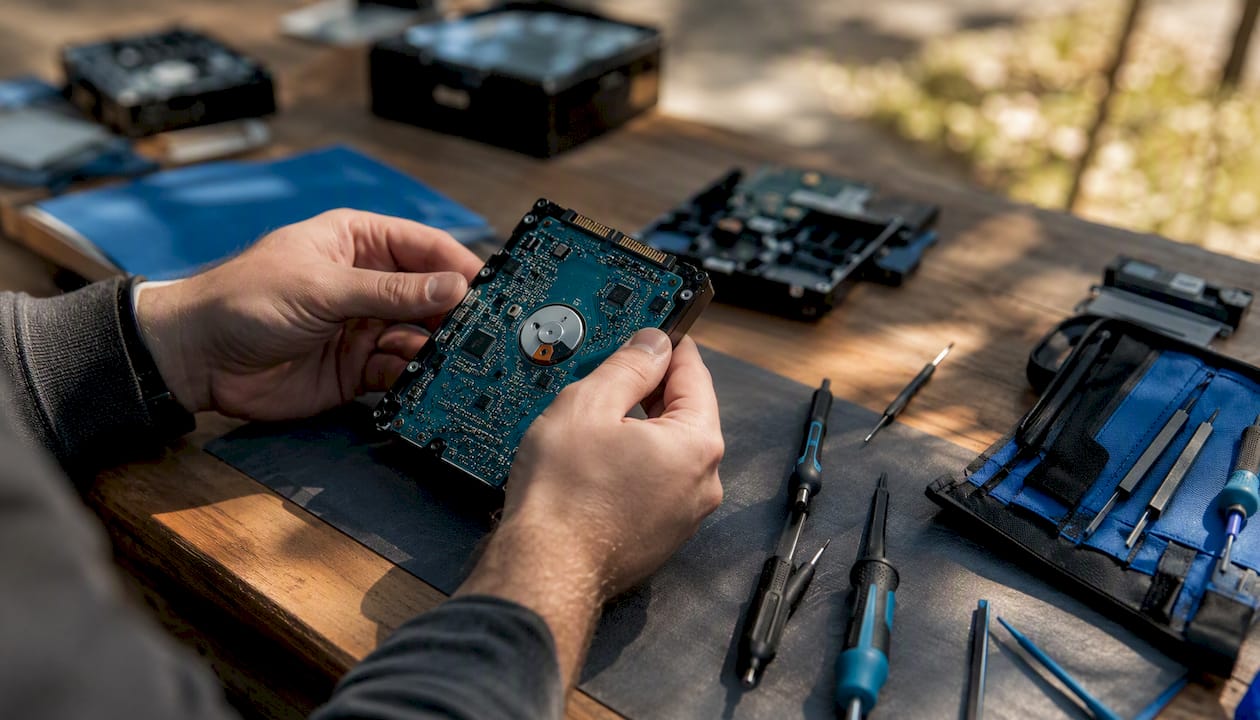
Pro Tip: Run a scheduled S.M.A.R.T. health check on every drive in your NAS at least once a month. Most NAS operating systems (DSM, QTS, TrueNAS) have this built in. Catching a drive that’s accumulating reallocated sectors early gives you time to replace it before the array degrades.
What does a NAS actually cost compared to an external drive?
Price ranges and realistic TCO
Entry-level external HDDs (2–4TB) typically run $50–$120. A portable SSD at the same capacity costs $80–$180 depending on speed tier. These are one-time purchases with no ongoing power draw when unplugged.
A NAS enclosure is a different kind of investment, with entry-level units plus drives costing significantly more than typical external drives. Running a NAS 24/7 draws 15–30 watts depending on the model and drive count, which adds a modest but real electricity cost over three years.
Scaling with external drives looks cheap at first but gets unwieldy fast. Buying five separate 4TB drives to cover five users costs roughly $400–$600 with no centralized management, no redundancy, and no automation. At scale, a NAS delivers better long-term value for multi-device environments, even after accounting for the higher upfront cost.
Performance expectations
| Connection | Device type | Typical throughput |
|---|---|---|
| USB 3.0 | External HDD | 100–150 MB/s |
| USB 3.2 Gen 2 | Portable SSD | 500–1,050 MB/s |
| Gigabit Ethernet | NAS (HDD array) | 100–115 MB/s |
| 10GbE | NAS (HDD or SSD cache) | 500 MB/s |
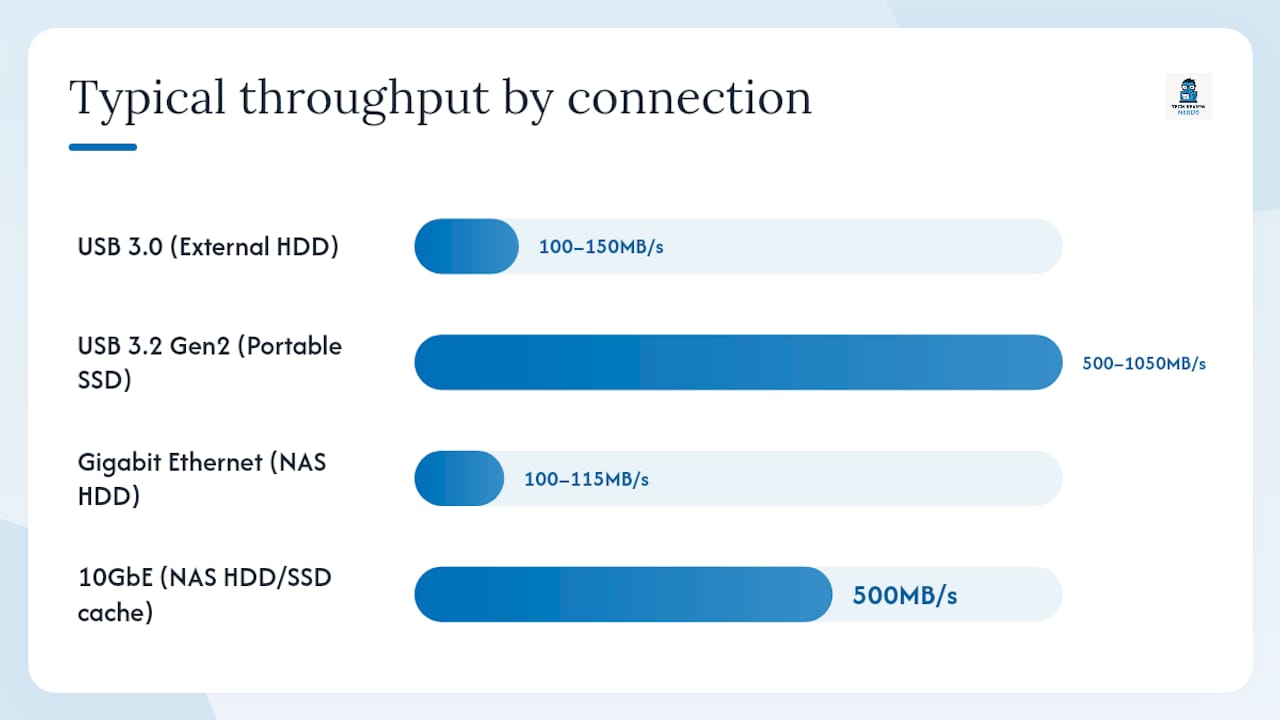
The Gigabit Ethernet ceiling is real. Concurrent backups from multiple devices can create significant network congestion without a 10GbE switch or carefully managed backup windows. If you’re running four laptops backing up simultaneously over a standard Gigabit network, expect slowdowns during peak hours.
Upgrade paths
A two-bay NAS can grow into a four-bay or eight-bay unit as your needs expand. Many NAS platforms let you swap in larger drives one at a time and expand the RAID volume without data loss. External drives scale by addition only: you buy another drive, label it, and hope your organizational system holds. There’s no native way to pool multiple external drives into a single managed volume without additional software.
What does setting up and maintaining a NAS actually involve?
External drives need no maintenance beyond occasional format checks. A NAS is a different commitment, and it’s worth being honest about what that means before you buy.
Initial setup checklist
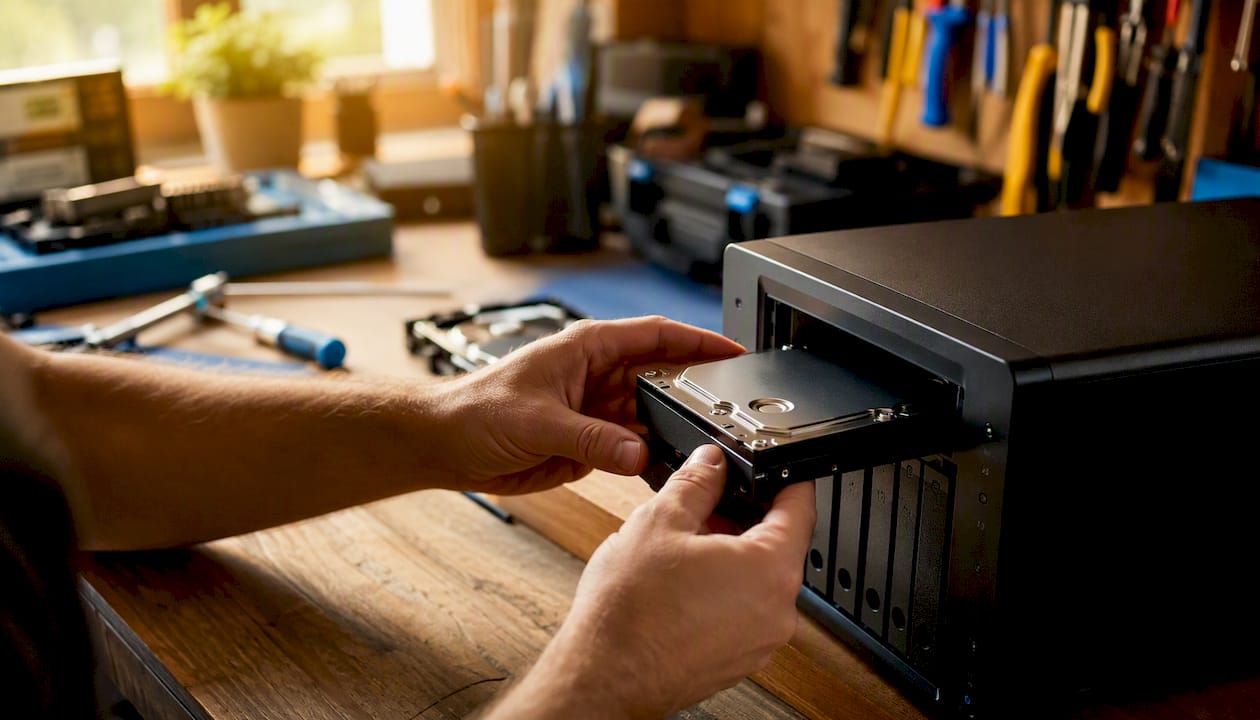
- Choose your drives. Use NAS-rated HDDs (WD Red Plus, Seagate IronWolf) or enterprise SSDs. Avoid desktop or portable drives for 24/7 operation.
- Select a RAID layout. RAID 1 for two-bay simplicity; RAID 5 or SHR for three or more bays with better capacity efficiency.
- Install the NAS OS and update firmware. Synology DSM, QNAP QTS, and TrueNAS SCALE all have web-based setup wizards. Run all pending updates before connecting to the internet.
- Create user accounts and set permissions. Assign each household member or team member their own credentials with appropriate folder access.
- Configure network access. Assign a static local IP to the NAS. For remote access, use the vendor’s VPN option or set up WireGuard rather than opening raw ports to the internet.
- Set backup targets. Point the NAS at a cloud service (Backblaze B2, Amazon S3) or schedule copies to an external drive for off-site redundancy.
Ongoing maintenance tasks
- Apply firmware and OS updates within a few weeks of release, especially security patches.
- Monitor drive health via S.M.A.R.T. reports monthly.
- Run a test restore quarterly: pick a random file or folder and confirm you can actually recover it.
- Check UPS (uninterruptible power supply) battery health if you’re using one. A power cut during a RAID rebuild is one of the more reliable ways to lose data.
- Review user accounts and permissions annually, especially if team members change.
Security basics
NAS devices are networked computers, and they carry the attack surface that comes with that. NAS management features are powerful, but only if they’re configured correctly. Enable two-factor authentication on every admin account. Disable UPnP on your router. Never use the default admin username. If you need remote access, a VPN tunnel is far safer than forwarding ports directly.
Pro Tip: Schedule your NAS backups to run between 2 AM and 5 AM. This keeps large backup jobs off the network during peak hours and reduces the congestion that can slow down every other device on your LAN.
What are the real downsides of a NAS, and what shouldn’t you store on one?
A NAS is not the right answer for everything, and some of its risks are underappreciated.
Common NAS downsides:
- Network dependence. If your router goes down or the NAS loses its IP lease, access stops for every device simultaneously.
- Power consumption. A 24/7 NAS draws continuous power. Over three years, that adds up to a real electricity cost.
- Ransomware exposure. A NAS connected to your network is reachable by ransomware that compromises any device on that network. Snapshots help, but they’re not a complete defense.
- Upfront cost and complexity. The hardware, drives, and time investment are real barriers for users who just need simple storage.
- Maintenance overhead. Firmware updates, drive health monitoring, and restore testing are recurring tasks that external drives simply don’t require.
What shouldn’t go on a NAS?
Active operating system files and applications that require low-latency local access are poor fits for network storage. Scratch disks for video editing, virtual machine boot volumes, and active game installs all benefit from direct-attached storage rather than a network share. The NAS is excellent for the catalog, the archive, and the backup, not for the active working scratch space.
“External-drive failure often means total data loss unless you use a separate backup; NAS can rebuild arrays after drive failure but still requires tested backup procedures for full recovery.” DiskInternals puts this plainly: the NAS’s advantage in failure scenarios only materializes if you’ve actually set up and tested your recovery process.
Cold, powered-off external drives remain one of the most practical archival strategies available. A drive that’s unplugged cannot be encrypted by ransomware, cannot be corrupted by a network event, and doesn’t accumulate mechanical wear. For long-term archival of completed projects or tax records, a labeled external drive stored offsite is a genuinely smart complement to a NAS, not a lesser alternative.
How do you choose between a NAS and an external drive?
Work through these questions in order. Your answers will point to the right solution.
Decision checklist
- How many devices need access? One device: external drive. Two or more: lean toward NAS.
- Do you need remote access from outside your home? Yes: NAS with VPN. No: external drive is fine.
- What’s your budget? Under $150 all-in: external drive. $300+: NAS becomes viable.
- Do you need portability? Traveling with data: external drive or portable SSD. Stationary home/office storage: NAS.
- How much data are you managing, and is it growing? Under 4TB, stable: external drive. Over 4TB or growing: NAS scales more cleanly.
- Are you comfortable with basic network administration? No: external drive. Yes: NAS unlocks its full value.
Minimum specs if you go NAS
- Network: Gigabit Ethernet as a baseline; 10GbE if you’re backing up four or more devices simultaneously or editing large video files over the network.
- CPU/RAM: A dual-core ARM or Intel Celeron NAS CPU handles file sharing and basic media transcoding. If you want Plex hardware transcoding or multiple Docker containers, look for a quad-core Intel processor with 4GB+ RAM.
- Drives: NAS-rated HDDs for the array (WD Red Plus, Seagate IronWolf). Add an SSD cache volume if you want faster random access for frequently used files.
The 3-2-1 backup rule, applied
The 3-2-1 rule means: 3 copies of your data, on 2 different media types, with 1 copy offsite.
NAS + external drive workflow:
- Copy 1: Live data on the NAS (primary working storage)
- Copy 2: Automated NAS backup to an attached external drive (local second copy)
- Copy 3: Scheduled cloud backup from the NAS to Backblaze B2 or similar (offsite)
External-drive-only workflow:
- Copy 1: Data on your computer’s internal drive
- Copy 2: Scheduled backup to an external HDD kept at home
- Copy 3: A second external drive rotated offsite (a friend’s house, a safe deposit box) or a cloud backup service
Automate whatever you can. Manual backup routines fail the moment life gets busy. For the best portable SSD options to use as that second local copy, Techreviewnerds has a current buyer’s guide worth checking.
My honest take on NAS vs external drives
I’ve worked with both setups across a range of real-world scenarios, from a single-user creative workflow to a small home office with five devices all needing reliable nightly backups. My honest read: most people who ask this question are closer to the external drive camp than they think, and that’s not a knock on NAS.
The NAS pitch is compelling on paper. Centralized storage, RAID redundancy, media streaming, private cloud sync — it sounds like the obvious upgrade. But the gap between “sounds great” and “actually configured correctly” is where a lot of NAS setups fall apart. I’ve seen units sitting on networks with default admin passwords, no off-site backup, and RAID arrays that haven’t had a health check in two years. That’s not a storage upgrade; that’s a false sense of security.
If you’re a photographer with 10TB of RAW files and a partner who also needs catalog access, a NAS is genuinely transformative. If you’re backing up one laptop and occasionally moving files between home and the office, a quality portable SSD handles that cleaner and cheaper. The technology should match the actual workflow, not the aspirational one.
Sources
- Getting the most out of your NAS – Backblaze Blog
- Why I stopped recommending NAS drives to normal people – HowToGeek
- Reasons you need a NAS, not an external drive – XDA Developers
- Evaluating NAS Storage vs External Hard Drive for Your Data Needs – UGREEN NAS US
- Cloud vs NAS vs external storage for backup — Macrium blog
- NAS versus External HDD – DiskInternals
FAQ
Do I need a NAS or just a hard drive?
If you’re backing up one device or need portable storage, a standard external hard drive is enough. A NAS makes sense when you need multi-device access, automated backups, or network-based services like media streaming.
What are the downsides of using a NAS device?
A NAS requires network infrastructure, draws continuous power, demands periodic maintenance (firmware updates, drive health checks, restore tests), and presents a larger attack surface than an offline external drive. Ransomware that reaches any device on your network can potentially reach a connected NAS.
What shouldn’t go on a NAS?
Active scratch disks, virtual machine boot volumes, and applications requiring low-latency local access are poor fits for network storage. Use direct-attached storage for active working files and reserve the NAS for shared access, backups, and archival.
How long will an SSD last in a NAS?
Consumer SSDs wear faster in a 24/7 NAS environment due to continuous background tasks. NAS-rated or enterprise SSDs with higher TBW ratings handle the sustained workload better. Monitoring S.M.A.R.T. data monthly gives you early warning before a drive reaches its write endurance limit.
Is cloud storage a good alternative to both NAS and external drives?
Cloud storage works well as the offsite component of a 3-2-1 backup plan but is a poor replacement for local storage when you need fast access to large files or want to avoid ongoing subscription costs. A NAS can actually replace several cloud subscriptions for users who want private on-site file sync and media streaming, though that shifts security and backup responsibility entirely to the owner.
Recommended
- Best Portable SSDs in 2026: Top Picks for Every Buyer
- Best External SSD for Mac and Windows in 2026 (Fast, Portable, Reliable): Samsung T7 Shield 2TB – Tech Review Nerds
- Samsung T7 Shield 2TB Portable SSD Review: Worth Paying More for Speed and Durability? – Tech Review Nerds
- USB-C vs Thunderbolt: What You Really Need to Know