
Laptop thermals are defined as the systems and processes that manage heat produced by internal components, primarily the CPU and GPU, to maintain performance and protect hardware. If you’ve ever wondered what does thermals mean laptops, the short answer is heat control. Every processor cycle generates heat, and how well your laptop handles that heat determines whether it runs fast or slows to a crawl. Poor thermal management leads to thermal throttling, a protective mechanism that cuts clock speeds to prevent damage. Chronic overheating can reduce a laptop’s usable lifespan by up to 50% compared to devices kept at cooler operating temperatures. That single fact makes understanding laptop thermals one of the most practical things you can do before buying or maintaining a machine.
Why do laptops generate so much heat?
Every watt of power a CPU or GPU consumes converts almost entirely into heat. A modern laptop processor running at full load can draw anywhere from 15 watts on a thin ultrabook to over 100 watts on a high-performance gaming machine. That energy has nowhere to go except outward through the cooling system.
The physics get trickier inside a laptop than a desktop. Compact chassis designs pack components into tight spaces, which increases heat density. Thin laptop designs reduce space for heatsinks and fans, making thermal management more challenging and increasing reliance on throttling during intense usage. A desktop tower has room for large heatsinks and multiple fans. A slim 14-inch laptop does not.
Here is what generates the most heat inside a typical laptop:
- CPU: The processor is the primary heat source during everyday tasks, video calls, and light gaming.
- GPU: Dedicated graphics cards, like those from NVIDIA’s RTX 40 series or AMD’s RX 7000 series, generate significant heat during rendering and gaming.
- VRMs and memory: Voltage regulator modules and RAM contribute secondary heat, especially under sustained workloads.
- Storage: NVMe SSDs, particularly high-speed PCIe 4.0 and 5.0 drives, can reach temperatures that affect their own throttling behavior.
Thermal interface materials (TIMs) sit between the processor die and the heatsink. They fill microscopic gaps to improve heat transfer. Without an effective TIM, even a well-designed heatsink loses much of its efficiency. Understanding thermal design power gives you a clearer picture of how much heat a chip is rated to produce and what the cooling system must handle.
How does thermal throttling work?
Thermal throttling is the automatic reduction of CPU or GPU clock speeds when temperatures exceed safe thresholds. It is not a failure. It is a deliberate safeguard built into every modern processor.
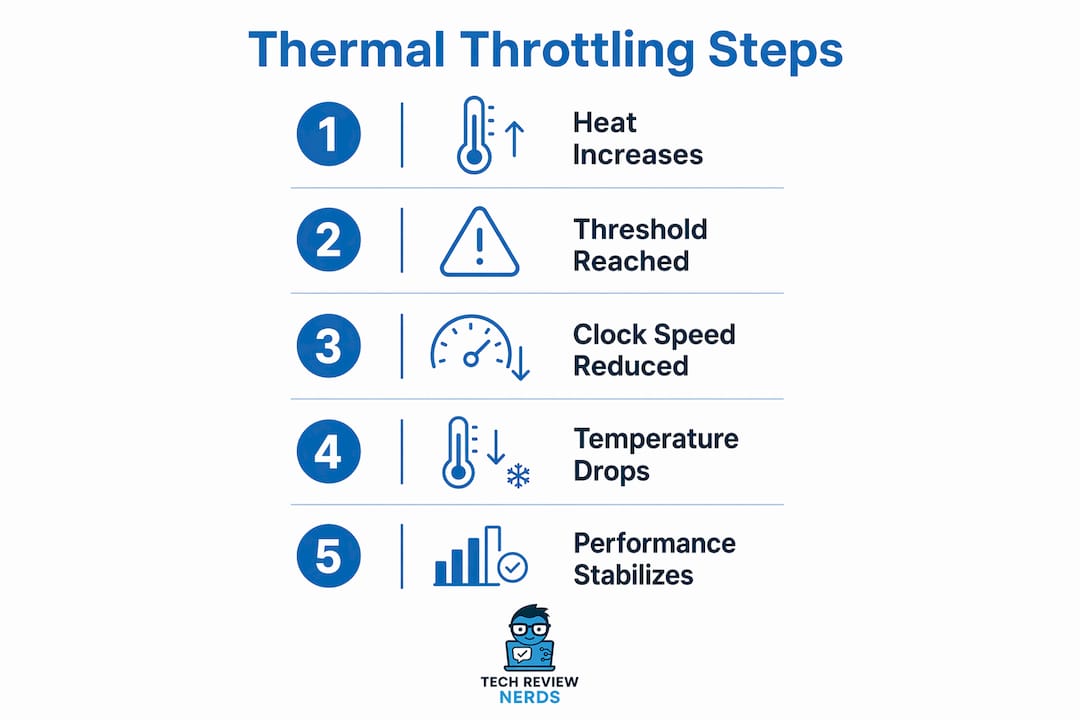
Thermal throttling typically engages at junction temperatures of 95–105°C for CPUs and 85–90°C for GPUs, resulting in 20–40% performance degradation during sustained loads. That range matters. A 30% drop in CPU performance during a video export or a gaming session is the difference between smooth and frustrating.
Here is how the throttling sequence typically unfolds:
- Temperature rises: The processor approaches its thermal junction limit, often called Tjmax.
- Power limit reduction: The chip reduces its power draw first, which lowers heat output before clock speeds drop.
- Clock speed reduction: If temperatures keep climbing, the processor drops its operating frequency, sometimes dramatically.
- Sustained throttled state: If cooling cannot recover the temperature, the chip stays throttled until the workload ends or ambient conditions improve.
- Recovery: Once temperatures fall below the threshold, the processor ramps back up to full speed.
In real-world terms, a gaming laptop running a demanding title like Cyberpunk 2077 or Black Myth: Wukong might hit 100°C on the CPU package and drop from 3.8 GHz to 2.4 GHz within minutes. Frame rates fall, stuttering appears, and the experience degrades noticeably. The same effect hits creative professionals: a 4K video render that should take 20 minutes can stretch to 30 minutes or more when the machine throttles. Monitoring tools like HWiNFO64 or Intel’s Extreme Tuning Utility let you watch temperatures and clock speeds in real time, so you can confirm whether throttling is actually happening.
Pro Tip: If your laptop feels slower during long tasks but runs fine at the start, thermal throttling is almost certainly the cause. Run HWiNFO64 during a heavy workload and watch the CPU frequency column for sudden drops.
What cooling solutions do modern laptops use?
Laptop manufacturers use several engineering approaches to move heat away from processors before throttling kicks in. The quality and design of these systems vary significantly across price points and form factors.
Heat pipes and heatsinks
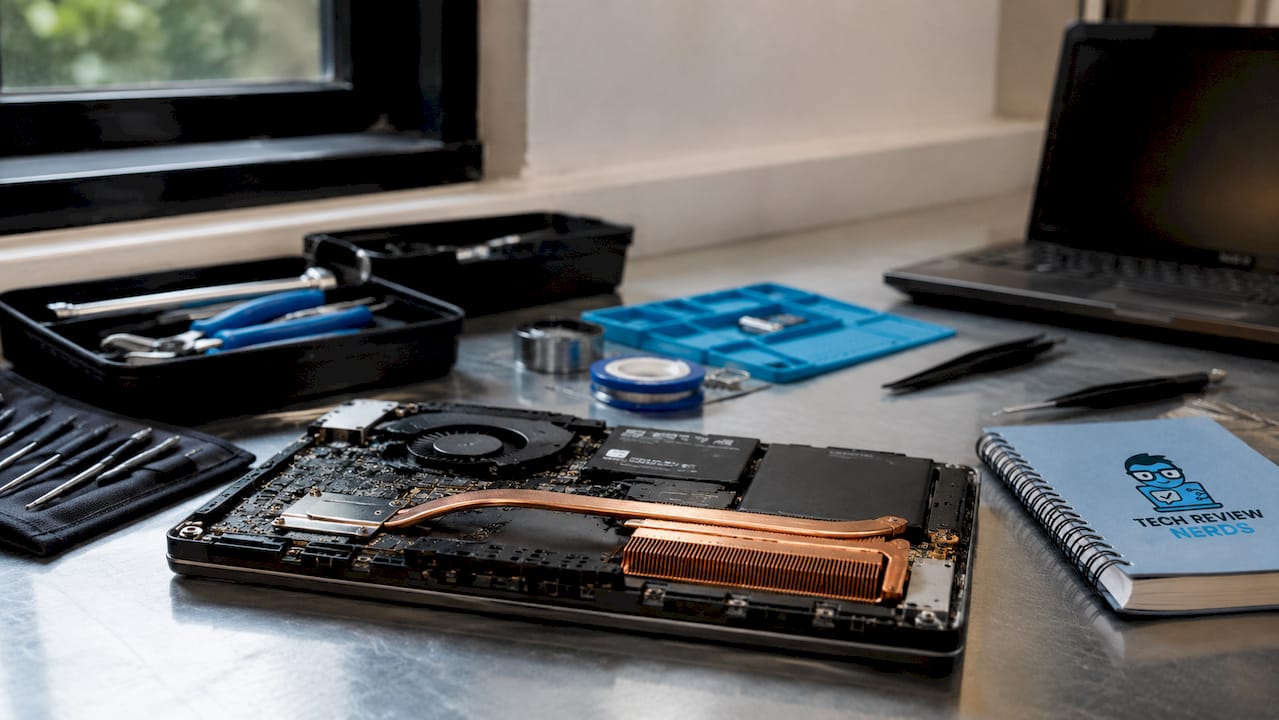
Heat pipes are sealed copper tubes filled with a working fluid, usually water or a refrigerant compound. When one end heats up near the processor, the fluid vaporizes and carries heat to the other end, where fins and a fan dissipate it. Most mid-range and premium laptops use two to four heat pipes. Budget machines often use a single pipe or a simpler vapor chamber design. Vapor chambers, found in machines like the ASUS ROG Zephyrus G14 or the Razer Blade 16, spread heat across a flat surface more evenly than traditional pipes.
Thermal paste and interface materials
Thermal paste is the most overlooked component in laptop cooling. Thermal paste degradation over 2–3 years can raise core temperatures by 15–20°C, significantly reducing thermal headroom. That is enough to push a CPU from safe operating range into throttling territory under loads it previously handled without issue. Repasting a laptop every two to three years is one of the most cost-effective maintenance steps you can take.
Fans and airflow design
Most laptops use one or two axial fans that pull air through intake vents (usually on the bottom) and exhaust it through side or rear vents. Fan speed is controlled by the Embedded Controller, which reads temperature sensors and adjusts RPM accordingly. A loud laptop fan is often a sign the cooling system is working correctly, not a sign of failure.
Cooling pads
External cooling pads add supplemental airflow beneath the laptop. Cooling pads need sufficient airflow rated in CFM to be effective; many low-end pads fail to significantly reduce temperatures. A pad rated below 20 CFM often does little more than lift the laptop off the desk, which itself helps airflow. Look for pads with fans rated at 40 CFM or higher for meaningful temperature reductions.
Here is a quick comparison of common cooling approaches:
| Cooling Method | Effectiveness | Cost | Best For |
|---|---|---|---|
| Heat pipes + fans | High | Built-in | All laptops |
| Vapor chamber | Very high | Built-in (premium) | Gaming and workstation laptops |
| Thermal repaste | High | Low ($5–$15) | Laptops 2+ years old |
| Quality cooling pad | Moderate | Low ($30–$80) | Sustained workloads on hard surfaces |
| Undervolting | Moderate | Free (software) | Advanced users only |
Pro Tip: When buying a cooling pad, check the CFM rating on the product spec sheet, not just the fan count. Two slow fans at 15 CFM total will underperform one strong fan at 45 CFM.
How can you manage laptop thermals day to day?
Good thermal performance in laptops is not just about hardware. How you use and maintain your machine has a direct impact on temperatures and long-term performance.
Here are the most effective habits to keep thermals in check:
- Clean vents every three to six months. Dust and airborne particulates on fans and vents decrease cooling capacity by up to 40%, leaving the system vulnerable even under low-intensity tasks. A can of compressed air directed through the exhaust vents takes two minutes and makes a real difference.
- Never use a laptop on soft surfaces. Beds, couches, and pillows block the bottom intake vents entirely. Even a 10-minute gaming session on a blanket can push temperatures 15°C higher than on a hard desk.
- Monitor ambient room temperature. Cooling systems are rated for specific ambient conditions, typically around 25°C (77°F). Working in a room at 35°C (95°F) gives your cooling system far less thermal headroom before throttling begins.
- Use manufacturer power profiles wisely. Most laptops from Dell, Lenovo, ASUS, and HP include performance mode settings in their companion apps. “Balanced” mode often reduces fan noise and heat with minimal real-world performance loss for everyday tasks.
- Repaste every two to three years. As noted earlier, thermal paste degrades. If your laptop is older and runs hotter than it used to, fresh thermal compound is often the fix before considering hardware replacement.
Pro Tip: Before spending money on a cooling pad or repair, download HWiNFO64 and run a 15-minute stress test. If temperatures stay below 90°C on the CPU, your thermals are likely fine. If they hit 100°C within five minutes, cleaning or repasting should come first.
Effective thermal management is a critical buying consideration for users demanding performance consistency, particularly gamers and creative professionals. When you are choosing a new laptop, look for reviews that include sustained workload temperature data, not just peak benchmark scores. A machine that scores high in a 30-second burst test but throttles hard after five minutes is not a good thermal performer.
If your laptop is already running slow and you suspect heat is the cause, thermal throttling is one of the first things worth ruling out. And if you are weighing whether to repair or replace an older machine, a repair checklist that includes thermal inspection can save you from buying a new device when a $10 repaste would have solved the problem.
Key takeaways
Effective laptop thermal management is the single most important factor separating a machine that performs consistently from one that throttles under pressure and degrades over time.
| Point | Details |
|---|---|
| Thermals defined | Laptop thermals are the heat management systems controlling CPU and GPU temperatures to sustain performance. |
| Throttling thresholds | CPUs throttle at 95–105°C and GPUs at 85–90°C, causing 20–40% performance loss during sustained loads. |
| Paste degradation matters | Thermal paste failure after 2–3 years raises core temps by 15–20°C, often causing throttling on previously stable machines. |
| Dust kills cooling | Blocked vents reduce cooling capacity by up to 40%, making regular cleaning one of the highest-impact maintenance steps. |
| Design trade-offs are real | Thin laptops sacrifice cooling headroom for portability, making thermal performance a key spec to check before buying. |
Thermals are the spec most buyers overlook
I’ve reviewed a lot of laptops over the years, and the pattern I keep seeing is the same: buyers obsess over RAM, storage, and display resolution, then completely ignore how the machine handles heat. That oversight catches up with them fast.
Modern laptops are designed to operate at high temperatures regularly; loud fans and warm surfaces indicate working cooling systems, not necessarily overheating. That is the first misconception I try to clear up. A laptop that runs warm and loud under load is doing its job. The real problem is a machine that runs warm and quiet, because that usually means the fans are undersized or the thermal solution is already compromised.
The second thing I’ve noticed is how much software-based thermal management has improved. Software like thermald on Linux acts as a proactive system to adjust performance before hardware throttling occurs. On Windows, tools like Lenovo Vantage, ASUS Armoury Crate, and Dell’s Thermal Management settings do something similar. These tools are genuinely useful, and most people never open them.
My honest observation on thin laptops: the trade-off is real and often undersold. A 14mm ultrabook running an Intel Core Ultra 7 or AMD Ryzen AI 9 will throttle under sustained loads. That is not a defect. It is physics. If you need sustained performance for video editing or gaming, a slightly thicker chassis with a proper dual-fan cooling system will serve you far better than a svelte design that throttles within minutes. I’d rather carry an extra 200 grams than watch my render times double.
The future of laptop cooling looks interesting. Liquid metal thermal interface materials, already used in Sony’s PlayStation 5, are starting to appear in premium laptops. Vapor chambers are becoming more common below the $1,000 price point. And AI-driven fan control, which adjusts cooling based on predicted workload rather than reactive temperature readings, is showing up in machines from ASUS and Lenovo. These are real improvements, not marketing language.
— K. Connors
Find a laptop that won’t let heat hold you back
Knowing what thermals mean is one thing. Finding a laptop that actually delivers consistent thermal performance is another challenge entirely.

At Techreviewnerds, every laptop review includes sustained workload temperature testing, not just peak benchmark numbers. That means you get real data on how a machine performs after 30 minutes of gaming or rendering, when throttling is most likely to show up. Whether you are shopping for a slim work machine or a full-power gaming rig, the laptop reviews at Techreviewnerds give you the thermal performance context that most spec sheets leave out. Stop guessing and start buying with confidence.
FAQ
What does thermals mean in a laptop?
Laptop thermals refer to the heat management systems that control temperatures produced by the CPU and GPU during operation. Effective thermal management keeps components within safe temperature ranges to sustain performance and protect hardware longevity.
What temperature is too hot for a laptop CPU?
Most CPUs begin thermal throttling at 95–105°C, which signals the processor is at its thermal limit. Sustained operation above 90°C under load is worth investigating through cleaning or repasting.
Does a cooling pad actually help laptop thermals?
A quality cooling pad rated at 40 CFM or higher can meaningfully reduce laptop temperatures, but low-end pads with weak fans often provide minimal benefit. Placing the laptop on a hard, flat surface is a free alternative that also improves airflow.
How often should i replace thermal paste on a laptop?
Thermal paste typically degrades after 2–3 years, raising core temperatures by 15–20°C. Repasting every two to three years is a practical maintenance step, especially if your laptop runs noticeably hotter than it did when new.
Can i fix laptop overheating without opening the machine?
Yes, in many cases. Cleaning intake and exhaust vents with compressed air, avoiding soft surfaces, adjusting power profiles in manufacturer apps, and using a quality cooling pad can all reduce temperatures without requiring disassembly.