
USB-C is a physical connector; Thunderbolt is a high-performance protocol that often uses that same connector but delivers certified, higher bandwidth and features that standard USB-C simply cannot match. Knowing which one you actually have changes everything from which dock you can buy to whether your external SSD will hit its rated speed.
TL;DR:
- USB-C is the oval-shaped plug. The speed and features depend on the USB standard behind it (USB 2.0, USB 3.2, USB4).
- Thunderbolt 3 and 4 use the USB-C connector but guarantee at least 40 Gbps bandwidth, PCIe access, and daisy-chaining.
- For browsing, streaming, and document work, standard USB-C is enough.
- For external NVMe arrays, multi-4K displays, or eGPUs, Thunderbolt is worth the premium.
- Buying tip: check your device’s spec sheet, not just the port shape, before purchasing a Thunderbolt dock or cable.
Table of Contents
- What is USB-C, really?
- What Thunderbolt is and how it uses the USB-C connector
- How do USB-C and Thunderbolt speeds compare in real tasks?
- How can you tell if a port is Thunderbolt or just USB-C?
- Not all USB-C cables are created equal
- Display output and charging: what to expect
- Which interface should you actually choose?
- Why does my USB-C cable or dock not work with my Thunderbolt device?
- Is Thunderbolt worth the price premium?
- Techreviewnerds hands-on testing notes
- Key Takeaways
- The convergence is real, but the details still matter
- Techreviewnerds guides for your next purchase
- FAQ
What is USB-C, really?
USB-C is a 24-pin reversible connector standardized by the USB Implementers Forum (USB-IF). The shape is the same whether the port behind it runs USB 2.0 at 480 Mbps or USB4 at much higher speeds. That gap is the source of most buyer confusion.
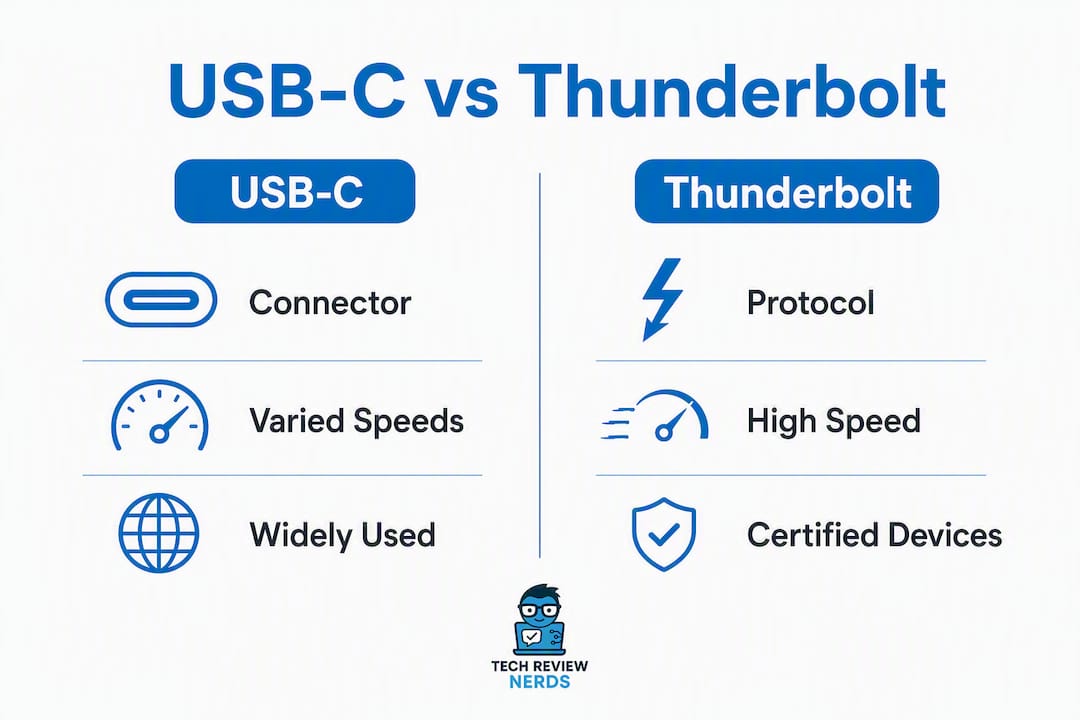
Think of USB-C as the pipe. The water pressure depends on the plumbing behind the wall.
The USB standard implemented in the host device determines what you actually get:
- USB 2.0: — 480 Mbps. Fine for keyboards, mice, and basic charging.
So when a laptop lists “USB-C” in its specs without a version number, that tells you almost nothing useful about real-world speed.
What Thunderbolt is and how it uses the USB-C connector
Thunderbolt is an Intel-originated interface that uses the USB-C connector from Thunderbolt 3 onward. It is best understood as a superset of USB-C: every Thunderbolt port can act as a USB-C port, but the reverse is not true.
“Thunderbolt certification mandates higher minimum performance and cable testing; Thunderbolt provides best-in-class capabilities for data, power, and video over the USB-C connector.” — Intel Thunderbolt overview
Here is how the versions stack up:
- Thunderbolt 3 (2015): — Moved to the USB-C connector. Introduced high bandwidth speeds, DisplayPort support, and PCIe 3.0 x4 access.
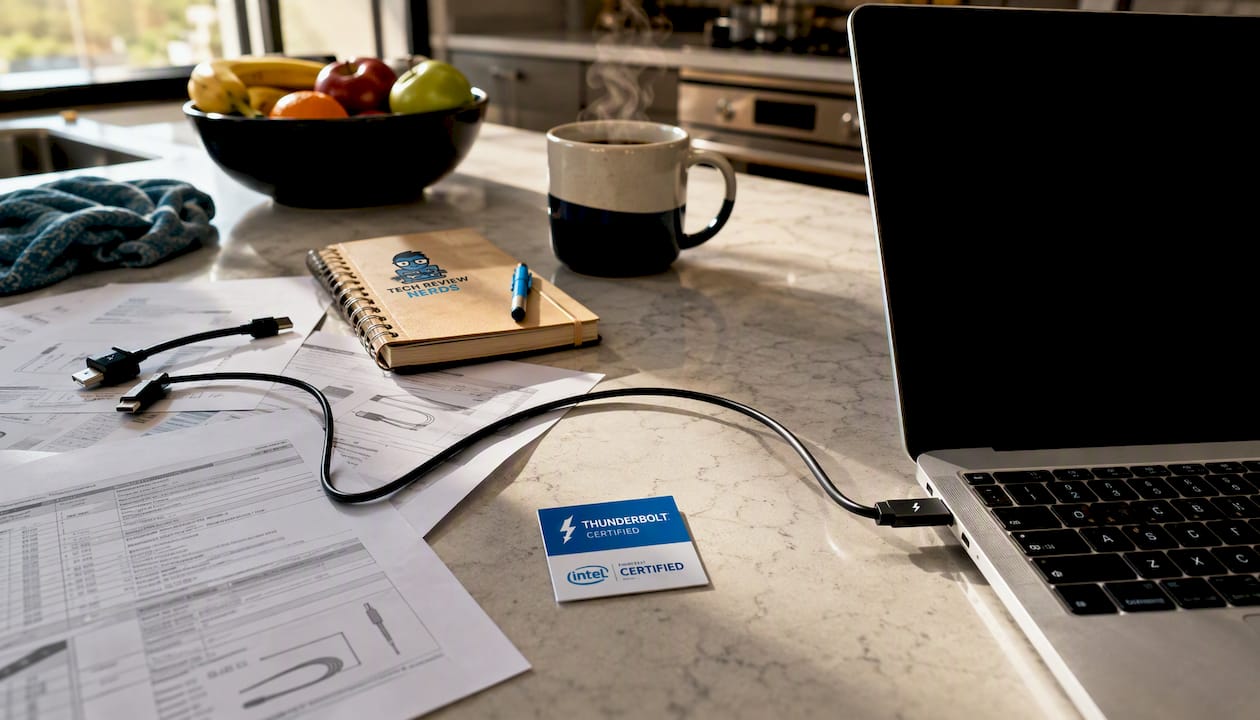
The certification piece matters. Intel tests and certifies every Thunderbolt device, cable, and host. That is why a Thunderbolt 4 dock from any manufacturer will reliably work with any Thunderbolt 4 laptop, whereas a generic USB-C dock may or may not deliver full speed depending on the host’s implementation.
How do USB-C and Thunderbolt speeds compare in real tasks?
| Interface | Max Bandwidth | PCIe Access | Practical Example |
|---|---|---|---|
| USB 3.2 Gen 1 | Moderate bandwidth | No | Basic flash drives, phone charging |
| USB 3.2 Gen 2 | Higher bandwidth | No | External SATA SSD, single 4K display |
| USB 3.2 Gen 2×2 | Faster bandwidth | No | Faster NVMe enclosures, limited to some hosts |
| USB4 (varies) | Variable bandwidth | Partial, implementation-dependent | Approaches high-speed interfaces in some devices |
| Thunderbolt 3/4 | High bandwidth | PCIe 3.0 x4 | External NVMe RAID, multi-display setups, eGPU |
| Thunderbolt 5 | Very high bandwidth | PCIe 3.0 x4 | multi-4K displays, high-density NVMe arrays |
Advertised Gbps figures are theoretical maximums. Real-world throughput on a Thunderbolt 3 connection typically lands around 2,500–2,800 MB/s for a fast NVMe enclosure, because PCIe lanes and DisplayPort allocation share the total bandwidth. If you are running a 4K display and an external SSD simultaneously, both compete for that 40 Gbps pipe.
For a video editor moving 100 GB raw footage files, the difference between USB 3.2 Gen 2 (10 Gbps) and Thunderbolt 4 (40 Gbps) is tangible. For someone streaming Netflix and editing a Word doc, it is invisible.
How can you tell if a port is Thunderbolt or just USB-C?
The honest answer: you often cannot tell by looking. Many manufacturers skip the lightning bolt icon entirely, especially on budget and mid-range laptops.
Visual checks to try first:
- Look for a small lightning bolt (⚡) symbol printed next to the port.
- Check the box or quick-start guide for “Thunderbolt 3” or “Thunderbolt 4” labeling.
- Some ports show “TB3” or “TB4” in tiny text near the connector.
Software checks when visual inspection fails:
- Windows: Open Intel Driver & Support Assistant (Intel DSA) or check Device Manager under “Universal Serial Bus controllers.” Thunderbolt ports appear as distinct Thunderbolt controllers.
- macOS: Go to Apple menu > About This Mac > System Report > Thunderbolt/USB4. Every Thunderbolt port shows up here with its version.
- Linux: Run
lspci | grep -i thunderboltin terminal to surface Thunderbolt controllers.
Pro Tip: Before buying a Thunderbolt dock or eGPU enclosure, run the macOS System Report or Intel DSA check on your laptop. A port that looks identical to a Thunderbolt port but shows only “USB 3.2” in the system report will not run Thunderbolt peripherals at full speed, and some Thunderbolt-only features will not work at all.
Kensington’s connectivity guidance confirms that labeling is inconsistent enough across vendors that software checks are the only reliable method.
Not all USB-C cables are created equal
This is where most people get burned. Two cables with identical USB-C plugs on both ends can perform completely differently.
Passive cables contain no active circuitry. They work fine for charging and short-distance data transfers, but they cannot maintain full Thunderbolt bandwidth beyond about 0.8 meters (roughly 2.5 feet). Most cheap USB-C charging cables fall into this category.
Active cables contain signal-conditioning chips that preserve throughput at longer lengths. Thunderbolt 5 supports active cables up to 2 meters at full speed. These cables cost more, but they are the only option for a reliable Thunderbolt connection across a desk or in a cable-managed setup.
“Active cables and Thunderbolt-certified cables are tested for performance; passive USB-C charging cables often lack the wiring for high-speed data or video.” — Intel Thunderbolt
Practical cable matching guide:
- Charging only: — Any USB-C cable rated for the wattage you need. No special certification required.
Buying a $12 USB-C cable for a $300 Thunderbolt dock is the single most common mistake. The dock will often connect, but at USB 3.2 speeds rather than Thunderbolt speeds, and you will spend an hour troubleshooting before realizing the cable is the culprit.
Display output and charging: what to expect
DisplayPort Alt Mode and daisy-chaining
USB-C ports that support DisplayPort Alt Mode can drive external monitors without a separate adapter. Most modern USB-C ports on laptops support at least DisplayPort 1.4, which handles a single 4K display at 60 Hz comfortably.

Thunderbolt can daisy-chain up to six devices) in a single chain, including monitors. That means you can connect Monitor A to your laptop’s Thunderbolt port, then connect Monitor B to Monitor A’s Thunderbolt output, without adding another cable to the laptop. Standard USB-C cannot do this.
Thunderbolt also exposes PCIe lanes to peripherals, which is the technical reason it supports external GPUs. A standard USB-C port, even one running USB4, does not reliably expose PCIe in the same way.
Power Delivery and charging
USB Power Delivery (USB PD) is a separate standard that governs charging over USB-C. Both standard USB-C and Thunderbolt ports can support USB PD, but the wattage depends on the host device’s implementation:
- Basic USB PD: 18W–45W. Enough for phones, tablets, and thin laptops.
- Extended Power Range (EPR): Up to 240W. Requires EPR-certified cables and chargers.
- Thunderbolt 4 ports: Required to support at least 15W of power delivery to connected devices, though many laptops implement 100W or more.
One practical note: a Thunderbolt port does not automatically mean faster charging. The wattage still depends on the charger and the cable’s rating. A Thunderbolt 4 laptop plugged into a 45W USB-C charger via a certified cable will charge at 45W, not more.
Which interface should you actually choose?
Everyday users
If your daily workflow is web browsing, video calls, document editing, and streaming, standard USB-C covers everything. A USB 3.2 Gen 2 port handles a 4K monitor, a fast external SSD, and charging simultaneously through a quality USB-C hub. Lenovo’s own guidance is direct on this: Thunderbolt targets creators and professionals who need sustained, high bandwidth. Most everyday users will not notice the difference.
Power users: video editors, content creators, and pro gamers
This is where Thunderbolt earns its price. A video editor pulling 4K RAW footage off an external NVMe array while outputting to two 4K monitors needs the full 40 Gbps pipe and PCIe access that only Thunderbolt 3 or 4 provides. Content creators using tools like ClipForge for AI-assisted video repurposing move large media files constantly. A Thunderbolt-connected NVMe enclosure can sustain transfer speeds that a USB 3.2 Gen 2 connection simply cannot match.
“Thunderbolt targets creators, gamers, and professionals who need daisy-chaining and high-speed storage; everyday users rarely need the premium.” — Lenovo
For gamers, the relevant scenario is an external GPU enclosure. eGPUs require PCIe access, which means Thunderbolt is non-negotiable. A standard USB-C port will not run an eGPU. Check out Techreviewnerds’s portable gaming options guide for setups where Thunderbolt bandwidth makes a measurable difference.
Why does my USB-C cable or dock not work with my Thunderbolt device?
This is one of the most common support questions in the USB-C space. Here is a step-by-step diagnostic:
- Confirm the port type — Use macOS System Report or Intel DSA on Windows to verify the port is actually Thunderbolt-capable, not just USB-C.
- Update firmware and drivers — Thunderbolt controllers require up-to-date firmware. On Windows, check Intel DSA for Thunderbolt firmware updates. On macOS, run Software Update.
A Thunderbolt host will revert to USB-C mode when connected to a USB-C device, so Thunderbolt hosts are backward-compatible. The failure mode almost always runs the other direction: a USB-C host connected to a Thunderbolt peripheral that expects PCIe or daisy-chain support.
Is Thunderbolt worth the price premium?
Thunderbolt-capable laptops typically cost more than equivalent USB-C-only models, and Thunderbolt docks run noticeably higher than comparable USB-C hubs. Certified Thunderbolt cables also cost more than generic USB-C cables.
When the premium is justified:
- You regularly transfer files larger than 50 GB to external storage.
- You run two or more 4K monitors from a single laptop port.
- You use or plan to use an external GPU enclosure.
- You need a docking station that reliably handles data, video, and charging through one cable with no configuration.
When standard USB-C is the smarter buy:
- Your workflow is office productivity, web, and video calls.
- You use a single external monitor at 1080p or 4K.
- Budget is a priority and you do not need PCIe-level throughput.
A Thunderbolt 4 dock from a reputable brand typically costs $200–$350 in the U.S. market, compared to $50–$120 for a quality USB-C hub. That gap makes sense for a video production workstation but does not make sense for a home office setup running one monitor and a webcam.
Buying checklist:
- Confirm your laptop has a labeled Thunderbolt port (software check if unsure).
- Buy only Thunderbolt-certified cables for Thunderbolt docks.
- Check the return policy before purchasing, so you can test compatibility at home.
- For USB-C hubs and docking stations, Techreviewnerds has hands-on comparisons that flag compatibility issues before they cost you money.
Techreviewnerds hands-on testing notes
Real-world testing reveals things spec sheets do not. In Techreviewnerds’s lab reviews, the most consistent finding is that cable quality is the variable that most often explains a failing setup. A Thunderbolt 4 dock connected via an uncertified USB-C cable will often negotiate down to USB 3.2 speeds, and the user sees no error message. The dock appears to work, but file transfers run at a fraction of rated speed.
“The central confusion comes from using the same physical USB-C port for different protocols; the ‘if it fits, it works’ assumption causes the most user mistakes.” — Techreviewnerds testing observation
Daisy-chaining tests show a similar pattern. Two monitors chained through a Thunderbolt 4 hub work flawlessly with a certified cable. Swap in a generic cable and the second display often drops to 30 Hz or fails to initialize entirely.
Pro Tip: To stress-test a new dock quickly, run a large file transfer to an external NVMe drive while simultaneously outputting to two monitors. If the setup handles that without dropping display signal or throttling transfer speed, the cable and port are genuinely Thunderbolt-capable. If either monitor flickers or the transfer slows dramatically, start by swapping the cable.
For full test data on specific portable SSDs and their real-world Thunderbolt performance, Techreviewnerds’s best portable SSDs guide covers the numbers in detail.
Key Takeaways
Thunderbolt and USB-C share a connector but not a capability set, and the right choice comes down to your actual workflow, not the port shape on your laptop.
| Point | Details |
|---|---|
| USB-C is the connector, not the speed | Speed depends on the USB standard behind the port: USB 3.2, USB4, or Thunderbolt. |
| Thunderbolt 3/4 guarantees 40 Gbps | That bandwidth enables PCIe access, eGPUs, and daisy-chained multi-monitor setups. |
| Cable certification matters | Only Thunderbolt-certified cables reliably deliver full Thunderbolt speeds; generic USB-C cables often negotiate down. |
| Software checks beat visual inspection | Use macOS System Report or Intel DSA on Windows to confirm a port’s true capability before buying peripherals. |
| Techreviewnerds for buying decisions | Techreviewnerds’s hands-on dock, SSD, and laptop reviews flag real-world compatibility issues that spec sheets miss. |
The convergence is real, but the details still matter
The trend toward a single-port future is genuine. Thunderbolt 4 and USB4 share enough of their specification that the gap between them is narrowing, and Thunderbolt 5 aligns even more closely with USB4 Version 2. Intel and the USB-IF are moving toward a world where the distinction between “Thunderbolt” and “USB4” becomes less meaningful for most users.
But we are not there yet. During this transition, cable quality and device certification remain the variables that determine whether your setup actually performs. The promise of a unified standard does not help if you plug a Thunderbolt 4 dock into a USB4 laptop with an uncertified cable and wonder why your second monitor will not initialize.
My honest take: most people buying a new laptop in 2026 should prioritize getting at least one Thunderbolt 4 port, even if they do not need it today. The flexibility it adds, especially for docking and future display upgrades, is worth the modest premium at the laptop level. Where I see buyers go wrong is spending $300 on a Thunderbolt dock and then skimping on a $12 cable. The cable is the last place to cut corners.
Techreviewnerds will keep tracking how Thunderbolt and USB4 converge in real devices, because the spec sheet story and the real-world story still diverge often enough to matter. Check back for updated compatibility reviews as new hardware ships.
Techreviewnerds guides for your next purchase
Knowing the difference between USB-C and Thunderbolt is only half the job. The other half is finding a laptop or accessory that actually delivers what its spec sheet promises.

Techreviewnerds publishes independent, hands-on reviews with no paid placements, so the recommendations reflect real testing rather than marketing copy. If you are shopping for a laptop with the right port configuration for your workflow, the laptop buying guide walks through port selection alongside every other spec that matters. For readers who want to see which laptops consistently deliver on Thunderbolt performance claims, the laptops category is the place to start. Every review includes affiliate links to merchant partners like Amazon, which is how Techreviewnerds keeps the lights on without charging readers or accepting sponsored placements.
This article is general informational guidance. Confirm current specifications with your device manufacturer or Intel’s official Thunderbolt documentation before making purchasing decisions.
Useful sources
Authoritative references used in this article:
- USB Type-C® System Overview (USB-IF)
- Thunderbolt™ Technology Overview (Intel)
- DisplayPort over USB-C (VESA/DisplayPort.org)
- Thunderbolt 3: The USB Type-C That Does It All (Intel IDF)
- Thunderbolt vs. USB-C Similarities and Differences (Kensington)
- What is Thunderbolt and how is it different from USB-C? (ZDNet)
FAQ
Can I plug a USB-C device into a Thunderbolt port?
Yes. Thunderbolt ports are backward-compatible with USB-C devices and will operate them in USB-C mode. The Thunderbolt-specific features simply will not activate.
Is USB-C the same as Thunderbolt?
No. USB-C is the physical connector shape; Thunderbolt is a protocol that uses that connector. A USB-C port does not support Thunderbolt features unless the host device explicitly includes a Thunderbolt controller.
Is Thunderbolt only for Apple devices?
No. Thunderbolt is an Intel technology available on Windows laptops, Macs, and some Linux workstations. Apple adopted it early and uses it widely, but many Windows ultrabooks and business laptops include Thunderbolt 4 ports.
How do I tell if my port is Thunderbolt or just USB-C?
Look for a lightning bolt icon next to the port. If there is no icon, check macOS System Report under Thunderbolt/USB4, or run Intel Driver & Support Assistant on Windows. The software check is more reliable than visual inspection because many manufacturers skip the labeling.
Is Thunderbolt worth the extra cost for everyday users?
For most everyday tasks like browsing, streaming, and document work, standard USB-C is sufficient. Thunderbolt’s premium is justified when you need an external GPU, sustained high-speed NVMe storage, or daisy-chained multi-monitor setups.